
Channels
Using WhatsApp as a channel
Learn how to manage, reply to, and organize your incoming WhatsApp messages directly from the Qpien inbox.
Once you have connected your WhatsApp number to Qpien, all incoming messages from your customers will flow directly into your central inbox alongside your other channels. This allows your team to provide fast, seamless support without switching between apps.
Identifying WhatsApp conversations
When a customer sends a message via WhatsApp, it appears in your Qpien inbox just like a standard live chat or email.
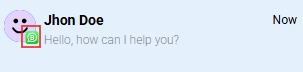
To help you quickly identify the source of the message, every WhatsApp conversation will display a small WhatsApp icon next to the customer's name or the conversation ID.
Replying to customers
You can reply to WhatsApp messages using the standard message composer at the bottom of the conversation view.
Text and Media: You can send text, images, videos, and documents exactly as you would on the WhatsApp mobile app.
Internal Notes: Use the "Note" tab to leave internal, private comments for your teammates. The customer will not see these notes.
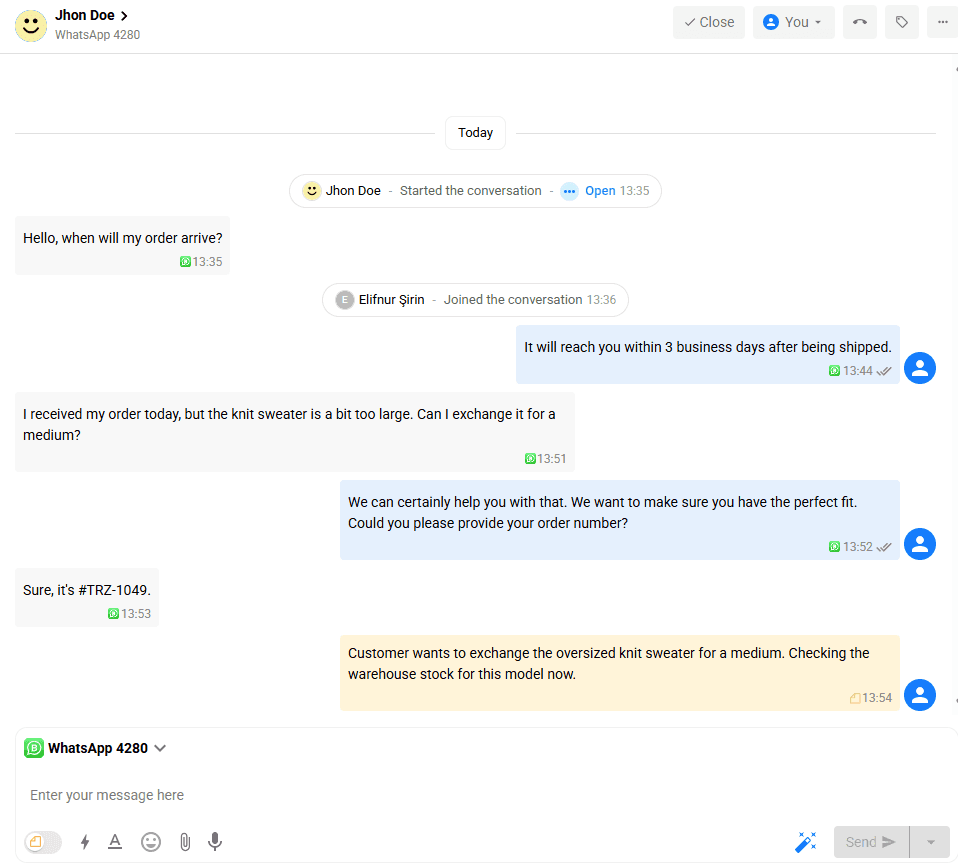
Canned Responses: Utilize your saved quick replies to answer frequently asked questions instantly.
(sohbetin üstünden 24 saat geçtikten sonra hem template gösterimi için ekran görüntüsü alınacak hem de 24 saat kısıtlamasını göstermek için)
The 24-Hour messaging rule in the Inbox
If you are using the WhatsApp Business API (via Meta or Gupshup), the standard 24-hour customer service window applies directly to your inbox composer.
Within 24 hours: As long as it has been less than 24 hours since the customer's last incoming message, the composer will be fully active, and you can type and send free-form messages normally.
After 24 hours: Once the 24-hour window expires, the standard message composer will be restricted. You will not be able to send regular text messages until the customer replies again.
To reach out to a customer after this window has closed, you must use a pre-approved template. You can select and send an approved template directly from the composer area to re-engage the customer.
Need to create a template? Check out our guide on Create WhatsApp Message Templates to learn how to prepare and submit your messages for Meta's approval.
Managing team assignment
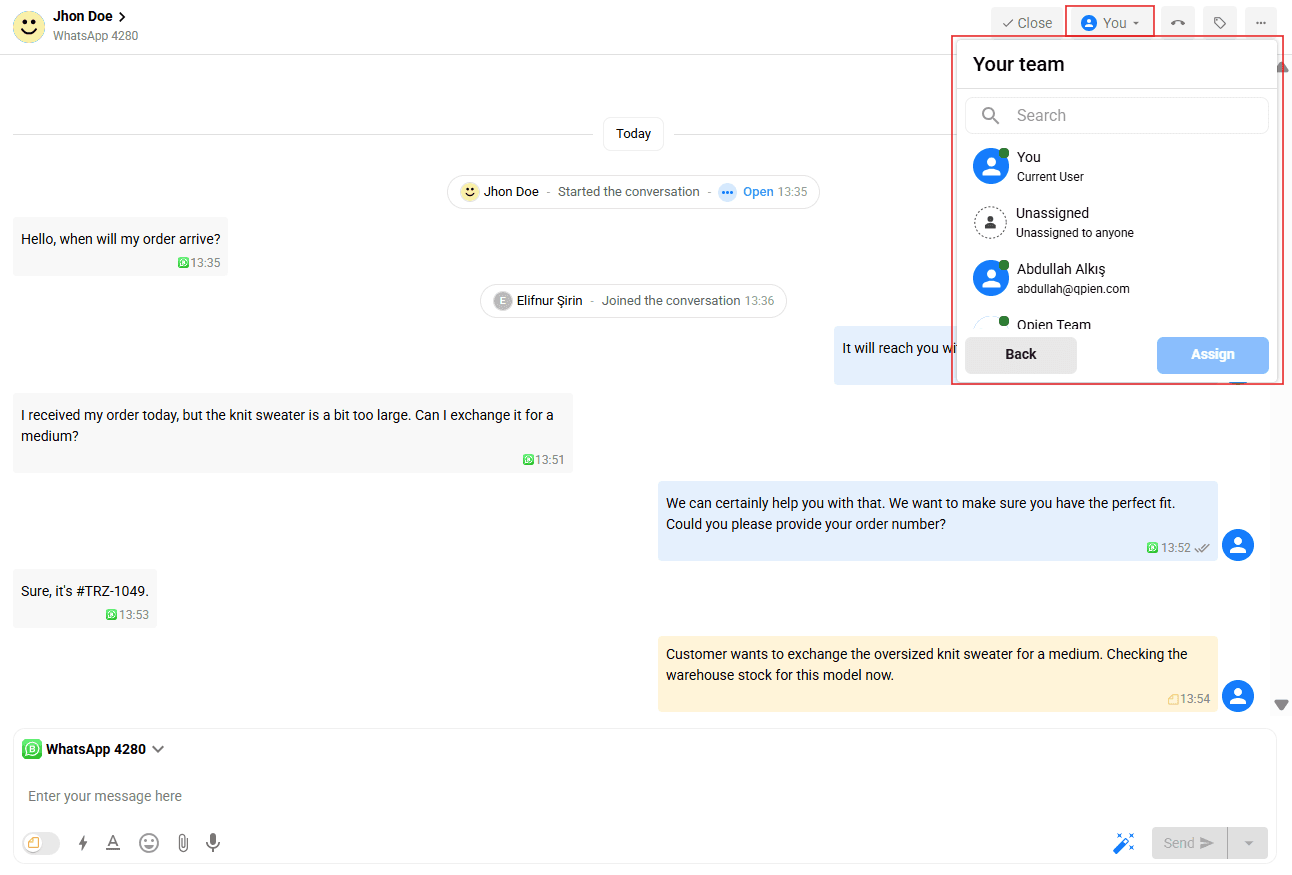
Conversations are automatically routed to the team you selected during the initial WhatsApp setup. Only members of that assigned team will see the incoming WhatsApp messages in their inbox. If you need to transfer a specific conversation to another department (e.g., from Support to Sales), you can manually reassign the conversation from the right-hand details panel.
Once you have connected your WhatsApp number to Qpien, all incoming messages from your customers will flow directly into your central inbox alongside your other channels. This allows your team to provide fast, seamless support without switching between apps.
Identifying WhatsApp conversations
When a customer sends a message via WhatsApp, it appears in your Qpien inbox just like a standard live chat or email.
To help you quickly identify the source of the message, every WhatsApp conversation will display a small WhatsApp icon next to the customer's name or the conversation ID.
Replying to customers
You can reply to WhatsApp messages using the standard message composer at the bottom of the conversation view.
Text and Media: You can send text, images, videos, and documents exactly as you would on the WhatsApp mobile app.
Internal Notes: Use the "Note" tab to leave internal, private comments for your teammates. The customer will not see these notes.
Canned Responses: Utilize your saved quick replies to answer frequently asked questions instantly.
(sohbetin üstünden 24 saat geçtikten sonra hem template gösterimi için ekran görüntüsü alınacak hem de 24 saat kısıtlamasını göstermek için)
The 24-Hour messaging rule in the Inbox
If you are using the WhatsApp Business API (via Meta or Gupshup), the standard 24-hour customer service window applies directly to your inbox composer.
Within 24 hours: As long as it has been less than 24 hours since the customer's last incoming message, the composer will be fully active, and you can type and send free-form messages normally.
After 24 hours: Once the 24-hour window expires, the standard message composer will be restricted. You will not be able to send regular text messages until the customer replies again.
To reach out to a customer after this window has closed, you must use a pre-approved template. You can select and send an approved template directly from the composer area to re-engage the customer.
Need to create a template? Check out our guide on Create WhatsApp Message Templates to learn how to prepare and submit your messages for Meta's approval.
Managing team assignment
Conversations are automatically routed to the team you selected during the initial WhatsApp setup. Only members of that assigned team will see the incoming WhatsApp messages in their inbox. If you need to transfer a specific conversation to another department (e.g., from Support to Sales), you can manually reassign the conversation from the right-hand details panel.
Once you have connected your WhatsApp number to Qpien, all incoming messages from your customers will flow directly into your central inbox alongside your other channels. This allows your team to provide fast, seamless support without switching between apps.
Identifying WhatsApp conversations
When a customer sends a message via WhatsApp, it appears in your Qpien inbox just like a standard live chat or email.
To help you quickly identify the source of the message, every WhatsApp conversation will display a small WhatsApp icon next to the customer's name or the conversation ID.
Replying to customers
You can reply to WhatsApp messages using the standard message composer at the bottom of the conversation view.
Text and Media: You can send text, images, videos, and documents exactly as you would on the WhatsApp mobile app.
Internal Notes: Use the "Note" tab to leave internal, private comments for your teammates. The customer will not see these notes.
Canned Responses: Utilize your saved quick replies to answer frequently asked questions instantly.
(sohbetin üstünden 24 saat geçtikten sonra hem template gösterimi için ekran görüntüsü alınacak hem de 24 saat kısıtlamasını göstermek için)
The 24-Hour messaging rule in the Inbox
If you are using the WhatsApp Business API (via Meta or Gupshup), the standard 24-hour customer service window applies directly to your inbox composer.
Within 24 hours: As long as it has been less than 24 hours since the customer's last incoming message, the composer will be fully active, and you can type and send free-form messages normally.
After 24 hours: Once the 24-hour window expires, the standard message composer will be restricted. You will not be able to send regular text messages until the customer replies again.
To reach out to a customer after this window has closed, you must use a pre-approved template. You can select and send an approved template directly from the composer area to re-engage the customer.
Need to create a template? Check out our guide on Create WhatsApp Message Templates to learn how to prepare and submit your messages for Meta's approval.
Managing team assignment
Conversations are automatically routed to the team you selected during the initial WhatsApp setup. Only members of that assigned team will see the incoming WhatsApp messages in their inbox. If you need to transfer a specific conversation to another department (e.g., from Support to Sales), you can manually reassign the conversation from the right-hand details panel.
Previous
Usage/ Seats
Next
Next
Exporting
Try Qpien free for 14 days! 🎉
Ready to take control of all your support channels?
Empower your customer interactions with Qpien! Boost sales and elevate satisfaction with every conversation.
Try Qpien free for 14 days! 🎉
Ready to take control of all your support channels?
Empower your customer interactions with Qpien! Boost sales and elevate satisfaction with every conversation.
Try Qpien free for 14 days! 🎉
Ready to take control of all your support channels?
Empower your customer interactions with Qpien! Boost sales and elevate satisfaction with every conversation.