
Channels
Use your WhatsApp channel in workflows
Learn how to automate your WhatsApp communications using Qpien's Flow Bots to send auto-replies and handle customer requests 24/7.
Automating your WhatsApp channel can drastically reduce your team's manual workload while providing immediate responses to your customers. With Qpien's Flow Bots, you can build custom, visual workflows to trigger automated replies, route conversations, or even let an AI assistant take over based on the specific keywords your customers send.
1. Accessing flow bots
To build a new automation for your WhatsApp channel, you will use the visual flow builder.
From the left-hand sidebar, click on Automation and select Flow Bots (or navigate directly to automation>flow-bots.
Click the blue
New Flow Botsbutton in the top right corner.Enter a clear Name for your automation (e.g., "WhatsApp Welcome Message") and click
Create.
2. Setting up the trigger
The trigger is the initial event that starts your workflow. For WhatsApp, this is usually an incoming message from a customer.
-> On the blank workflow canvas, click the + Add a trigger button inside the initial block.
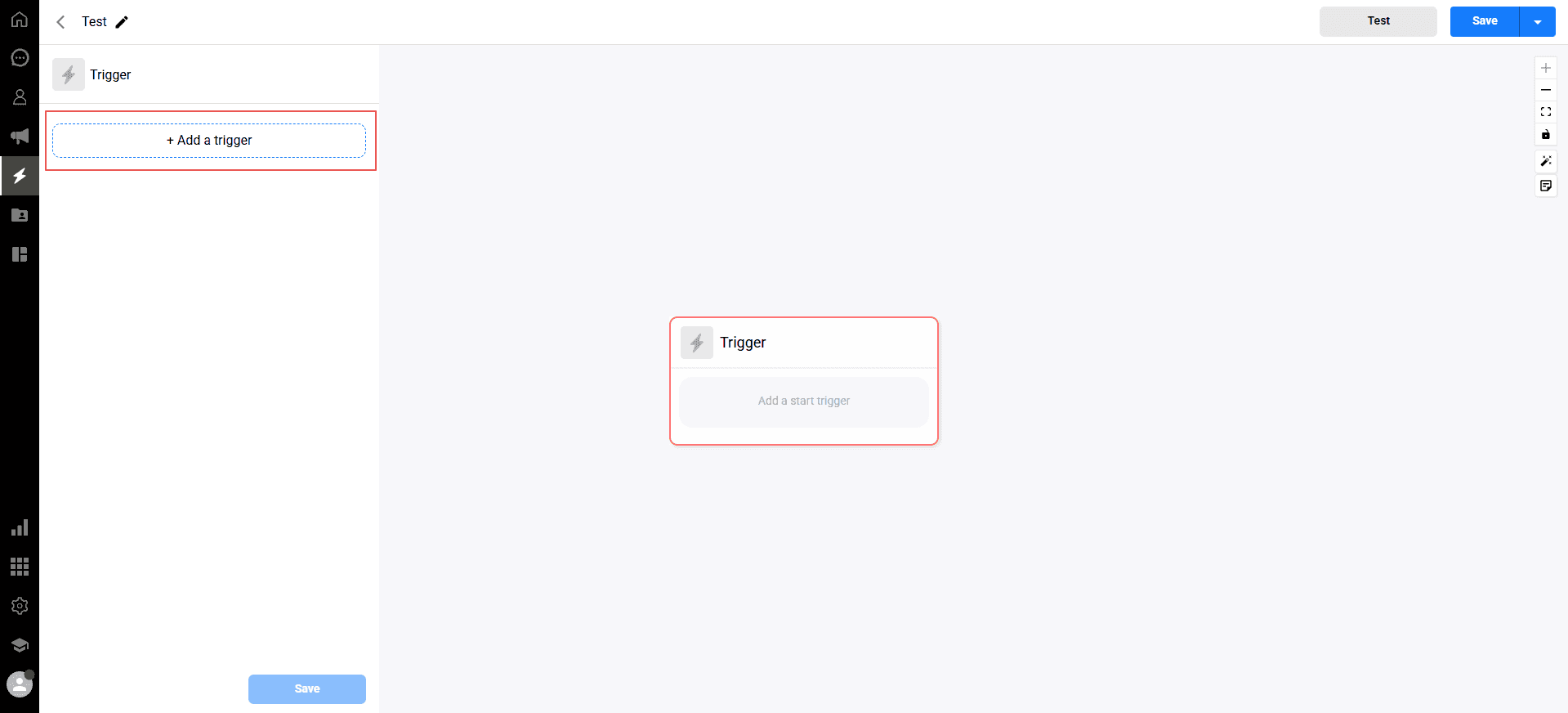
-> A menu will appear with different channel icons at the top. Select the appropriate channel:
Click the standard WhatsApp icon if you are routing a WhatsApp Web connection.
Click the WhatsApp Business (B) icon if you are routing a Meta API connection.
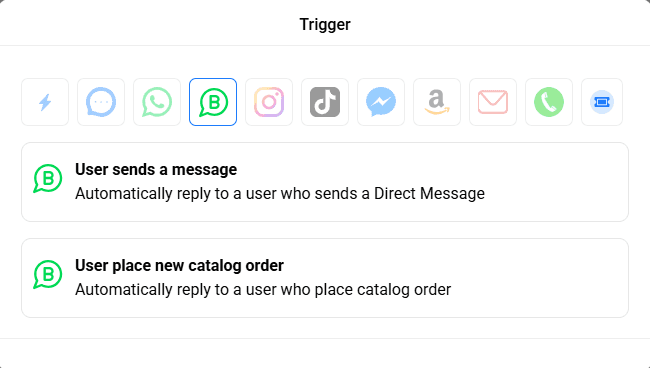
-> Select the trigger event. For most automations, choose User sends a message.
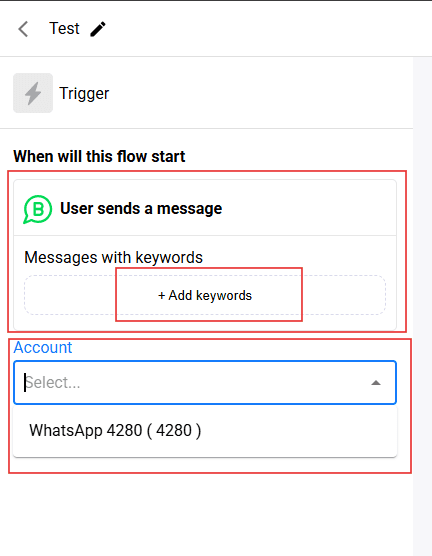
Define your trigger conditions. Click + Add keywords to specify how the bot should react. You can set it to trigger when a message "Has Any Value" (triggers for every message) or when it contains specific keywords (e.g., "shipping", "price").
In the setup panel, click the Account dropdown and select the specific WhatsApp phone number you want to connect to this flow.
3. Adding Actions
Once your trigger is defined, you need to tell the workflow what happens next.
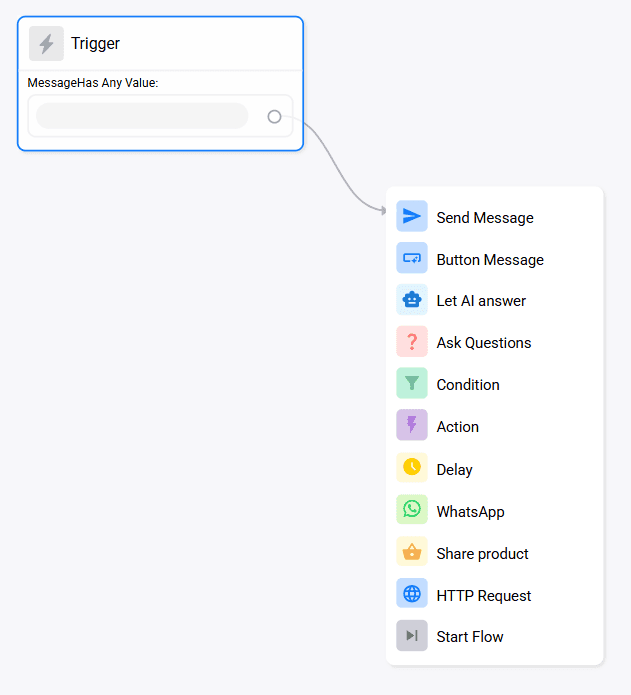
-> Click and drag the connector line from the small circle on your Trigger block.
-> An action menu will appear. You can choose from various steps to build your flow:
Send Message: Reply with a standard text or template message.
Button Message: Send a structured message containing interactive buttons.
Let AI answer: Route the customer's query to your trained AI assistant for a smart response.
Condition & Delay: Add logical splits or time delays before the next action occurs.
Continue dragging lines and adding actions to build out your complete customer journey. Once finished, ensure your Flow Bot is activated to start processing incoming WhatsApp messages.
Automating your WhatsApp channel can drastically reduce your team's manual workload while providing immediate responses to your customers. With Qpien's Flow Bots, you can build custom, visual workflows to trigger automated replies, route conversations, or even let an AI assistant take over based on the specific keywords your customers send.
1. Accessing flow bots
To build a new automation for your WhatsApp channel, you will use the visual flow builder.
From the left-hand sidebar, click on Automation and select Flow Bots (or navigate directly to automation>flow-bots.
Click the blue
New Flow Botsbutton in the top right corner.Enter a clear Name for your automation (e.g., "WhatsApp Welcome Message") and click
Create.
2. Setting up the trigger
The trigger is the initial event that starts your workflow. For WhatsApp, this is usually an incoming message from a customer.
-> On the blank workflow canvas, click the + Add a trigger button inside the initial block.
-> A menu will appear with different channel icons at the top. Select the appropriate channel:
Click the standard WhatsApp icon if you are routing a WhatsApp Web connection.
Click the WhatsApp Business (B) icon if you are routing a Meta API connection.
-> Select the trigger event. For most automations, choose User sends a message.
Define your trigger conditions. Click + Add keywords to specify how the bot should react. You can set it to trigger when a message "Has Any Value" (triggers for every message) or when it contains specific keywords (e.g., "shipping", "price").
In the setup panel, click the Account dropdown and select the specific WhatsApp phone number you want to connect to this flow.
3. Adding Actions
Once your trigger is defined, you need to tell the workflow what happens next.
-> Click and drag the connector line from the small circle on your Trigger block.
-> An action menu will appear. You can choose from various steps to build your flow:
Send Message: Reply with a standard text or template message.
Button Message: Send a structured message containing interactive buttons.
Let AI answer: Route the customer's query to your trained AI assistant for a smart response.
Condition & Delay: Add logical splits or time delays before the next action occurs.
Continue dragging lines and adding actions to build out your complete customer journey. Once finished, ensure your Flow Bot is activated to start processing incoming WhatsApp messages.
Automating your WhatsApp channel can drastically reduce your team's manual workload while providing immediate responses to your customers. With Qpien's Flow Bots, you can build custom, visual workflows to trigger automated replies, route conversations, or even let an AI assistant take over based on the specific keywords your customers send.
1. Accessing flow bots
To build a new automation for your WhatsApp channel, you will use the visual flow builder.
From the left-hand sidebar, click on Automation and select Flow Bots (or navigate directly to automation>flow-bots.
Click the blue
New Flow Botsbutton in the top right corner.Enter a clear Name for your automation (e.g., "WhatsApp Welcome Message") and click
Create.
2. Setting up the trigger
The trigger is the initial event that starts your workflow. For WhatsApp, this is usually an incoming message from a customer.
-> On the blank workflow canvas, click the + Add a trigger button inside the initial block.
-> A menu will appear with different channel icons at the top. Select the appropriate channel:
Click the standard WhatsApp icon if you are routing a WhatsApp Web connection.
Click the WhatsApp Business (B) icon if you are routing a Meta API connection.
-> Select the trigger event. For most automations, choose User sends a message.
Define your trigger conditions. Click + Add keywords to specify how the bot should react. You can set it to trigger when a message "Has Any Value" (triggers for every message) or when it contains specific keywords (e.g., "shipping", "price").
In the setup panel, click the Account dropdown and select the specific WhatsApp phone number you want to connect to this flow.
3. Adding Actions
Once your trigger is defined, you need to tell the workflow what happens next.
-> Click and drag the connector line from the small circle on your Trigger block.
-> An action menu will appear. You can choose from various steps to build your flow:
Send Message: Reply with a standard text or template message.
Button Message: Send a structured message containing interactive buttons.
Let AI answer: Route the customer's query to your trained AI assistant for a smart response.
Condition & Delay: Add logical splits or time delays before the next action occurs.
Continue dragging lines and adding actions to build out your complete customer journey. Once finished, ensure your Flow Bot is activated to start processing incoming WhatsApp messages.
Previous
Sign up and 14-day free trial
Next
Next
Performance Reports
Try Qpien free for 14 days! 🎉
Ready to take control of all your support channels?
Empower your customer interactions with Qpien! Boost sales and elevate satisfaction with every conversation.
Try Qpien free for 14 days! 🎉
Ready to take control of all your support channels?
Empower your customer interactions with Qpien! Boost sales and elevate satisfaction with every conversation.
Try Qpien free for 14 days! 🎉
Ready to take control of all your support channels?
Empower your customer interactions with Qpien! Boost sales and elevate satisfaction with every conversation.