
Channels
Start a new WhatsApp conversation
Learn how to proactively reach out to your customers and initiate a new WhatsApp chat from the Qpien inbox.
Starting a new conversation (outbound messaging) allows you to reach out to customers first. How this process works depends entirely on the type of WhatsApp connection you have established in Qpien: standard WhatsApp Web or the Meta WhatsApp Business API.
Understanding connection rules
Before sending a message, it is crucial to understand the rules of your connected channel:
WhatsApp Web (Standard): If you are using a standard WhatsApp Web connection, there are no limits or restrictions on sending messages; you can send a direct message to anyone. You can type whatever you want freely.
WhatsApp Business API (Meta/Gupshup): If you are using the official API, you cannot send normal messages directly to someone. You can only start a chat using a pre-approved template message.
Need a template? If you are using the Business API and need to create a message, check our guide on Create WhatsApp Message Templates before proceeding.
How to initiate the conversation
You can start a new WhatsApp chat directly from your inbox by following these exact steps:
-> Go to your Qpien Inbox.
At the top of the left-hand sidebar, click the
Create newbutton (pencil icon).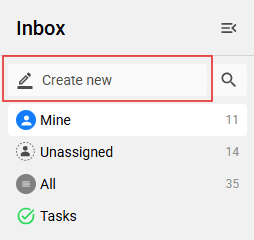
A dropdown menu will appear. Select
Whatsapp Messagefrom the list.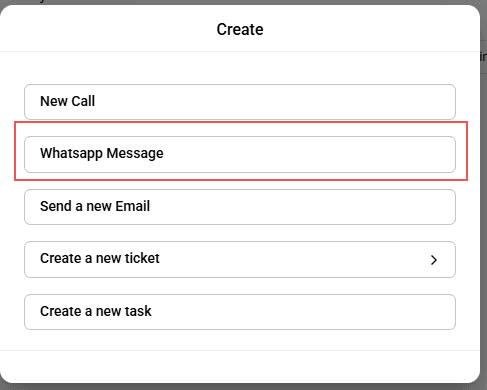
-> The Whatsapp Message setup window will open on your screen.
In the From field, select the specific WhatsApp channel (your business number) you want to use for this message.
In the To field, search for and select the customer you want to contact.
If the customer is not in your system yet, click the blue "+" button next to the field to add their name and phone number.
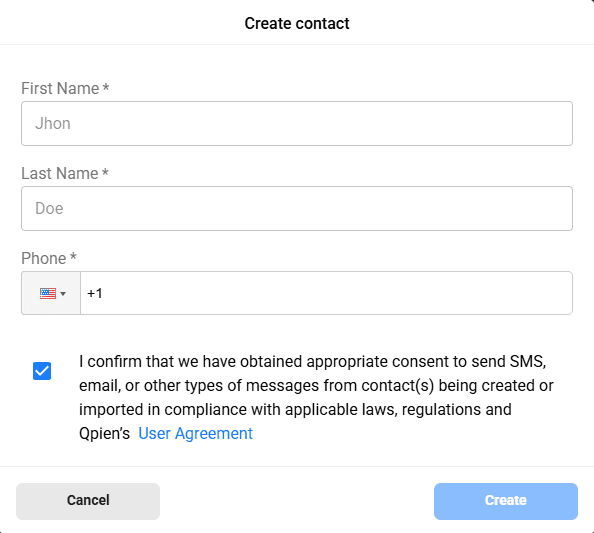
Enter your message:
If your selected channel is a standard WhatsApp Web connection, you can simply type your free-form message here.
If your selected channel is a WhatsApp Business API connection, you must select one of your pre-approved templates from the dropdown menu.
Click
Submitto send the message and open the conversation.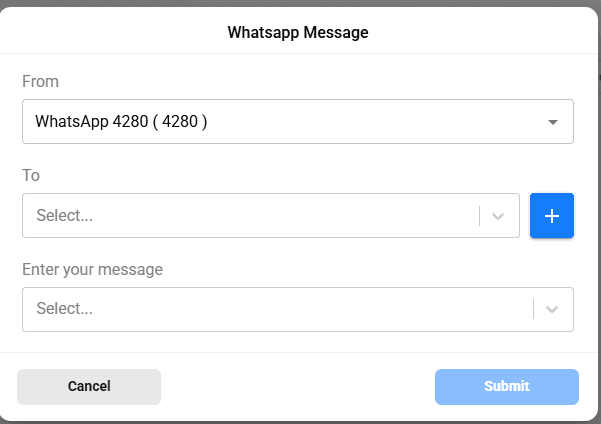
Once the message is sent, the conversation will appear in your inbox, and you can manage any incoming replies from the customer there.
Starting a new conversation (outbound messaging) allows you to reach out to customers first. How this process works depends entirely on the type of WhatsApp connection you have established in Qpien: standard WhatsApp Web or the Meta WhatsApp Business API.
Understanding connection rules
Before sending a message, it is crucial to understand the rules of your connected channel:
WhatsApp Web (Standard): If you are using a standard WhatsApp Web connection, there are no limits or restrictions on sending messages; you can send a direct message to anyone. You can type whatever you want freely.
WhatsApp Business API (Meta/Gupshup): If you are using the official API, you cannot send normal messages directly to someone. You can only start a chat using a pre-approved template message.
Need a template? If you are using the Business API and need to create a message, check our guide on Create WhatsApp Message Templates before proceeding.
How to initiate the conversation
You can start a new WhatsApp chat directly from your inbox by following these exact steps:
-> Go to your Qpien Inbox.
At the top of the left-hand sidebar, click the
Create newbutton (pencil icon).A dropdown menu will appear. Select
Whatsapp Messagefrom the list.
-> The Whatsapp Message setup window will open on your screen.
In the From field, select the specific WhatsApp channel (your business number) you want to use for this message.
In the To field, search for and select the customer you want to contact.
If the customer is not in your system yet, click the blue "+" button next to the field to add their name and phone number.
Enter your message:
If your selected channel is a standard WhatsApp Web connection, you can simply type your free-form message here.
If your selected channel is a WhatsApp Business API connection, you must select one of your pre-approved templates from the dropdown menu.
Click
Submitto send the message and open the conversation.
Once the message is sent, the conversation will appear in your inbox, and you can manage any incoming replies from the customer there.
Starting a new conversation (outbound messaging) allows you to reach out to customers first. How this process works depends entirely on the type of WhatsApp connection you have established in Qpien: standard WhatsApp Web or the Meta WhatsApp Business API.
Understanding connection rules
Before sending a message, it is crucial to understand the rules of your connected channel:
WhatsApp Web (Standard): If you are using a standard WhatsApp Web connection, there are no limits or restrictions on sending messages; you can send a direct message to anyone. You can type whatever you want freely.
WhatsApp Business API (Meta/Gupshup): If you are using the official API, you cannot send normal messages directly to someone. You can only start a chat using a pre-approved template message.
Need a template? If you are using the Business API and need to create a message, check our guide on Create WhatsApp Message Templates before proceeding.
How to initiate the conversation
You can start a new WhatsApp chat directly from your inbox by following these exact steps:
-> Go to your Qpien Inbox.
At the top of the left-hand sidebar, click the
Create newbutton (pencil icon).A dropdown menu will appear. Select
Whatsapp Messagefrom the list.
-> The Whatsapp Message setup window will open on your screen.
In the From field, select the specific WhatsApp channel (your business number) you want to use for this message.
In the To field, search for and select the customer you want to contact.
If the customer is not in your system yet, click the blue "+" button next to the field to add their name and phone number.
Enter your message:
If your selected channel is a standard WhatsApp Web connection, you can simply type your free-form message here.
If your selected channel is a WhatsApp Business API connection, you must select one of your pre-approved templates from the dropdown menu.
Click
Submitto send the message and open the conversation.
Once the message is sent, the conversation will appear in your inbox, and you can manage any incoming replies from the customer there.
Previous
Understand how billing works for a monthly or annual subscription
Next
Next
Import
Try Qpien free for 14 days! 🎉
Ready to take control of all your support channels?
Empower your customer interactions with Qpien! Boost sales and elevate satisfaction with every conversation.
Try Qpien free for 14 days! 🎉
Ready to take control of all your support channels?
Empower your customer interactions with Qpien! Boost sales and elevate satisfaction with every conversation.
Try Qpien free for 14 days! 🎉
Ready to take control of all your support channels?
Empower your customer interactions with Qpien! Boost sales and elevate satisfaction with every conversation.