
Channels
Connect your Whatsapp channel
Learn how to connect your WhatsApp numbers to Qpien to manage your customer messaging from a single smart inbox.
Qpien offers different WhatsApp connection methods depending on your business needs. You can choose the standard WhatsApp Web method for quick setup, or connect via the WhatsApp Business API (through Meta or our partner Gupshup) for advanced features like templates and bulk automations.
In this article:
Before you begin
Connect via WhatsApp Web (Standard)
Connect via Meta WhatsApp Business API
Connect via Gupshup Partner API
Business API: The 24-Hour Rule
Before you begin (Important)
If you plan to connect your number to the WhatsApp Business API (via Meta or Gupshup), and this number is currently active on the standard WhatsApp or WhatsApp Business mobile app, you must delete that account first.
To do this, open the app on your mobile device and navigate to Settings > Account > Delete Account. Once the account is completely deleted from the mobile app, the number is freed up and ready to be connected to the API without any conflicts.
Connect via WhatsApp Web (Standard)
Connecting your standard WhatsApp number is a quick, QR-code-based process, functioning similarly to logging into WhatsApp Web on your browser.
-> From your Qpien dashboard, go to Channels>Messaging>Whatsapp and click the New Account button in the upper right corner.
Enter a Name for the connection. This name will only be visible internally on Qpien.
Enter the Phone number, ensuring you include the correct country code (e.g., +90).
Determine your Device online status. We recommend selecting "Show Status" to appear online for standard support. However, if you plan to send bulk messages, you may prefer "Hide Status".
From the Team dropdown menu, select the team that should have access to these conversations. Only members of the selected team will view messages directed to this number.
Click the
Connectbutton at the bottom right of the form.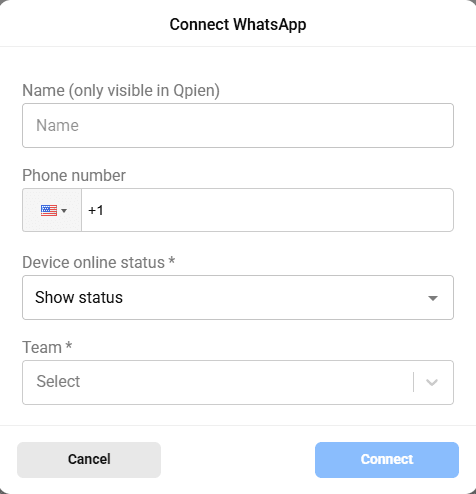
A QR code will appear on your screen.
-> Open the WhatsApp app on your phone, tap the three dots in the top right corner, and select Linked Devices > Link a Device.
Scan the QR code on your computer screen with your phone's camera to complete the connection.
Important Considerations & Risks:
The connection will fail if the phone number entered in the Qpien form does not match the phone number scanning the QR code.
The QR code should disappear within 10-20 seconds after scanning. If it remains on the screen for more than a minute, refresh the page and try again.
While there are no restrictions on sending direct messages to customers via the standard connection, exceeding WhatsApp's limits during bulk messaging can result in your phone number being banned. If this happens, you must email WhatsApp support via Settings > Help > Contact Us in the mobile app to unblock your number.
Or you can contact via WhatsApp
Connect via Meta WhatsApp Business API
When connecting directly through Meta, your business must add a credit card to Meta to cover template messaging fees; Qpien does not deduct these charges from your system balance.
-> Go to Channels>Messaging>Meta Whatsapp Business API and proceed to create a New Account.
Enter the display name and assign the authorized team, then click
Nextat the bottom of the form.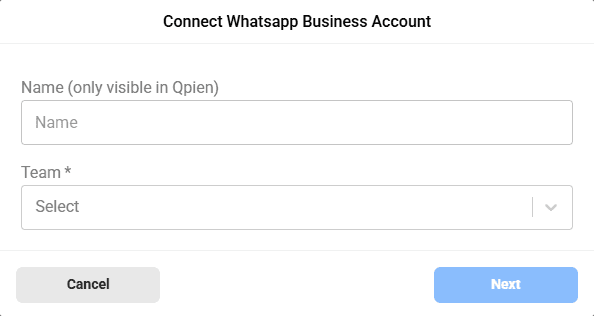
-> You will be securely redirected to Meta's configuration interface.
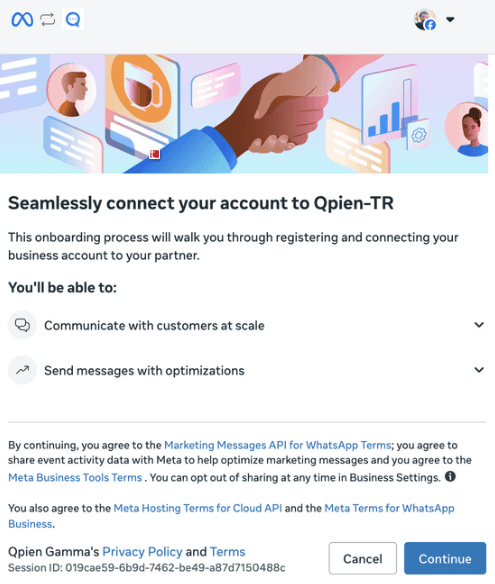
-> Log in with a Facebook account that has Admin privileges.
Select your Business portfolio. If you have never added a number before, click
Create a WhatsApp Business accountand proceed.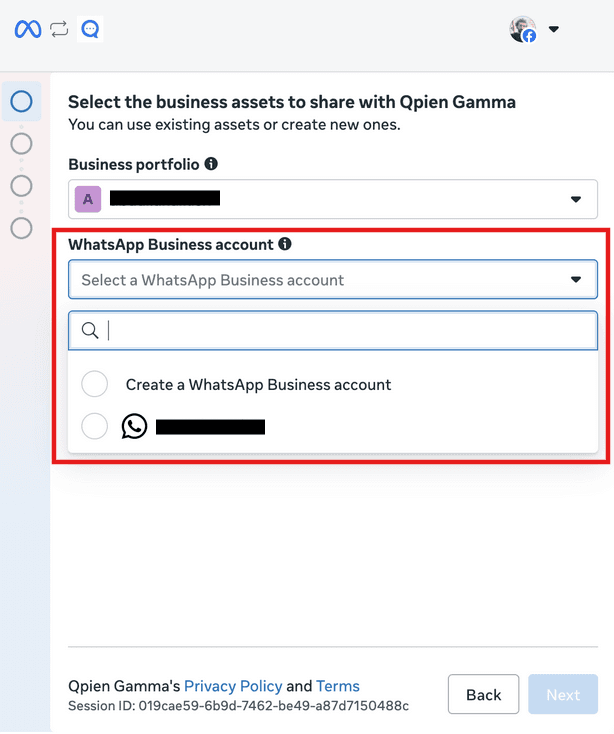
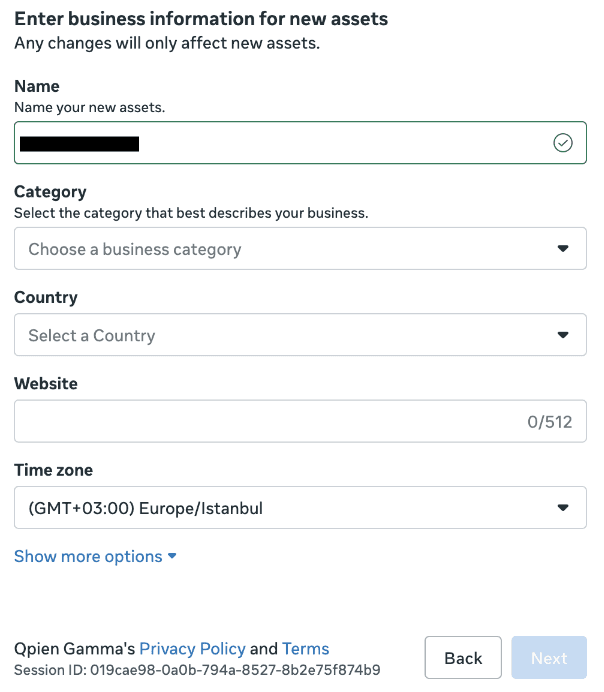
Enter your business profile details, including the business name, category, country, and timezone (e.g., Europe/Istanbul).
When assigning a phone number, you have two options:
Use a display name only: If you do not have a physical phone number to connect, select this option. Meta will generate a dummy virtual number for you to send and receive messages.
Add a new number: Select this option if you want to use your own specific phone number.
After entering your number, choose a verification method: Text message (SMS) or Phone call.
Enter the verification code and click
Next.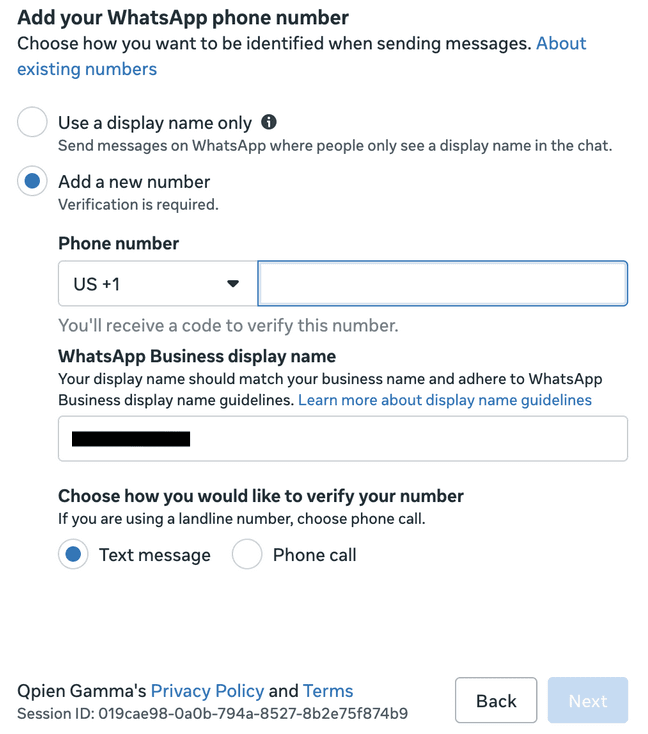
Your number is now connected to Qpien, and you can start messaging.
Connect via Gupshup Partner API
Gupshup is an official third-party Meta partner. The primary advantage over the direct Meta setup is the billing structure: you do not need to add a credit card to Meta for template messages. All template charges are deducted directly from your Qpien account balance.
-> Go to Channels>Messaging>Whatsapp Business API.
Click
New Accountand fill in the Display Name, Phone Number, and Team assignment.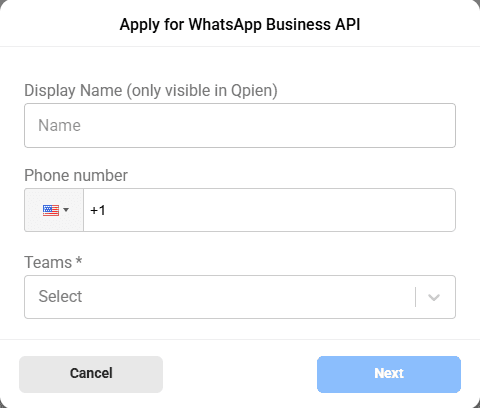
Connecting via a partner requires a manual process. You must contact our customer support team with the details you just entered to request a new WhatsApp account opening on the Gupshup panel.
Once the status in your setup form changes from Pending approval to approved, your messages will begin routing to Qpien.
Business API: The 24-Hour Rule
When using the WhatsApp Business API (via Meta or Gupshup), strict messaging rules apply:
The 24-Hour Customer Window: When a customer sends a message to your Business account, a 24-hour window opens. During this time, you can send unlimited, free-form messages. Every new message from the customer resets this 24-hour timer.
Expired Windows & Templates: Once the 24 hours have passed since the customer's last message, you can no longer send standard free-form messages. Similarly, you cannot send a standard message to a customer who has never contacted you before. To initiate or resume a conversation outside this window, you must use paid, pre-approved "Template" messages.
To learn how to create, format, and get approval for these required messages, check out our guide on Create WhatsApp Message Templates
Qpien offers different WhatsApp connection methods depending on your business needs. You can choose the standard WhatsApp Web method for quick setup, or connect via the WhatsApp Business API (through Meta or our partner Gupshup) for advanced features like templates and bulk automations.
In this article:
Before you begin
Connect via WhatsApp Web (Standard)
Connect via Meta WhatsApp Business API
Connect via Gupshup Partner API
Business API: The 24-Hour Rule
Before you begin (Important)
If you plan to connect your number to the WhatsApp Business API (via Meta or Gupshup), and this number is currently active on the standard WhatsApp or WhatsApp Business mobile app, you must delete that account first.
To do this, open the app on your mobile device and navigate to Settings > Account > Delete Account. Once the account is completely deleted from the mobile app, the number is freed up and ready to be connected to the API without any conflicts.
Connect via WhatsApp Web (Standard)
Connecting your standard WhatsApp number is a quick, QR-code-based process, functioning similarly to logging into WhatsApp Web on your browser.
-> From your Qpien dashboard, go to Channels>Messaging>Whatsapp and click the New Account button in the upper right corner.
Enter a Name for the connection. This name will only be visible internally on Qpien.
Enter the Phone number, ensuring you include the correct country code (e.g., +90).
Determine your Device online status. We recommend selecting "Show Status" to appear online for standard support. However, if you plan to send bulk messages, you may prefer "Hide Status".
From the Team dropdown menu, select the team that should have access to these conversations. Only members of the selected team will view messages directed to this number.
Click the
Connectbutton at the bottom right of the form.
A QR code will appear on your screen.
-> Open the WhatsApp app on your phone, tap the three dots in the top right corner, and select Linked Devices > Link a Device.
Scan the QR code on your computer screen with your phone's camera to complete the connection.
Important Considerations & Risks:
The connection will fail if the phone number entered in the Qpien form does not match the phone number scanning the QR code.
The QR code should disappear within 10-20 seconds after scanning. If it remains on the screen for more than a minute, refresh the page and try again.
While there are no restrictions on sending direct messages to customers via the standard connection, exceeding WhatsApp's limits during bulk messaging can result in your phone number being banned. If this happens, you must email WhatsApp support via Settings > Help > Contact Us in the mobile app to unblock your number.
Or you can contact via WhatsApp
Connect via Meta WhatsApp Business API
When connecting directly through Meta, your business must add a credit card to Meta to cover template messaging fees; Qpien does not deduct these charges from your system balance.
-> Go to Channels>Messaging>Meta Whatsapp Business API and proceed to create a New Account.
Enter the display name and assign the authorized team, then click
Nextat the bottom of the form.
-> You will be securely redirected to Meta's configuration interface.
-> Log in with a Facebook account that has Admin privileges.
Select your Business portfolio. If you have never added a number before, click
Create a WhatsApp Business accountand proceed.
Enter your business profile details, including the business name, category, country, and timezone (e.g., Europe/Istanbul).
When assigning a phone number, you have two options:
Use a display name only: If you do not have a physical phone number to connect, select this option. Meta will generate a dummy virtual number for you to send and receive messages.
Add a new number: Select this option if you want to use your own specific phone number.
After entering your number, choose a verification method: Text message (SMS) or Phone call.
Enter the verification code and click
Next.
Your number is now connected to Qpien, and you can start messaging.
Connect via Gupshup Partner API
Gupshup is an official third-party Meta partner. The primary advantage over the direct Meta setup is the billing structure: you do not need to add a credit card to Meta for template messages. All template charges are deducted directly from your Qpien account balance.
-> Go to Channels>Messaging>Whatsapp Business API.
Click
New Accountand fill in the Display Name, Phone Number, and Team assignment.Connecting via a partner requires a manual process. You must contact our customer support team with the details you just entered to request a new WhatsApp account opening on the Gupshup panel.
Once the status in your setup form changes from Pending approval to approved, your messages will begin routing to Qpien.
Business API: The 24-Hour Rule
When using the WhatsApp Business API (via Meta or Gupshup), strict messaging rules apply:
The 24-Hour Customer Window: When a customer sends a message to your Business account, a 24-hour window opens. During this time, you can send unlimited, free-form messages. Every new message from the customer resets this 24-hour timer.
Expired Windows & Templates: Once the 24 hours have passed since the customer's last message, you can no longer send standard free-form messages. Similarly, you cannot send a standard message to a customer who has never contacted you before. To initiate or resume a conversation outside this window, you must use paid, pre-approved "Template" messages.
To learn how to create, format, and get approval for these required messages, check out our guide on Create WhatsApp Message Templates
Qpien offers different WhatsApp connection methods depending on your business needs. You can choose the standard WhatsApp Web method for quick setup, or connect via the WhatsApp Business API (through Meta or our partner Gupshup) for advanced features like templates and bulk automations.
In this article:
Before you begin
Connect via WhatsApp Web (Standard)
Connect via Meta WhatsApp Business API
Connect via Gupshup Partner API
Business API: The 24-Hour Rule
Before you begin (Important)
If you plan to connect your number to the WhatsApp Business API (via Meta or Gupshup), and this number is currently active on the standard WhatsApp or WhatsApp Business mobile app, you must delete that account first.
To do this, open the app on your mobile device and navigate to Settings > Account > Delete Account. Once the account is completely deleted from the mobile app, the number is freed up and ready to be connected to the API without any conflicts.
Connect via WhatsApp Web (Standard)
Connecting your standard WhatsApp number is a quick, QR-code-based process, functioning similarly to logging into WhatsApp Web on your browser.
-> From your Qpien dashboard, go to Channels>Messaging>Whatsapp and click the New Account button in the upper right corner.
Enter a Name for the connection. This name will only be visible internally on Qpien.
Enter the Phone number, ensuring you include the correct country code (e.g., +90).
Determine your Device online status. We recommend selecting "Show Status" to appear online for standard support. However, if you plan to send bulk messages, you may prefer "Hide Status".
From the Team dropdown menu, select the team that should have access to these conversations. Only members of the selected team will view messages directed to this number.
Click the
Connectbutton at the bottom right of the form.
A QR code will appear on your screen.
-> Open the WhatsApp app on your phone, tap the three dots in the top right corner, and select Linked Devices > Link a Device.
Scan the QR code on your computer screen with your phone's camera to complete the connection.
Important Considerations & Risks:
The connection will fail if the phone number entered in the Qpien form does not match the phone number scanning the QR code.
The QR code should disappear within 10-20 seconds after scanning. If it remains on the screen for more than a minute, refresh the page and try again.
While there are no restrictions on sending direct messages to customers via the standard connection, exceeding WhatsApp's limits during bulk messaging can result in your phone number being banned. If this happens, you must email WhatsApp support via Settings > Help > Contact Us in the mobile app to unblock your number.
Or you can contact via WhatsApp
Connect via Meta WhatsApp Business API
When connecting directly through Meta, your business must add a credit card to Meta to cover template messaging fees; Qpien does not deduct these charges from your system balance.
-> Go to Channels>Messaging>Meta Whatsapp Business API and proceed to create a New Account.
Enter the display name and assign the authorized team, then click
Nextat the bottom of the form.
-> You will be securely redirected to Meta's configuration interface.
-> Log in with a Facebook account that has Admin privileges.
Select your Business portfolio. If you have never added a number before, click
Create a WhatsApp Business accountand proceed.
Enter your business profile details, including the business name, category, country, and timezone (e.g., Europe/Istanbul).
When assigning a phone number, you have two options:
Use a display name only: If you do not have a physical phone number to connect, select this option. Meta will generate a dummy virtual number for you to send and receive messages.
Add a new number: Select this option if you want to use your own specific phone number.
After entering your number, choose a verification method: Text message (SMS) or Phone call.
Enter the verification code and click
Next.
Your number is now connected to Qpien, and you can start messaging.
Connect via Gupshup Partner API
Gupshup is an official third-party Meta partner. The primary advantage over the direct Meta setup is the billing structure: you do not need to add a credit card to Meta for template messages. All template charges are deducted directly from your Qpien account balance.
-> Go to Channels>Messaging>Whatsapp Business API.
Click
New Accountand fill in the Display Name, Phone Number, and Team assignment.Connecting via a partner requires a manual process. You must contact our customer support team with the details you just entered to request a new WhatsApp account opening on the Gupshup panel.
Once the status in your setup form changes from Pending approval to approved, your messages will begin routing to Qpien.
Business API: The 24-Hour Rule
When using the WhatsApp Business API (via Meta or Gupshup), strict messaging rules apply:
The 24-Hour Customer Window: When a customer sends a message to your Business account, a 24-hour window opens. During this time, you can send unlimited, free-form messages. Every new message from the customer resets this 24-hour timer.
Expired Windows & Templates: Once the 24 hours have passed since the customer's last message, you can no longer send standard free-form messages. Similarly, you cannot send a standard message to a customer who has never contacted you before. To initiate or resume a conversation outside this window, you must use paid, pre-approved "Template" messages.
To learn how to create, format, and get approval for these required messages, check out our guide on Create WhatsApp Message Templates
Previous
Zoho CRM integration
Next
Next
Qpien phone explained
Try Qpien free for 14 days! 🎉
Ready to take control of all your support channels?
Empower your customer interactions with Qpien! Boost sales and elevate satisfaction with every conversation.
Try Qpien free for 14 days! 🎉
Ready to take control of all your support channels?
Empower your customer interactions with Qpien! Boost sales and elevate satisfaction with every conversation.
Try Qpien free for 14 days! 🎉
Ready to take control of all your support channels?
Empower your customer interactions with Qpien! Boost sales and elevate satisfaction with every conversation.