
Plans & Pricing
Usage/ Seats
Learn how Qpien calculates user seats, how billing works for new team members, and how to archive users to free up seats for others.
In this article:
What is a user seat?
What is an AI Assistant seat and other Add-ons?
How seat billing works
Adding a new user
Archiving users and reassigning seats
What is a user seat?
A "seat" in Qpien represents a single license that allows one team member to log into and use your workspace. The total number of seats you need depends on how many representatives, managers, or admins will be actively managing conversations or configuring your Qpien account.
What is an AI Assistant seat and other Add-ons?
In addition to standard user seats, Qpien provides an AI Assistant feature to empower your team's productivity. Access to this feature is managed on an individual basis. As an admin, you can grant or revoke the "Can access AI assistant" permission for any team member from the Users dashboard. Allocating an AI seat to a user allows them to utilize Qpien's smart response and summarization tools directly within their active conversations.
Enrich your plan with even more features. You can add add-ons to any plan and remove them at any time to suit your team's changing needs:
AI Assistant: A premium add-on priced at $29 per user/month. It classifies, summarizes, and translates chats while offering response suggestions to help agents work faster.
AI Agent: An add-on that completely automates responses, priced at $0.05 per response.
AI Analytics: An add-on for deep conversation analysis, priced at $39 per user/month.
How seat billing works
Your base subscription plan determines your initial cost per user. When you expand your team and buy an additional user seat, the billing for that new seat perfectly matches your workspace's current subscription period. For example, if your workspace is on an annual billing cycle, the new seat will also be billed annually. If you are on a monthly cycle, the new seat is billed monthly.
Adding a new user
You can easily invite new colleagues to join your workspace to help manage your customer communications.
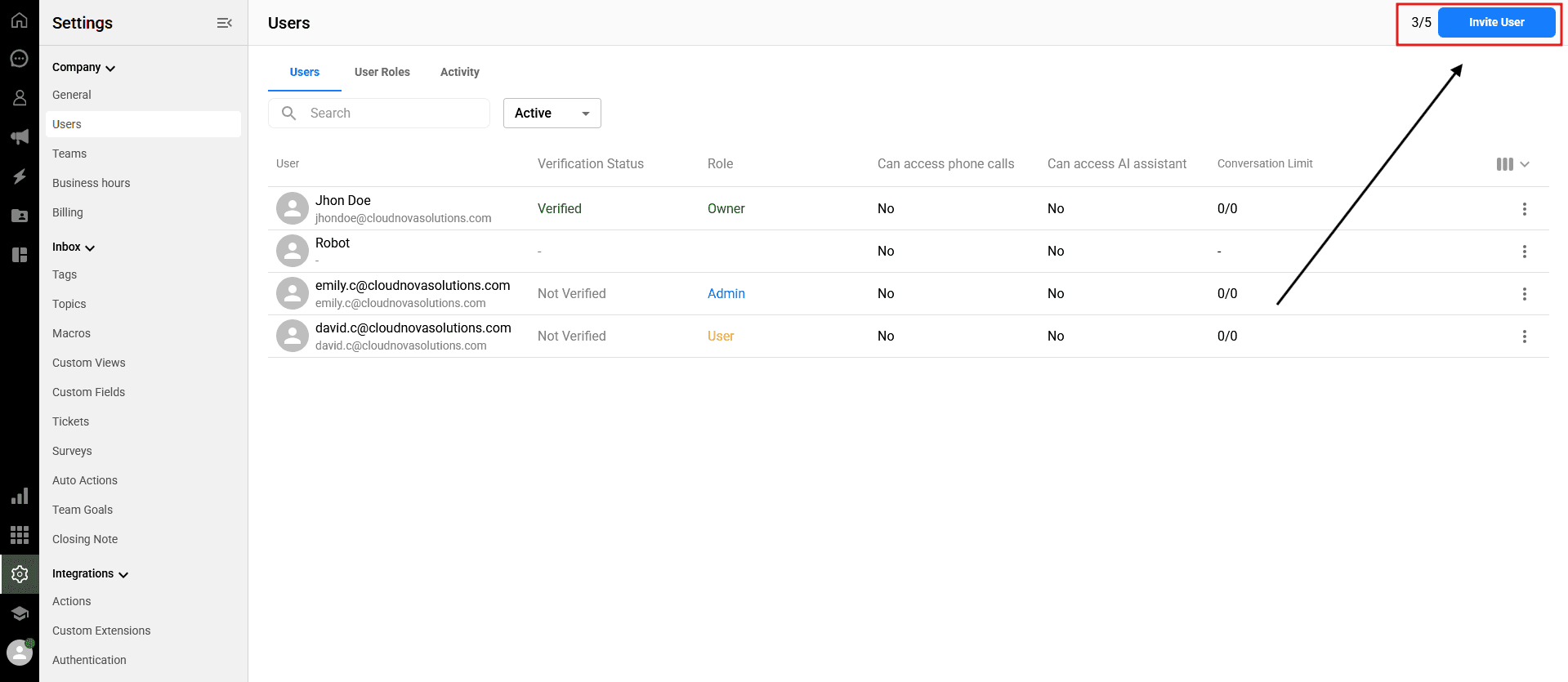
-> Navigate to Settings > Company > Users from the left sidebar.
Click the blue Invite User button located in the top right corner of the screen.
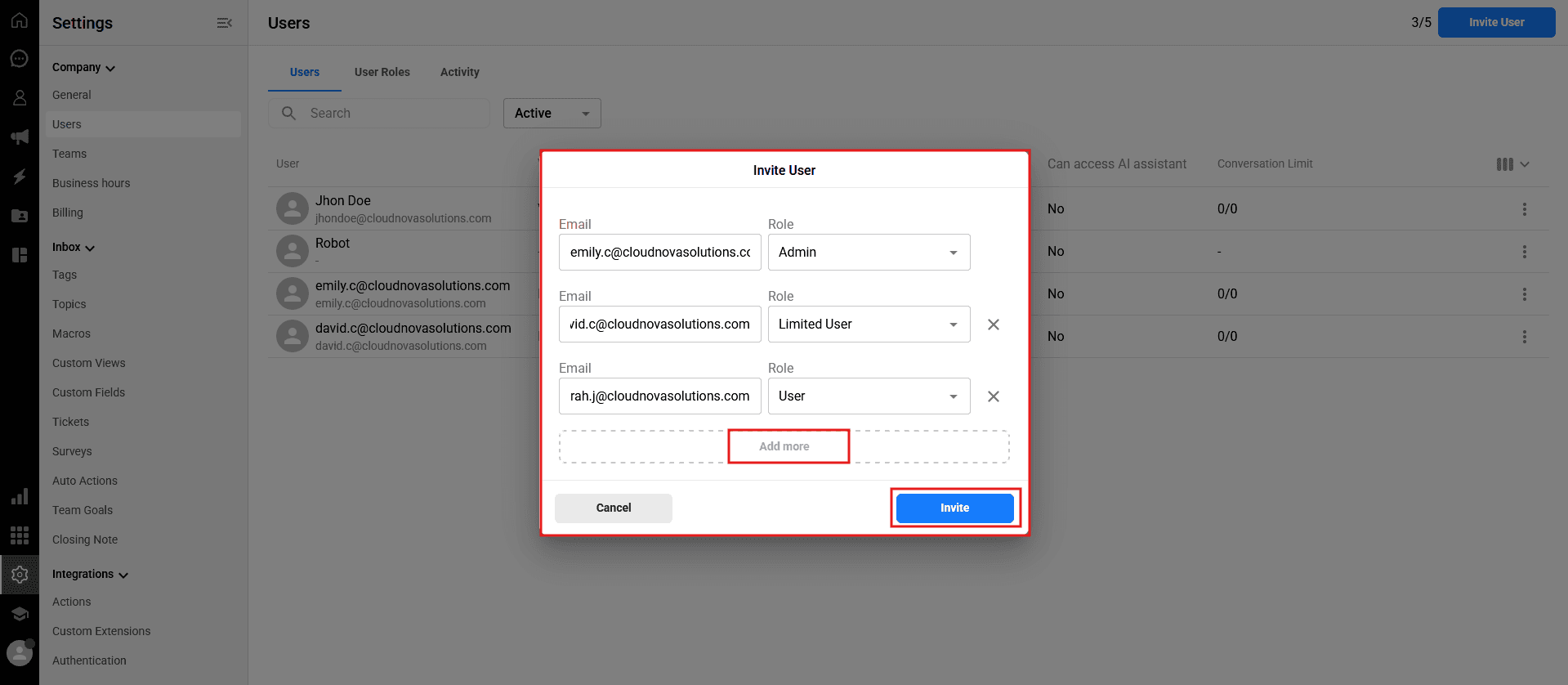
Once invited, the user will receive an email to verify their account and join your team.
Archiving users and reassigning seats
When a team member changes roles or leaves the company, you can quickly remove their access without losing the seat you paid for.
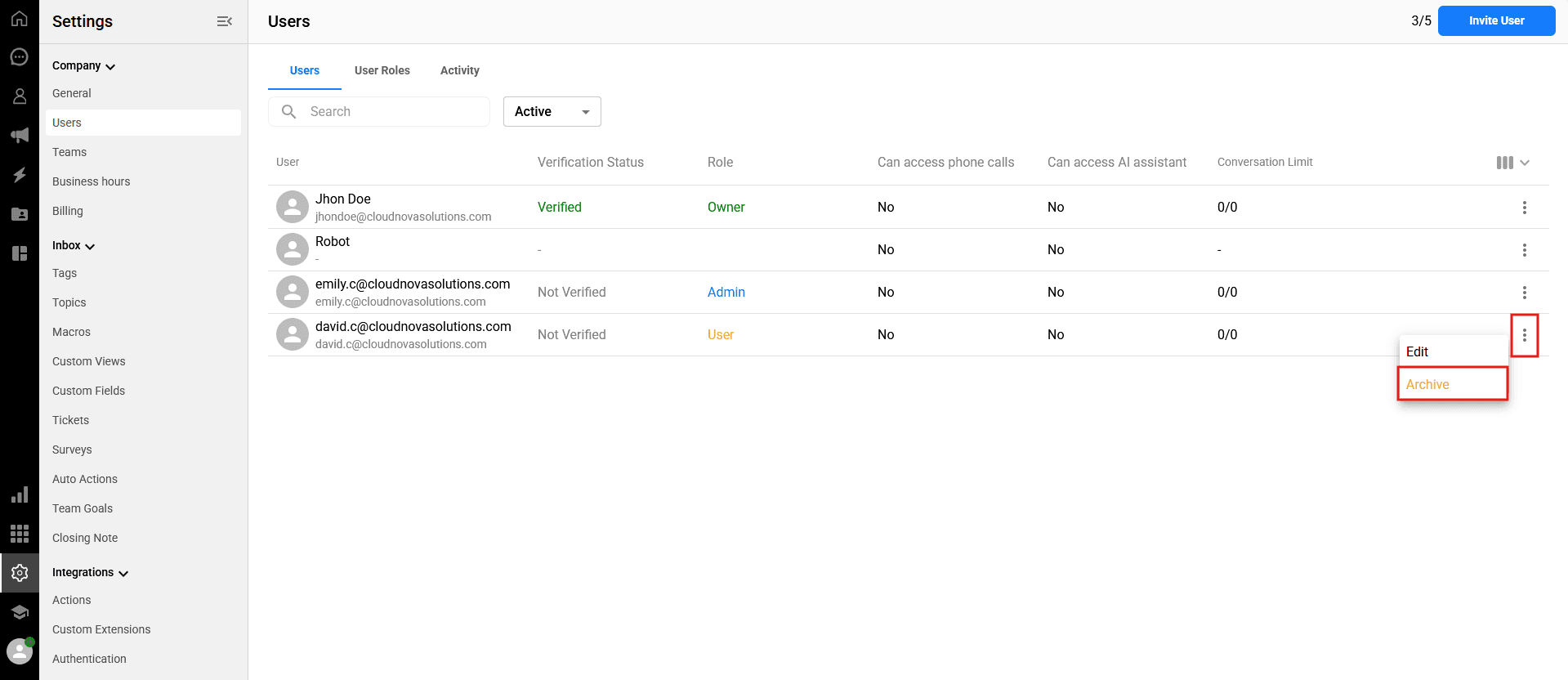
-> Go to Settings > Company > Users.
Locate the team member you want to remove, click the three-dot menu icon on the far right of their row, and select Archive.
What happens when you archive a user?
The archived user instantly loses the ability to log into your Qpien workspace.
The seat previously occupied by that user becomes empty and available.
You can invite a brand-new user to fill that empty seat immediately, completely free of any additional charges.
In this article:
What is a user seat?
What is an AI Assistant seat and other Add-ons?
How seat billing works
Adding a new user
Archiving users and reassigning seats
What is a user seat?
A "seat" in Qpien represents a single license that allows one team member to log into and use your workspace. The total number of seats you need depends on how many representatives, managers, or admins will be actively managing conversations or configuring your Qpien account.
What is an AI Assistant seat and other Add-ons?
In addition to standard user seats, Qpien provides an AI Assistant feature to empower your team's productivity. Access to this feature is managed on an individual basis. As an admin, you can grant or revoke the "Can access AI assistant" permission for any team member from the Users dashboard. Allocating an AI seat to a user allows them to utilize Qpien's smart response and summarization tools directly within their active conversations.
Enrich your plan with even more features. You can add add-ons to any plan and remove them at any time to suit your team's changing needs:
AI Assistant: A premium add-on priced at $29 per user/month. It classifies, summarizes, and translates chats while offering response suggestions to help agents work faster.
AI Agent: An add-on that completely automates responses, priced at $0.05 per response.
AI Analytics: An add-on for deep conversation analysis, priced at $39 per user/month.
How seat billing works
Your base subscription plan determines your initial cost per user. When you expand your team and buy an additional user seat, the billing for that new seat perfectly matches your workspace's current subscription period. For example, if your workspace is on an annual billing cycle, the new seat will also be billed annually. If you are on a monthly cycle, the new seat is billed monthly.
Adding a new user
You can easily invite new colleagues to join your workspace to help manage your customer communications.
-> Navigate to Settings > Company > Users from the left sidebar.
Click the blue Invite User button located in the top right corner of the screen.
Once invited, the user will receive an email to verify their account and join your team.
Archiving users and reassigning seats
When a team member changes roles or leaves the company, you can quickly remove their access without losing the seat you paid for.
-> Go to Settings > Company > Users.
Locate the team member you want to remove, click the three-dot menu icon on the far right of their row, and select Archive.
What happens when you archive a user?
The archived user instantly loses the ability to log into your Qpien workspace.
The seat previously occupied by that user becomes empty and available.
You can invite a brand-new user to fill that empty seat immediately, completely free of any additional charges.
In this article:
What is a user seat?
What is an AI Assistant seat and other Add-ons?
How seat billing works
Adding a new user
Archiving users and reassigning seats
What is a user seat?
A "seat" in Qpien represents a single license that allows one team member to log into and use your workspace. The total number of seats you need depends on how many representatives, managers, or admins will be actively managing conversations or configuring your Qpien account.
What is an AI Assistant seat and other Add-ons?
In addition to standard user seats, Qpien provides an AI Assistant feature to empower your team's productivity. Access to this feature is managed on an individual basis. As an admin, you can grant or revoke the "Can access AI assistant" permission for any team member from the Users dashboard. Allocating an AI seat to a user allows them to utilize Qpien's smart response and summarization tools directly within their active conversations.
Enrich your plan with even more features. You can add add-ons to any plan and remove them at any time to suit your team's changing needs:
AI Assistant: A premium add-on priced at $29 per user/month. It classifies, summarizes, and translates chats while offering response suggestions to help agents work faster.
AI Agent: An add-on that completely automates responses, priced at $0.05 per response.
AI Analytics: An add-on for deep conversation analysis, priced at $39 per user/month.
How seat billing works
Your base subscription plan determines your initial cost per user. When you expand your team and buy an additional user seat, the billing for that new seat perfectly matches your workspace's current subscription period. For example, if your workspace is on an annual billing cycle, the new seat will also be billed annually. If you are on a monthly cycle, the new seat is billed monthly.
Adding a new user
You can easily invite new colleagues to join your workspace to help manage your customer communications.
-> Navigate to Settings > Company > Users from the left sidebar.
Click the blue Invite User button located in the top right corner of the screen.
Once invited, the user will receive an email to verify their account and join your team.
Archiving users and reassigning seats
When a team member changes roles or leaves the company, you can quickly remove their access without losing the seat you paid for.
-> Go to Settings > Company > Users.
Locate the team member you want to remove, click the three-dot menu icon on the far right of their row, and select Archive.
What happens when you archive a user?
The archived user instantly loses the ability to log into your Qpien workspace.
The seat previously occupied by that user becomes empty and available.
You can invite a brand-new user to fill that empty seat immediately, completely free of any additional charges.
Previous
How to view and download your invoice
Next
Next
Using WhatsApp as a channel
Try Qpien free for 14 days! 🎉
Ready to take control of all your support channels?
Empower your customer interactions with Qpien! Boost sales and elevate satisfaction with every conversation.
Try Qpien free for 14 days! 🎉
Ready to take control of all your support channels?
Empower your customer interactions with Qpien! Boost sales and elevate satisfaction with every conversation.
Try Qpien free for 14 days! 🎉
Ready to take control of all your support channels?
Empower your customer interactions with Qpien! Boost sales and elevate satisfaction with every conversation.