
Plans & Pricing
How to view and download your invoice
Learn where to view and download your invoices, how to handle failed payments, and how to manage billing access in Qpien.
In this article:
View an invoice
Download an invoice
How to access invoices without full permissions
Failed payment
Can I have my invoice sent to a different email address?
You'll receive an email notification when you have a new invoice ready to view. This will be sent to the billing contacts you’ve listed in your workspace details. You’ll need to log in to Qpien to view and download the invoice.
Note: Qpien does not issue cash refunds for plan downgrades. The prorated balance automatically covers your new plan costs, so no refund receipt will be generated.
View an invoice
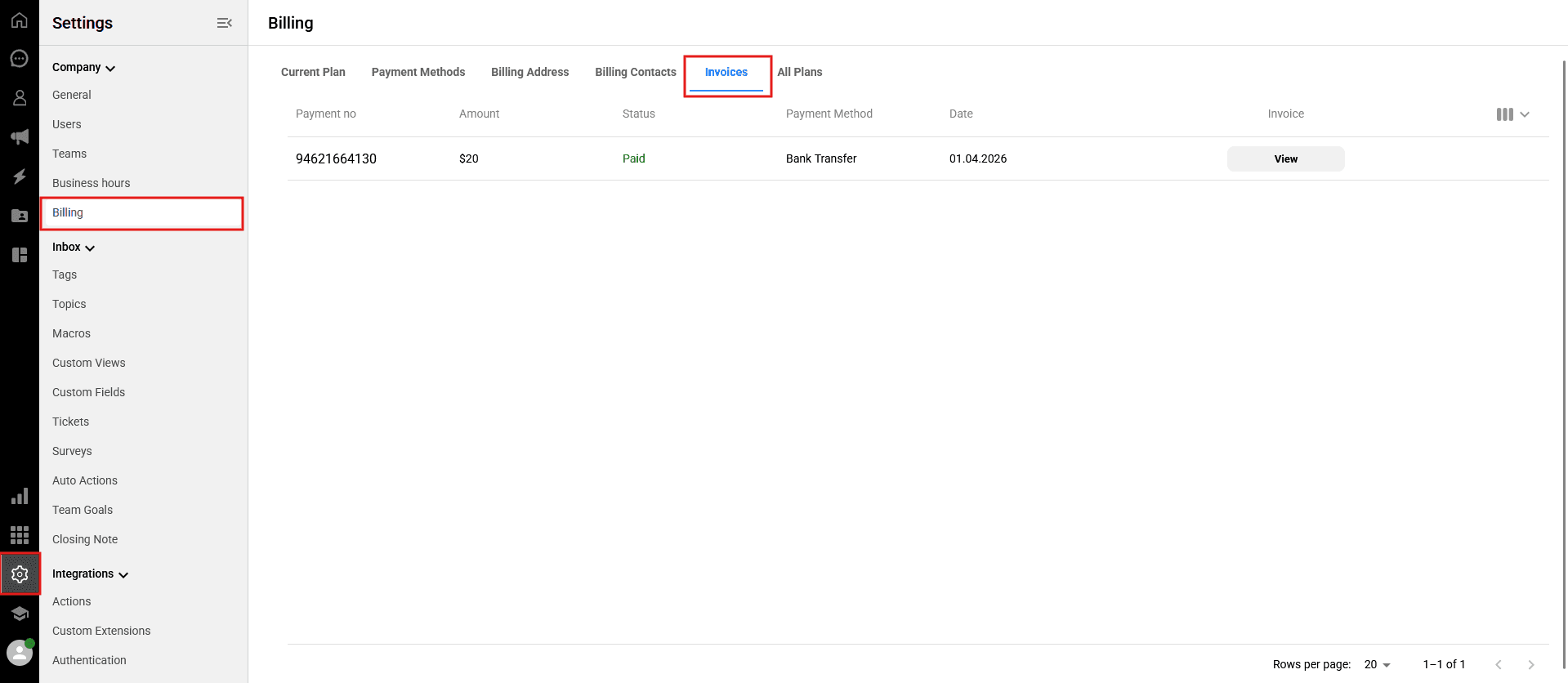
To find your past billing cycles and subscription payments:
-> Go to Settings > Company > Billing.
Click on the
Invoicestab at the top. This contains a list of all your past transactions to view and download.
Download an invoice
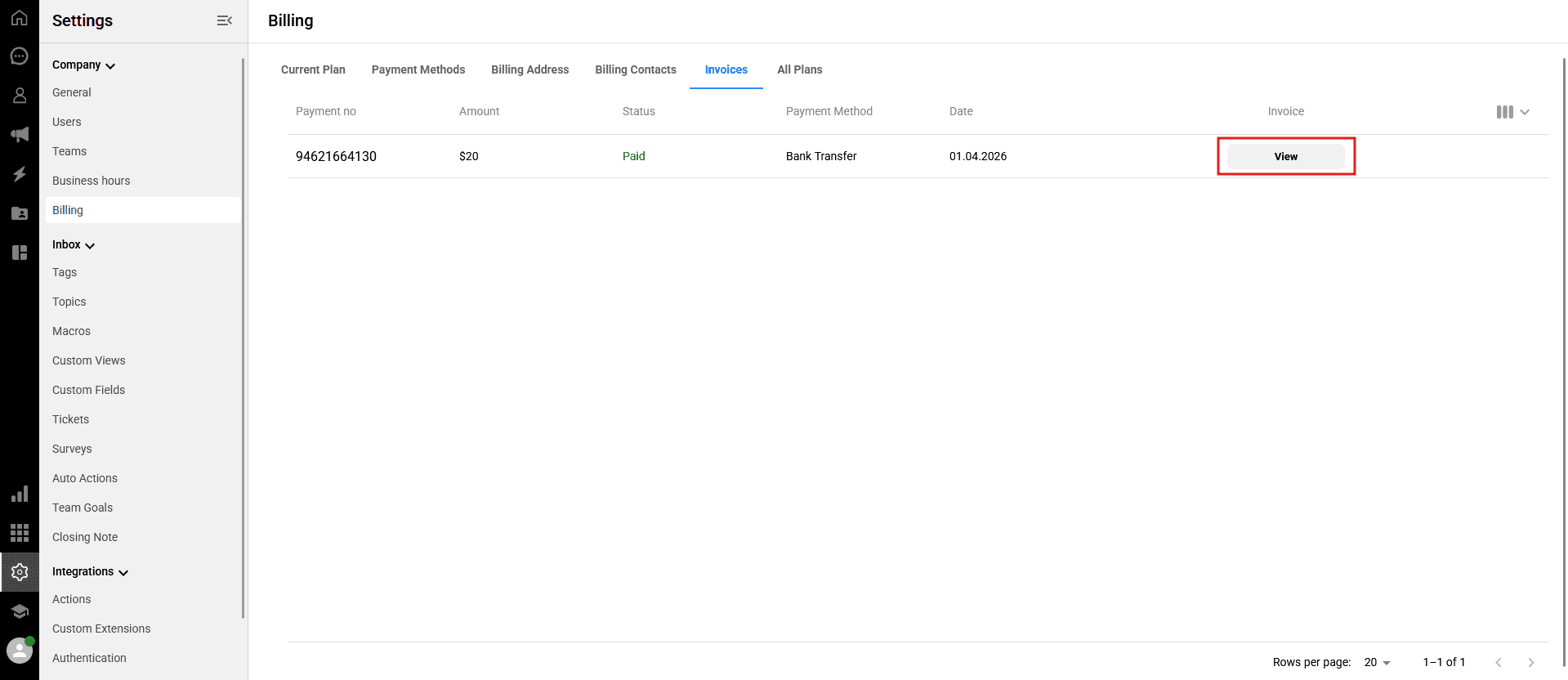
To download a PDF copy of your invoice for your accounting records:
-> Go to Settings > Company > Billing.
Click on the
Invoicestab at the top.
Locate the specific transaction and click the
Viewicon next to it.
How to access invoices without full permissions
If you already have a Qpien account:
Request a role upgrade: Ask a teammate with Admin permissions to upgrade your role. They can do this by navigating to Settings > Company > Users.
Access invoices: Once your permissions are updated to Admin, go to Settings > Company > Billing and click on the
Invoicestab to view and download invoices.
If you do not have a Qpien account:
Become a teammate: Ask an Admin to invite you as a user from Settings > Company > Users and grant you Admin privileges.
Access invoices: After you accept the invite and log in, navigate to the Billing section to retrieve your invoices.
If you can't get upgraded or added as a teammate:
Request assistance from an admin: Ask an Admin in your workspace to download the invoices and email copies to you directly.
Qpien enforces strict security policies for billing and financial access. Users without Admin permissions cannot view invoices or request them directly from Qpien Support. The recommended approach is to ensure permissions are correctly assigned within your workspace.
Failed payment
Occasionally, a scheduled subscription payment or auto-recharge might fail due to an expired card or bank decline.
If a payment fails, your workspace is not immediately blocked. We provide a short grace period and will automatically attempt to process the payment a few more times. If all attempts fail and the grace period expires, your workspace account will be temporarily frozen.
To resume access, the outstanding balance must be paid.
-> Log in to Qpien and go to Settings > Company > Billing.
Click on the
Invoicestab at the top andPay Now.
Once the payment for the open invoice is successfully processed, your account access will be automatically restored. (You may need to hard refresh your browser to see services resume).
Can I have my invoice sent to a different email address?
Yes! If you want your invoices to go directly to your accounting department, you can update your billing contact details.
-> Go to Settings > Company > Billing.
Click on the
Billing Contactstab at the top.
Add the desired email address (e.g., finance@yourcompany.com) to the billing email field.
Once added, all future invoices and payment receipts will be automatically sent to that address.
In this article:
View an invoice
Download an invoice
How to access invoices without full permissions
Failed payment
Can I have my invoice sent to a different email address?
You'll receive an email notification when you have a new invoice ready to view. This will be sent to the billing contacts you’ve listed in your workspace details. You’ll need to log in to Qpien to view and download the invoice.
Note: Qpien does not issue cash refunds for plan downgrades. The prorated balance automatically covers your new plan costs, so no refund receipt will be generated.
View an invoice
To find your past billing cycles and subscription payments:
-> Go to Settings > Company > Billing.
Click on the
Invoicestab at the top. This contains a list of all your past transactions to view and download.
Download an invoice
To download a PDF copy of your invoice for your accounting records:
-> Go to Settings > Company > Billing.
Click on the
Invoicestab at the top.
Locate the specific transaction and click the
Viewicon next to it.
How to access invoices without full permissions
If you already have a Qpien account:
Request a role upgrade: Ask a teammate with Admin permissions to upgrade your role. They can do this by navigating to Settings > Company > Users.
Access invoices: Once your permissions are updated to Admin, go to Settings > Company > Billing and click on the
Invoicestab to view and download invoices.
If you do not have a Qpien account:
Become a teammate: Ask an Admin to invite you as a user from Settings > Company > Users and grant you Admin privileges.
Access invoices: After you accept the invite and log in, navigate to the Billing section to retrieve your invoices.
If you can't get upgraded or added as a teammate:
Request assistance from an admin: Ask an Admin in your workspace to download the invoices and email copies to you directly.
Qpien enforces strict security policies for billing and financial access. Users without Admin permissions cannot view invoices or request them directly from Qpien Support. The recommended approach is to ensure permissions are correctly assigned within your workspace.
Failed payment
Occasionally, a scheduled subscription payment or auto-recharge might fail due to an expired card or bank decline.
If a payment fails, your workspace is not immediately blocked. We provide a short grace period and will automatically attempt to process the payment a few more times. If all attempts fail and the grace period expires, your workspace account will be temporarily frozen.
To resume access, the outstanding balance must be paid.
-> Log in to Qpien and go to Settings > Company > Billing.
Click on the
Invoicestab at the top andPay Now.
Once the payment for the open invoice is successfully processed, your account access will be automatically restored. (You may need to hard refresh your browser to see services resume).
Can I have my invoice sent to a different email address?
Yes! If you want your invoices to go directly to your accounting department, you can update your billing contact details.
-> Go to Settings > Company > Billing.
Click on the
Billing Contactstab at the top.
Add the desired email address (e.g., finance@yourcompany.com) to the billing email field.
Once added, all future invoices and payment receipts will be automatically sent to that address.
In this article:
View an invoice
Download an invoice
How to access invoices without full permissions
Failed payment
Can I have my invoice sent to a different email address?
You'll receive an email notification when you have a new invoice ready to view. This will be sent to the billing contacts you’ve listed in your workspace details. You’ll need to log in to Qpien to view and download the invoice.
Note: Qpien does not issue cash refunds for plan downgrades. The prorated balance automatically covers your new plan costs, so no refund receipt will be generated.
View an invoice
To find your past billing cycles and subscription payments:
-> Go to Settings > Company > Billing.
Click on the
Invoicestab at the top. This contains a list of all your past transactions to view and download.
Download an invoice
To download a PDF copy of your invoice for your accounting records:
-> Go to Settings > Company > Billing.
Click on the
Invoicestab at the top.
Locate the specific transaction and click the
Viewicon next to it.
How to access invoices without full permissions
If you already have a Qpien account:
Request a role upgrade: Ask a teammate with Admin permissions to upgrade your role. They can do this by navigating to Settings > Company > Users.
Access invoices: Once your permissions are updated to Admin, go to Settings > Company > Billing and click on the
Invoicestab to view and download invoices.
If you do not have a Qpien account:
Become a teammate: Ask an Admin to invite you as a user from Settings > Company > Users and grant you Admin privileges.
Access invoices: After you accept the invite and log in, navigate to the Billing section to retrieve your invoices.
If you can't get upgraded or added as a teammate:
Request assistance from an admin: Ask an Admin in your workspace to download the invoices and email copies to you directly.
Qpien enforces strict security policies for billing and financial access. Users without Admin permissions cannot view invoices or request them directly from Qpien Support. The recommended approach is to ensure permissions are correctly assigned within your workspace.
Failed payment
Occasionally, a scheduled subscription payment or auto-recharge might fail due to an expired card or bank decline.
If a payment fails, your workspace is not immediately blocked. We provide a short grace period and will automatically attempt to process the payment a few more times. If all attempts fail and the grace period expires, your workspace account will be temporarily frozen.
To resume access, the outstanding balance must be paid.
-> Log in to Qpien and go to Settings > Company > Billing.
Click on the
Invoicestab at the top andPay Now.
Once the payment for the open invoice is successfully processed, your account access will be automatically restored. (You may need to hard refresh your browser to see services resume).
Can I have my invoice sent to a different email address?
Yes! If you want your invoices to go directly to your accounting department, you can update your billing contact details.
-> Go to Settings > Company > Billing.
Click on the
Billing Contactstab at the top.
Add the desired email address (e.g., finance@yourcompany.com) to the billing email field.
Once added, all future invoices and payment receipts will be automatically sent to that address.
Previous
Managing users
Next
Next
Usage/ Seats
Try Qpien free for 14 days! 🎉
Ready to take control of all your support channels?
Empower your customer interactions with Qpien! Boost sales and elevate satisfaction with every conversation.
Try Qpien free for 14 days! 🎉
Ready to take control of all your support channels?
Empower your customer interactions with Qpien! Boost sales and elevate satisfaction with every conversation.
Try Qpien free for 14 days! 🎉
Ready to take control of all your support channels?
Empower your customer interactions with Qpien! Boost sales and elevate satisfaction with every conversation.