
Plans & Pricing
Usage/ How to see and manage your usage
Monitor your workspace's active limits, track account balance, and view detailed statistics for variable costs like AI responses and WhatsApp campaigns directly from your dashboards.
In this article:
Accessing your usage dashboard
Understanding your active limits
Tracking your account balance
Viewing detailed usage statistics
Accessing your usage dashboard
All the details regarding your current plan's capacity and overall account balance are located in your billing settings.
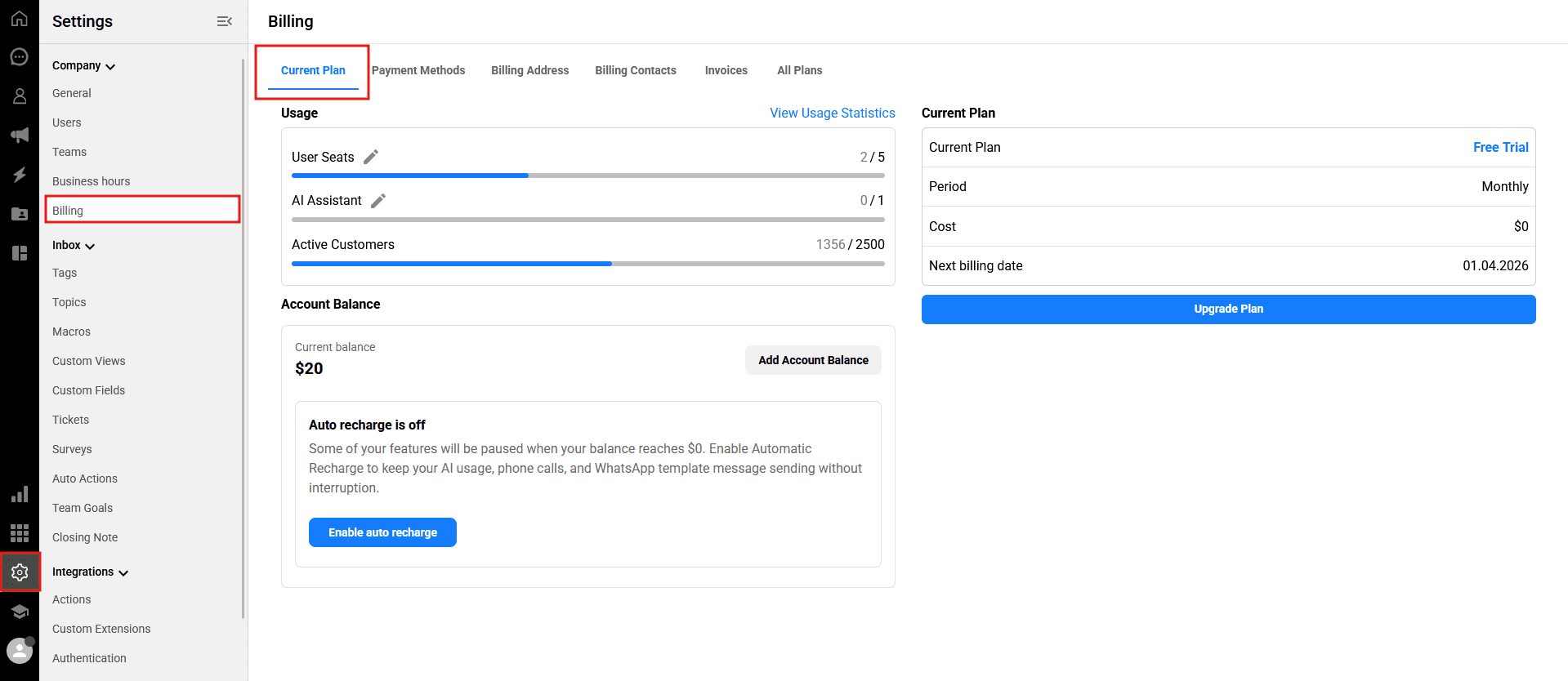
-> To keep track of these metrics, navigate to Settings > Company > Billing from the left sidebar of your Qpien workspace.
Understanding your active limits
Once you are on the Billing page, stay on the Current Plan tab. Here, you will find visual progress bars that help you monitor your workspace's fixed limits in real-time.
You can easily track:
User Seats: How many active team members are currently occupying the seats you have paid for.
AI Assistant: The usage status and occupied seats of your AI agents.
Active Customers: Your monthly contacted customer quota based on your tier (e.g., 5000 / 5000 contacts).
Important: If you reach your active customer quota and your Account Balance is zero, incoming messages from new contacts will not be received or delivered in your inbox. If you have a positive Account Balance, the cost for extra contacts will be automatically deducted from it, ensuring uninterrupted communication.
Tracking your account balance
Certain powerful features in Qpien operate on a variable usage basis outside of your fixed monthly subscription cost. In the Billing dashboard, you can view your current monetary Account Balance, which is used to cover these variable costs.
Tip: To prevent any interruptions in your automated messaging or AI workflows, you can enable the "Auto recharge" feature. This will automatically top up your account balance when it reaches $0.
Viewing detailed usage statistics
To give you full transparency over your variable costs, Qpien provides a dedicated analytics dashboard where you can see exactly how your account balance is being spent.
There are two ways to access this detailed view:
From the main billing page (Settings > Company > Billing), click the
View Usage Statisticslink located at the top right of the Usage section.Alternatively, navigate directly via the left sidebar by going to Statistics > Billing > Balance Usage.
Once in the Balance Usage dashboard, you will see a graph tracking your daily expenses. You can use the Filter menu on the right side to break down your usage by specific features.
The balance-consuming features you can filter and track include:
All usages: A total overview of your spending.
AI Response: Costs incurred from AI-generated replies.
Call: Costs associated with call center minutes.
Campaign WhatsApp Business: Spending on bulk template messaging via the Business API.
Campaign WhatsApp Web: Usage tracking for standard WhatsApp web campaigns.
Extra Contact: Charges for exceeding your monthly active customer limits.
WhatsApp Business: Standard conversational charges outside of the 24-hour window.
In this article:
Accessing your usage dashboard
Understanding your active limits
Tracking your account balance
Viewing detailed usage statistics
Accessing your usage dashboard
All the details regarding your current plan's capacity and overall account balance are located in your billing settings.
-> To keep track of these metrics, navigate to Settings > Company > Billing from the left sidebar of your Qpien workspace.
Understanding your active limits
Once you are on the Billing page, stay on the Current Plan tab. Here, you will find visual progress bars that help you monitor your workspace's fixed limits in real-time.
You can easily track:
User Seats: How many active team members are currently occupying the seats you have paid for.
AI Assistant: The usage status and occupied seats of your AI agents.
Active Customers: Your monthly contacted customer quota based on your tier (e.g., 5000 / 5000 contacts).
Important: If you reach your active customer quota and your Account Balance is zero, incoming messages from new contacts will not be received or delivered in your inbox. If you have a positive Account Balance, the cost for extra contacts will be automatically deducted from it, ensuring uninterrupted communication.
Tracking your account balance
Certain powerful features in Qpien operate on a variable usage basis outside of your fixed monthly subscription cost. In the Billing dashboard, you can view your current monetary Account Balance, which is used to cover these variable costs.
Tip: To prevent any interruptions in your automated messaging or AI workflows, you can enable the "Auto recharge" feature. This will automatically top up your account balance when it reaches $0.
Viewing detailed usage statistics
To give you full transparency over your variable costs, Qpien provides a dedicated analytics dashboard where you can see exactly how your account balance is being spent.
There are two ways to access this detailed view:
From the main billing page (Settings > Company > Billing), click the
View Usage Statisticslink located at the top right of the Usage section.Alternatively, navigate directly via the left sidebar by going to Statistics > Billing > Balance Usage.
Once in the Balance Usage dashboard, you will see a graph tracking your daily expenses. You can use the Filter menu on the right side to break down your usage by specific features.
The balance-consuming features you can filter and track include:
All usages: A total overview of your spending.
AI Response: Costs incurred from AI-generated replies.
Call: Costs associated with call center minutes.
Campaign WhatsApp Business: Spending on bulk template messaging via the Business API.
Campaign WhatsApp Web: Usage tracking for standard WhatsApp web campaigns.
Extra Contact: Charges for exceeding your monthly active customer limits.
WhatsApp Business: Standard conversational charges outside of the 24-hour window.
In this article:
Accessing your usage dashboard
Understanding your active limits
Tracking your account balance
Viewing detailed usage statistics
Accessing your usage dashboard
All the details regarding your current plan's capacity and overall account balance are located in your billing settings.
-> To keep track of these metrics, navigate to Settings > Company > Billing from the left sidebar of your Qpien workspace.
Understanding your active limits
Once you are on the Billing page, stay on the Current Plan tab. Here, you will find visual progress bars that help you monitor your workspace's fixed limits in real-time.
You can easily track:
User Seats: How many active team members are currently occupying the seats you have paid for.
AI Assistant: The usage status and occupied seats of your AI agents.
Active Customers: Your monthly contacted customer quota based on your tier (e.g., 5000 / 5000 contacts).
Important: If you reach your active customer quota and your Account Balance is zero, incoming messages from new contacts will not be received or delivered in your inbox. If you have a positive Account Balance, the cost for extra contacts will be automatically deducted from it, ensuring uninterrupted communication.
Tracking your account balance
Certain powerful features in Qpien operate on a variable usage basis outside of your fixed monthly subscription cost. In the Billing dashboard, you can view your current monetary Account Balance, which is used to cover these variable costs.
Tip: To prevent any interruptions in your automated messaging or AI workflows, you can enable the "Auto recharge" feature. This will automatically top up your account balance when it reaches $0.
Viewing detailed usage statistics
To give you full transparency over your variable costs, Qpien provides a dedicated analytics dashboard where you can see exactly how your account balance is being spent.
There are two ways to access this detailed view:
From the main billing page (Settings > Company > Billing), click the
View Usage Statisticslink located at the top right of the Usage section.Alternatively, navigate directly via the left sidebar by going to Statistics > Billing > Balance Usage.
Once in the Balance Usage dashboard, you will see a graph tracking your daily expenses. You can use the Filter menu on the right side to break down your usage by specific features.
The balance-consuming features you can filter and track include:
All usages: A total overview of your spending.
AI Response: Costs incurred from AI-generated replies.
Call: Costs associated with call center minutes.
Campaign WhatsApp Business: Spending on bulk template messaging via the Business API.
Campaign WhatsApp Web: Usage tracking for standard WhatsApp web campaigns.
Extra Contact: Charges for exceeding your monthly active customer limits.
WhatsApp Business: Standard conversational charges outside of the 24-hour window.
Previous
Two-factor authentication
Next
Next
Create WhatsApp message templates
Try Qpien free for 14 days! 🎉
Ready to take control of all your support channels?
Empower your customer interactions with Qpien! Boost sales and elevate satisfaction with every conversation.
Try Qpien free for 14 days! 🎉
Ready to take control of all your support channels?
Empower your customer interactions with Qpien! Boost sales and elevate satisfaction with every conversation.
Try Qpien free for 14 days! 🎉
Ready to take control of all your support channels?
Empower your customer interactions with Qpien! Boost sales and elevate satisfaction with every conversation.