
Plans & Pricing
Managing your billing details
Learn how to update your billing address, manage billing contacts, and change your payment methods in Qpien.
Keeping your billing information up to date ensures that your subscription runs smoothly and your invoices are accurate. You can easily manage all your financial details, including your company address, invoice recipients, and preferred payment methods, directly from your Qpien workspace.
In this article:
Update your billing address
Manage billing contacts
Update your payment methods
Keeping your billing information up to date ensures that your subscription runs smoothly and your invoices are accurate. You can easily manage all your financial details, including your company address, invoice recipients, and preferred payment methods, directly from your Qpien workspace.
Update your billing address
You can easily update the company information and address that appears on your invoices.
-> Go to Settings > Company > Billing.
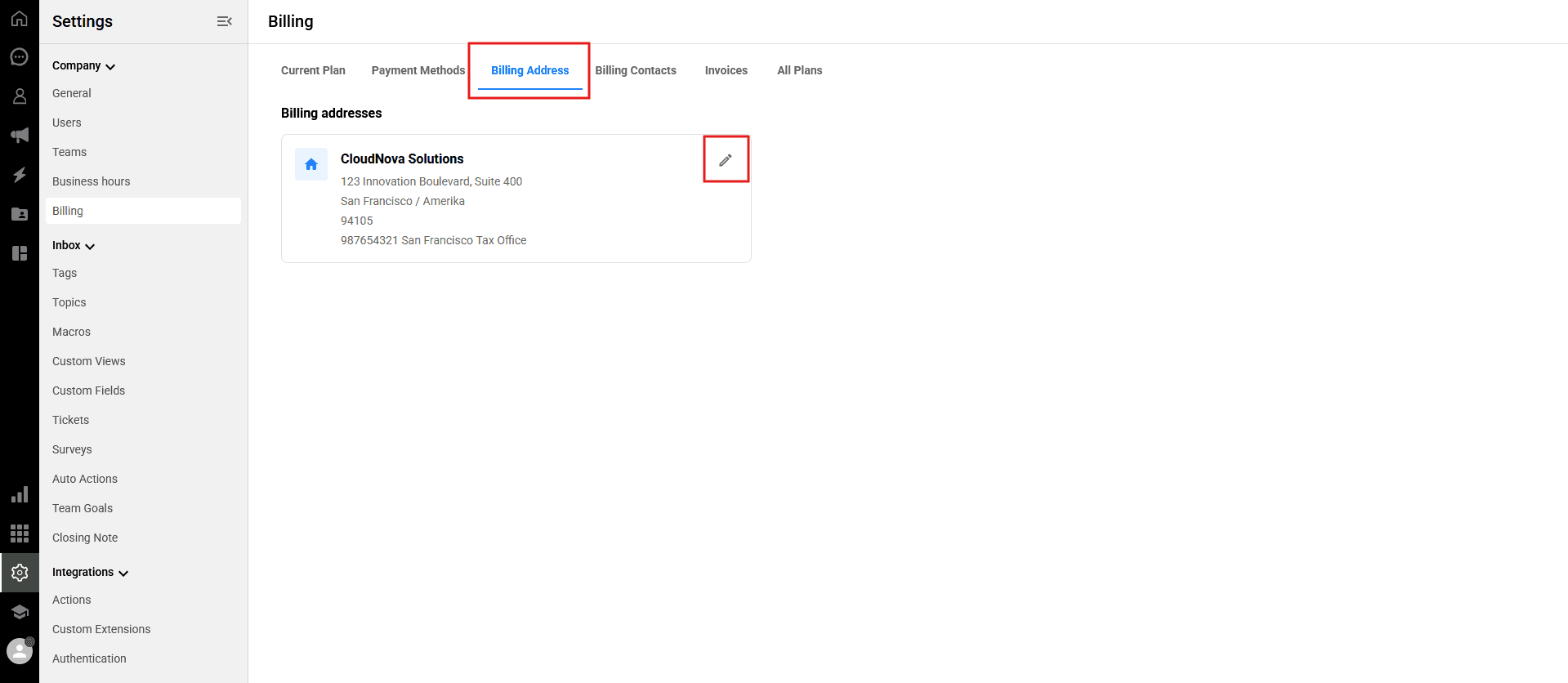
Select the Billing Address tab from the top menu.
Click the Edit (pencil) icon next to your current address details.
A form will appear where you can update your Official Company Name, Country, Province, City, Zip Code, Address Lines, Tax Office, and Tax Number.
Once you have made your changes, click Save.
Manage billing contacts
Do you need your invoices sent to a different email address, or perhaps to your accounting department? You can control who receives billing emails by managing your billing contacts. Future invoices will be automatically sent to the email addresses listed in this section.
-> Go to Settings > Company > Billing.
Select the Billing Contacts tab.
To add someone new, click on Add new billing contact.
To modify or remove an existing contact, use the Edit (pencil) or Delete (trash bin) icons next to their name.
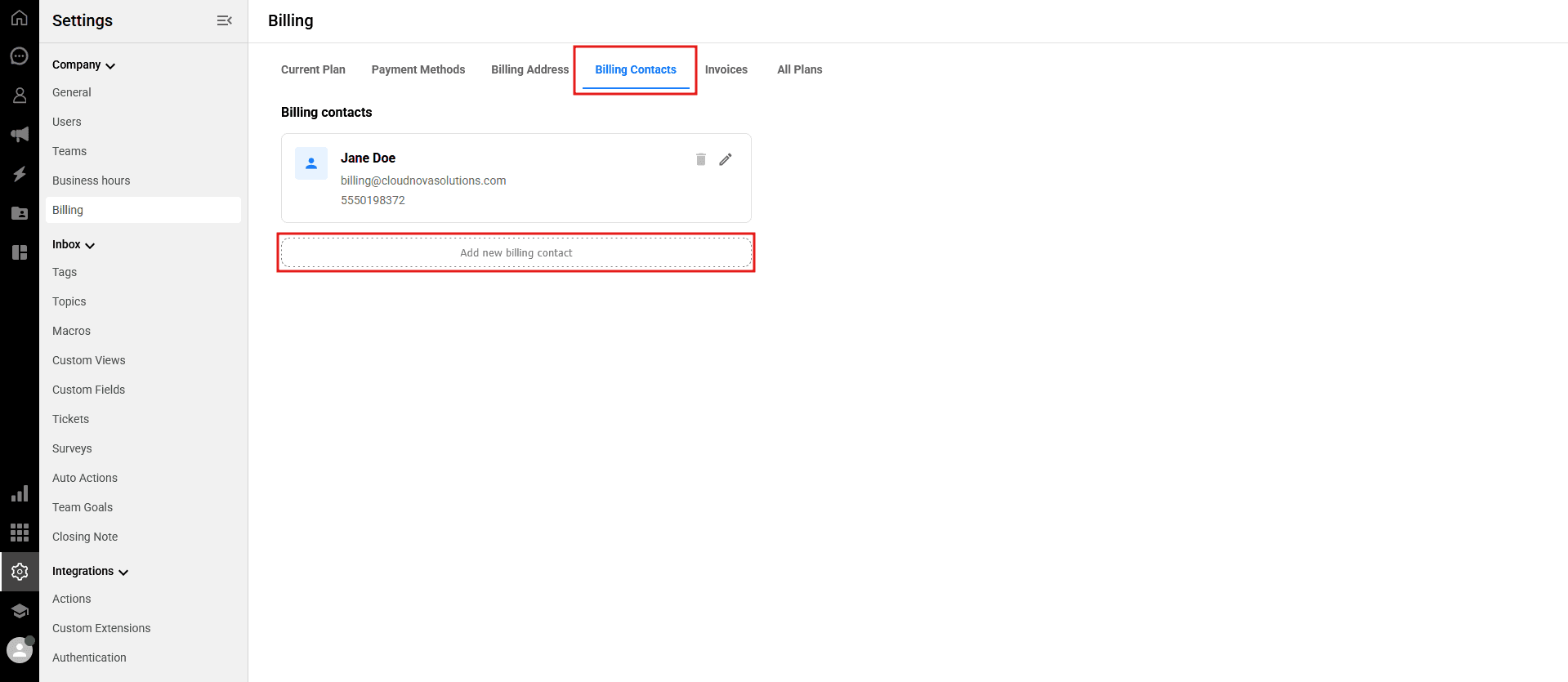
This list will be pre-populated with the person who signed up to use Qpien as the default billing contact. If you signed up with our Sales team, the billing address you provided will be set as the default contact.
Teammates with billing permissions will be able to edit the list. At least one contact is always required.
Update your payment methods
Qpien accepts payments via credit card, debit card, and bank transfer. You can securely update your payment details at any time to prevent any interruptions to your subscription.
-> Go to Settings > Company > Billing.
Select the Payment Methods tab from the top menu.
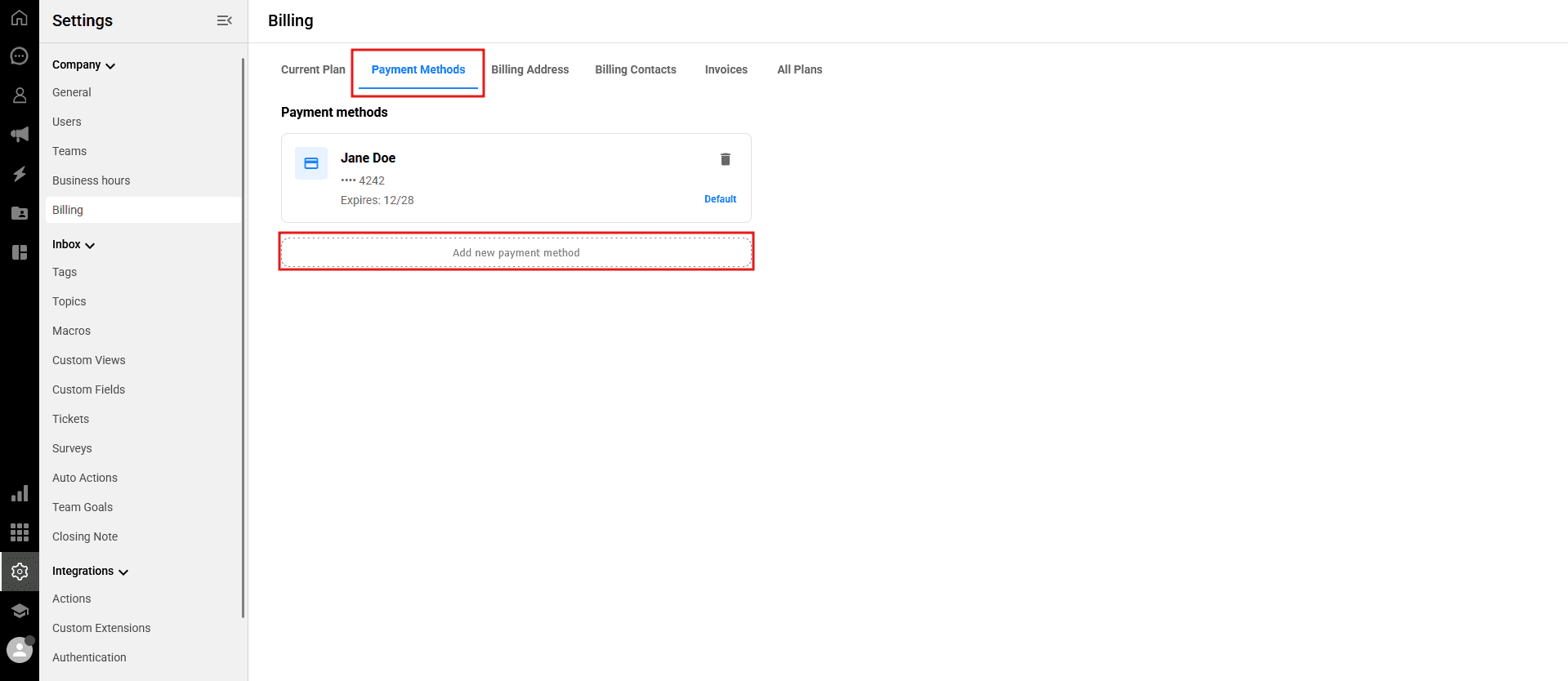
Here, you can add a new payment method, update an existing card, or change your preferred payment type.
Keeping your billing information up to date ensures that your subscription runs smoothly and your invoices are accurate. You can easily manage all your financial details, including your company address, invoice recipients, and preferred payment methods, directly from your Qpien workspace.
In this article:
Update your billing address
Manage billing contacts
Update your payment methods
Keeping your billing information up to date ensures that your subscription runs smoothly and your invoices are accurate. You can easily manage all your financial details, including your company address, invoice recipients, and preferred payment methods, directly from your Qpien workspace.
Update your billing address
You can easily update the company information and address that appears on your invoices.
-> Go to Settings > Company > Billing.
Select the Billing Address tab from the top menu.
Click the Edit (pencil) icon next to your current address details.
A form will appear where you can update your Official Company Name, Country, Province, City, Zip Code, Address Lines, Tax Office, and Tax Number.
Once you have made your changes, click Save.
Manage billing contacts
Do you need your invoices sent to a different email address, or perhaps to your accounting department? You can control who receives billing emails by managing your billing contacts. Future invoices will be automatically sent to the email addresses listed in this section.
-> Go to Settings > Company > Billing.
Select the Billing Contacts tab.
To add someone new, click on Add new billing contact.
To modify or remove an existing contact, use the Edit (pencil) or Delete (trash bin) icons next to their name.
This list will be pre-populated with the person who signed up to use Qpien as the default billing contact. If you signed up with our Sales team, the billing address you provided will be set as the default contact.
Teammates with billing permissions will be able to edit the list. At least one contact is always required.
Update your payment methods
Qpien accepts payments via credit card, debit card, and bank transfer. You can securely update your payment details at any time to prevent any interruptions to your subscription.
-> Go to Settings > Company > Billing.
Select the Payment Methods tab from the top menu.
Here, you can add a new payment method, update an existing card, or change your preferred payment type.
Keeping your billing information up to date ensures that your subscription runs smoothly and your invoices are accurate. You can easily manage all your financial details, including your company address, invoice recipients, and preferred payment methods, directly from your Qpien workspace.
In this article:
Update your billing address
Manage billing contacts
Update your payment methods
Keeping your billing information up to date ensures that your subscription runs smoothly and your invoices are accurate. You can easily manage all your financial details, including your company address, invoice recipients, and preferred payment methods, directly from your Qpien workspace.
Update your billing address
You can easily update the company information and address that appears on your invoices.
-> Go to Settings > Company > Billing.
Select the Billing Address tab from the top menu.
Click the Edit (pencil) icon next to your current address details.
A form will appear where you can update your Official Company Name, Country, Province, City, Zip Code, Address Lines, Tax Office, and Tax Number.
Once you have made your changes, click Save.
Manage billing contacts
Do you need your invoices sent to a different email address, or perhaps to your accounting department? You can control who receives billing emails by managing your billing contacts. Future invoices will be automatically sent to the email addresses listed in this section.
-> Go to Settings > Company > Billing.
Select the Billing Contacts tab.
To add someone new, click on Add new billing contact.
To modify or remove an existing contact, use the Edit (pencil) or Delete (trash bin) icons next to their name.
This list will be pre-populated with the person who signed up to use Qpien as the default billing contact. If you signed up with our Sales team, the billing address you provided will be set as the default contact.
Teammates with billing permissions will be able to edit the list. At least one contact is always required.
Update your payment methods
Qpien accepts payments via credit card, debit card, and bank transfer. You can securely update your payment details at any time to prevent any interruptions to your subscription.
-> Go to Settings > Company > Billing.
Select the Payment Methods tab from the top menu.
Here, you can add a new payment method, update an existing card, or change your preferred payment type.
Previous
Knowledge Sources
Next
Next
Managing user roles
Try Qpien free for 14 days! 🎉
Ready to take control of all your support channels?
Empower your customer interactions with Qpien! Boost sales and elevate satisfaction with every conversation.
Try Qpien free for 14 days! 🎉
Ready to take control of all your support channels?
Empower your customer interactions with Qpien! Boost sales and elevate satisfaction with every conversation.
Try Qpien free for 14 days! 🎉
Ready to take control of all your support channels?
Empower your customer interactions with Qpien! Boost sales and elevate satisfaction with every conversation.