
Plans & Pricing
Managing your Qpien account balance
Learn how to manually add funds or set up auto-recharge for your account balance to keep your extra usage-based features running smoothly.
In this article:
Understanding your account balance
Add account balance manually
Set up automatic recharge (Auto-recharge)
Understanding your account balance
Your Qpien account balance operates separately from your main monthly or annual subscription invoice. It is specifically used to cover extra usage-based features and overages, such as AI Assistant responses, WhatsApp Business template messages, phone calls, and extra active contacts.
If you reach your active customer quota and your account balance is $0, these additional messages and features will be paused. However, if you have sufficient funds in your account balance, the system will automatically deduct the usage cost from it, ensuring uninterrupted communication with your customers. All balance payments are securely processed using the default payment method (credit/debit card) saved in your billing settings.
Add account balance manually
If you prefer to control your spending manually, you can add funds to your account balance whenever you need them.
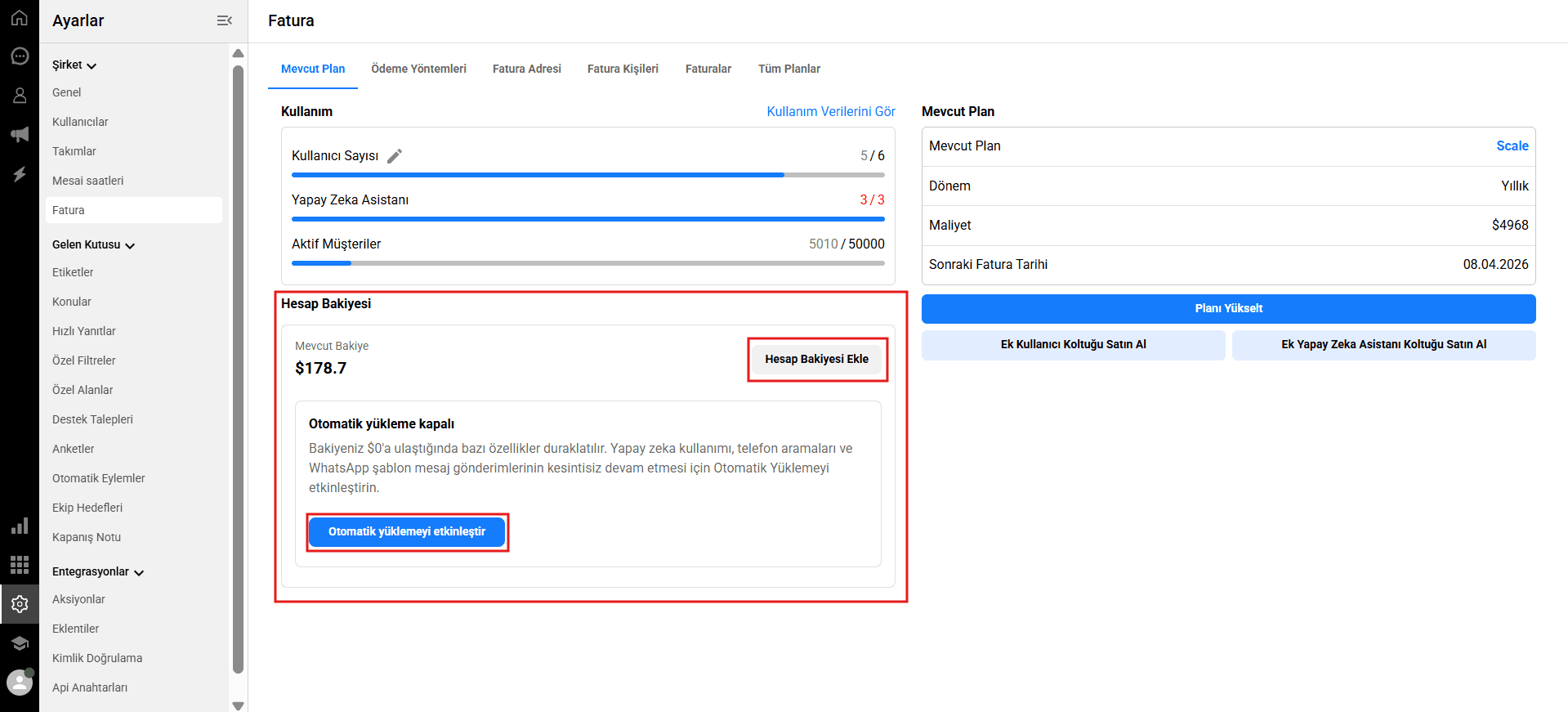
-> Go to Settings > Company > Billing.
Scroll down to the Account Balance section.
Click the
Add Account Balancebutton.Enter the amount you wish to load and confirm the transaction. The system will charge the default card on your account.
Set up automatic recharge (Auto-recharge)
To prevent any unexpected service interruptions when your balance reaches $0, we highly recommend enabling the automatic recharge feature. This ensures that your AI usage, phone calls, and WhatsApp messages continue without a hitch.
-> Go to Settings > Company > Billing.
In the Account Balance section, click the
Enable auto rechargebutton.The Auto Recharge Settings window will appear. Here, you need to set your rules:
When credit balance falls below: Enter your minimum threshold (a value between $5 and $500).
Add to credit balance: Enter the exact amount you want to automatically add to your balance when the threshold is hit (a value between $10 and $2000).
Check the confirmation box to allow the system to automatically charge your card when the balance falls below the specified level.
Click
Saveto activate auto-recharge.
In this article:
Understanding your account balance
Add account balance manually
Set up automatic recharge (Auto-recharge)
Understanding your account balance
Your Qpien account balance operates separately from your main monthly or annual subscription invoice. It is specifically used to cover extra usage-based features and overages, such as AI Assistant responses, WhatsApp Business template messages, phone calls, and extra active contacts.
If you reach your active customer quota and your account balance is $0, these additional messages and features will be paused. However, if you have sufficient funds in your account balance, the system will automatically deduct the usage cost from it, ensuring uninterrupted communication with your customers. All balance payments are securely processed using the default payment method (credit/debit card) saved in your billing settings.
Add account balance manually
If you prefer to control your spending manually, you can add funds to your account balance whenever you need them.
-> Go to Settings > Company > Billing.
Scroll down to the Account Balance section.
Click the
Add Account Balancebutton.Enter the amount you wish to load and confirm the transaction. The system will charge the default card on your account.
Set up automatic recharge (Auto-recharge)
To prevent any unexpected service interruptions when your balance reaches $0, we highly recommend enabling the automatic recharge feature. This ensures that your AI usage, phone calls, and WhatsApp messages continue without a hitch.
-> Go to Settings > Company > Billing.
In the Account Balance section, click the
Enable auto rechargebutton.The Auto Recharge Settings window will appear. Here, you need to set your rules:
When credit balance falls below: Enter your minimum threshold (a value between $5 and $500).
Add to credit balance: Enter the exact amount you want to automatically add to your balance when the threshold is hit (a value between $10 and $2000).
Check the confirmation box to allow the system to automatically charge your card when the balance falls below the specified level.
Click
Saveto activate auto-recharge.
In this article:
Understanding your account balance
Add account balance manually
Set up automatic recharge (Auto-recharge)
Understanding your account balance
Your Qpien account balance operates separately from your main monthly or annual subscription invoice. It is specifically used to cover extra usage-based features and overages, such as AI Assistant responses, WhatsApp Business template messages, phone calls, and extra active contacts.
If you reach your active customer quota and your account balance is $0, these additional messages and features will be paused. However, if you have sufficient funds in your account balance, the system will automatically deduct the usage cost from it, ensuring uninterrupted communication with your customers. All balance payments are securely processed using the default payment method (credit/debit card) saved in your billing settings.
Add account balance manually
If you prefer to control your spending manually, you can add funds to your account balance whenever you need them.
-> Go to Settings > Company > Billing.
Scroll down to the Account Balance section.
Click the
Add Account Balancebutton.Enter the amount you wish to load and confirm the transaction. The system will charge the default card on your account.
Set up automatic recharge (Auto-recharge)
To prevent any unexpected service interruptions when your balance reaches $0, we highly recommend enabling the automatic recharge feature. This ensures that your AI usage, phone calls, and WhatsApp messages continue without a hitch.
-> Go to Settings > Company > Billing.
In the Account Balance section, click the
Enable auto rechargebutton.The Auto Recharge Settings window will appear. Here, you need to set your rules:
When credit balance falls below: Enter your minimum threshold (a value between $5 and $500).
Add to credit balance: Enter the exact amount you want to automatically add to your balance when the threshold is hit (a value between $10 and $2000).
Check the confirmation box to allow the system to automatically charge your card when the balance falls below the specified level.
Click
Saveto activate auto-recharge.
Previous
AI Representative (Ticket)
Next
Next
Campaign Reports
Try Qpien free for 14 days! 🎉
Ready to take control of all your support channels?
Empower your customer interactions with Qpien! Boost sales and elevate satisfaction with every conversation.
Try Qpien free for 14 days! 🎉
Ready to take control of all your support channels?
Empower your customer interactions with Qpien! Boost sales and elevate satisfaction with every conversation.
Try Qpien free for 14 days! 🎉
Ready to take control of all your support channels?
Empower your customer interactions with Qpien! Boost sales and elevate satisfaction with every conversation.