
Plans & Pricing
Managing your Qpien subscription plan
Learn how to upgrade or downgrade your current plan and purchase additional user or AI assistant seats in Qpien.
In this article:
Upgrade or downgrade your plan
Add more user seats
Add more AI assistant seats
As your business grows, your support needs may change. Qpien allows you to easily adjust your subscription directly from your settings. You can switch to a different plan tier or buy extra seats for your teammates and AI assistants without interrupting your workflow.
Upgrade or downgrade your plan
Whether you need access to more advanced features or want to scale back, you can change your plan at any time.
-> Go to Settings > Company > Billing.
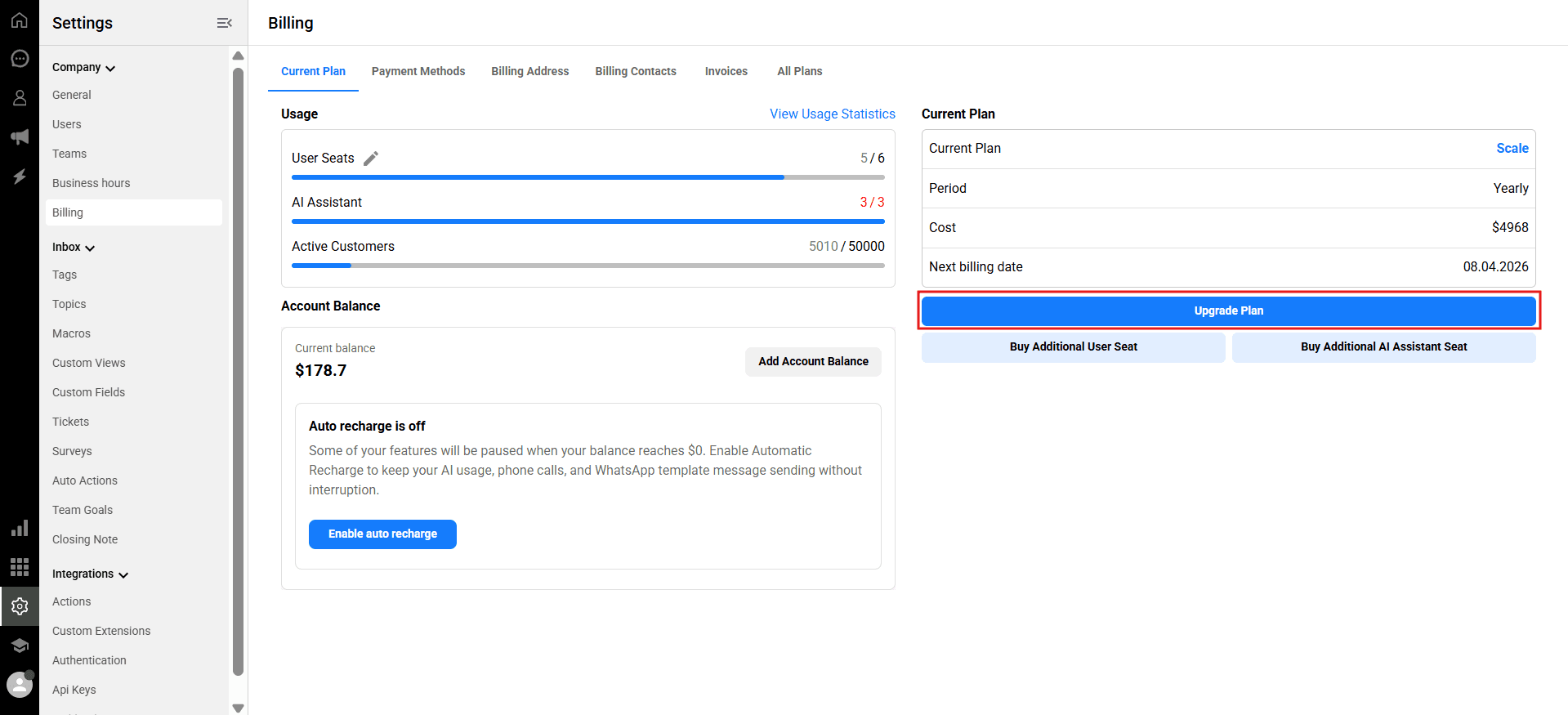
If you want to quickly upgrade your current tier, you can click the
Upgrade Planbutton located on the right side of the Current Plan tab.
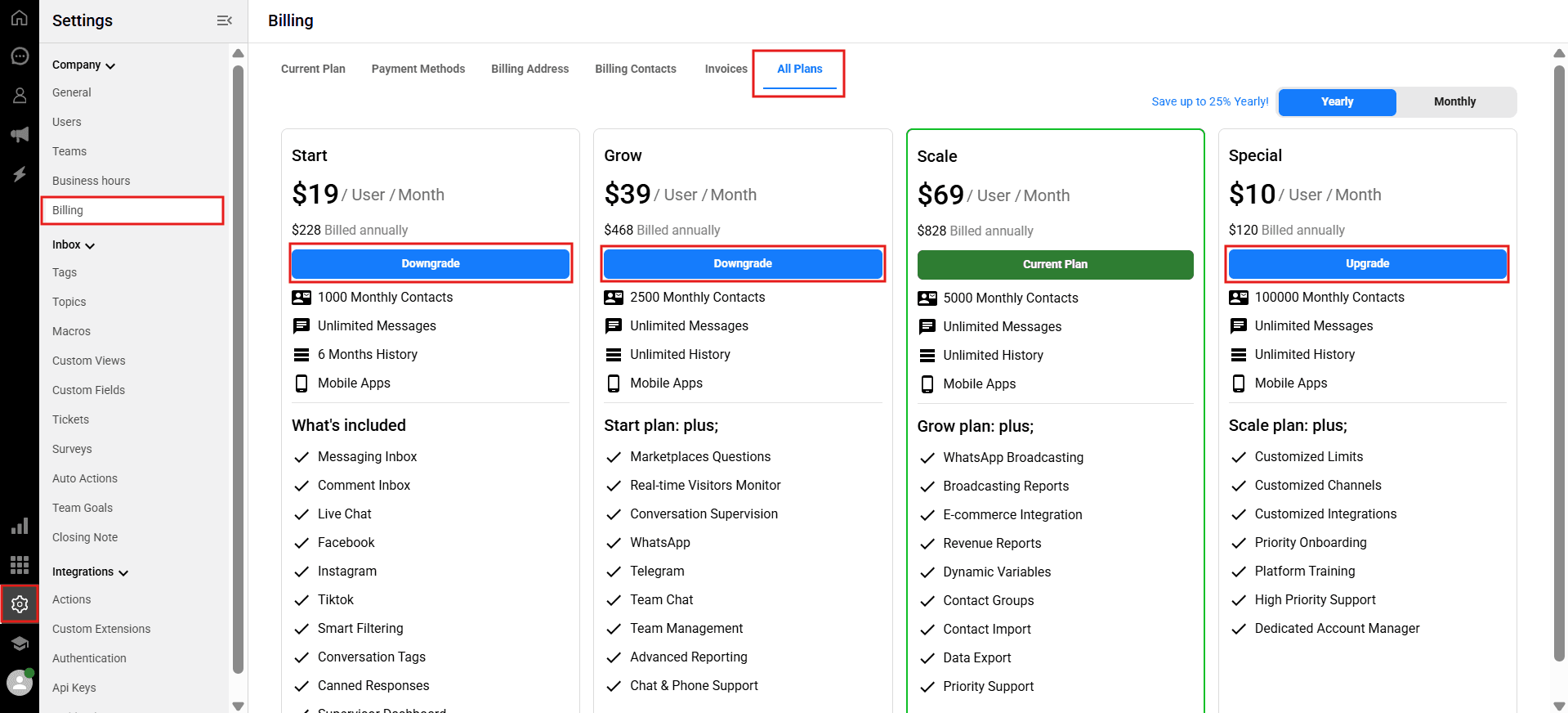
To view all available options, compare features, or downgrade your plan, click the
All Planstab from the top menu.
Review the plans (Start, Grow, Scale, Special) and click the Upgrade or Downgrade button under the plan that best fits your needs.
You can also use the toggle at the top right of this page to switch between Monthly and Yearly billing to see the 25% annual savings.
Add more user seats
If you have reached your current user limit but need to invite more teammates to Qpien, you can quickly purchase additional seats.
Tip: If you have teammates who no longer need access, you can go to Settings > Company > Users and Archive them. This immediately frees up their seat, allowing you to invite a new user without purchasing an additional seat!
If you don't know how, check out the "Seats" article.
If you still need more seats:
-> Go to Settings > Company > Billing.
Make sure you are on the Current Plan tab.
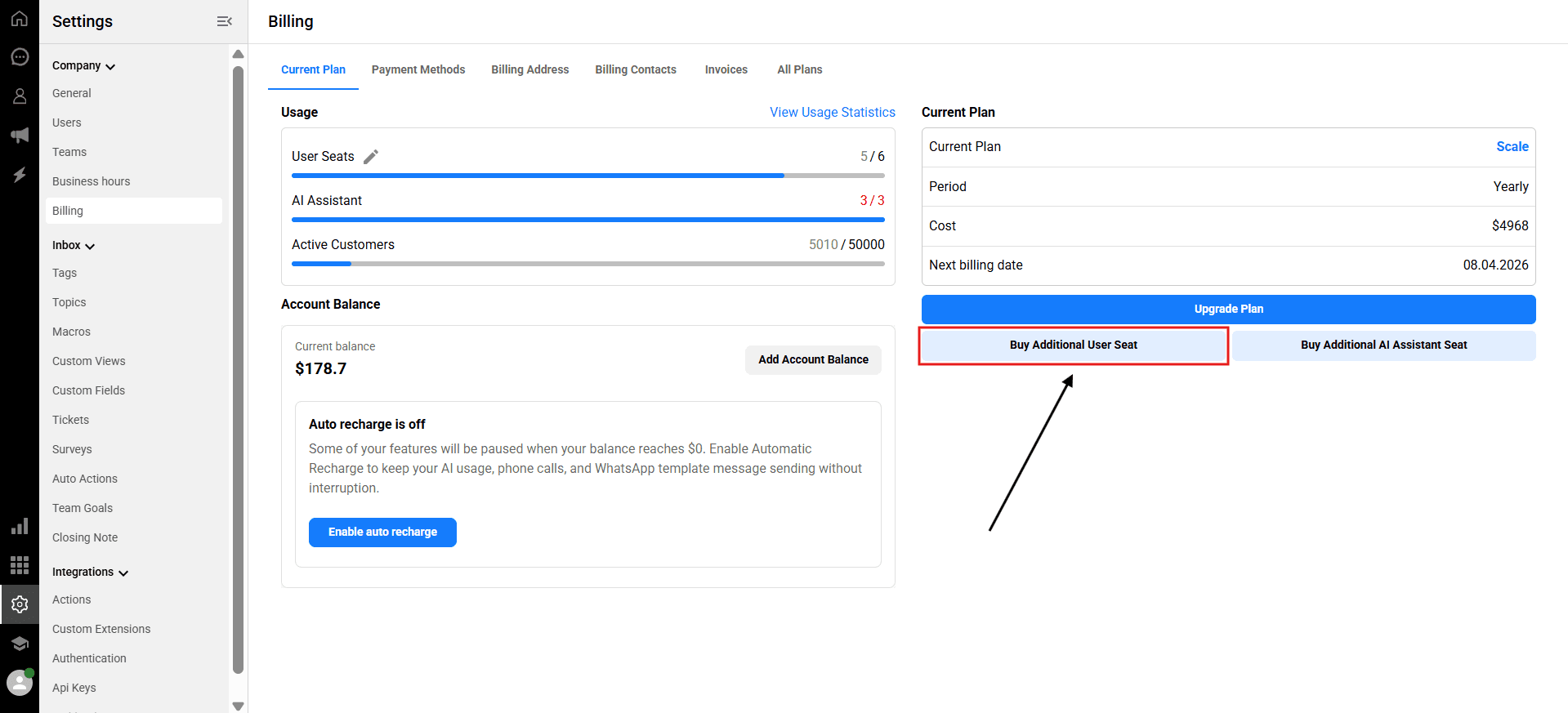
On the right side, just below the Upgrade Plan button, click
Buy Additional User Seat.
Add more AI assistant seats
To handle more customer queries automatically, you can increase your AI capabilities by adding more AI assistant seats.
-> Go to Settings > Company > Billing.
Navigate to the Current Plan tab.
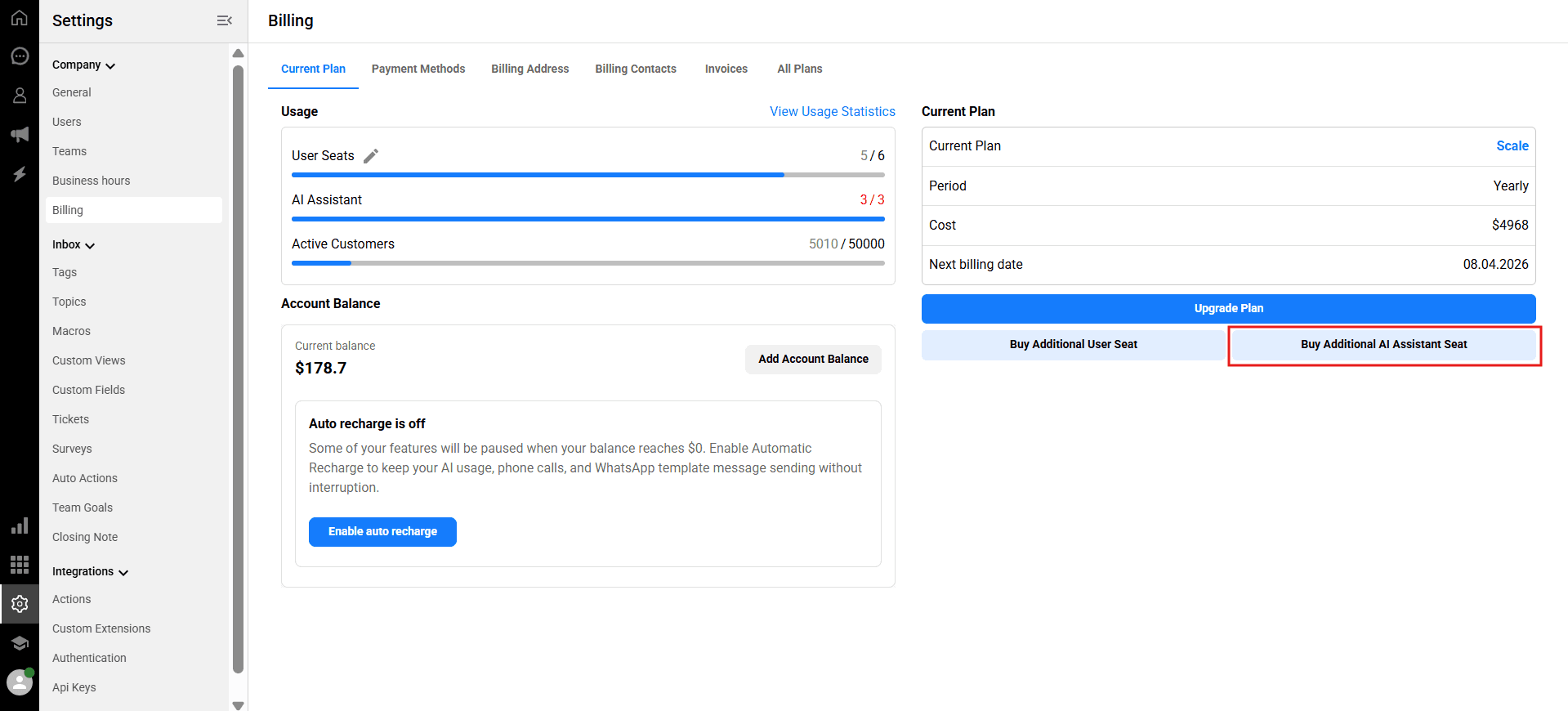
On the right side, click the
Buy Additional AI Assistant Seatbutton.
In this article:
Upgrade or downgrade your plan
Add more user seats
Add more AI assistant seats
As your business grows, your support needs may change. Qpien allows you to easily adjust your subscription directly from your settings. You can switch to a different plan tier or buy extra seats for your teammates and AI assistants without interrupting your workflow.
Upgrade or downgrade your plan
Whether you need access to more advanced features or want to scale back, you can change your plan at any time.
-> Go to Settings > Company > Billing.
If you want to quickly upgrade your current tier, you can click the
Upgrade Planbutton located on the right side of the Current Plan tab.
To view all available options, compare features, or downgrade your plan, click the
All Planstab from the top menu.
Review the plans (Start, Grow, Scale, Special) and click the Upgrade or Downgrade button under the plan that best fits your needs.
You can also use the toggle at the top right of this page to switch between Monthly and Yearly billing to see the 25% annual savings.
Add more user seats
If you have reached your current user limit but need to invite more teammates to Qpien, you can quickly purchase additional seats.
Tip: If you have teammates who no longer need access, you can go to Settings > Company > Users and Archive them. This immediately frees up their seat, allowing you to invite a new user without purchasing an additional seat!
If you don't know how, check out the "Seats" article.
If you still need more seats:
-> Go to Settings > Company > Billing.
Make sure you are on the Current Plan tab.
On the right side, just below the Upgrade Plan button, click
Buy Additional User Seat.
Add more AI assistant seats
To handle more customer queries automatically, you can increase your AI capabilities by adding more AI assistant seats.
-> Go to Settings > Company > Billing.
Navigate to the Current Plan tab.
On the right side, click the
Buy Additional AI Assistant Seatbutton.
In this article:
Upgrade or downgrade your plan
Add more user seats
Add more AI assistant seats
As your business grows, your support needs may change. Qpien allows you to easily adjust your subscription directly from your settings. You can switch to a different plan tier or buy extra seats for your teammates and AI assistants without interrupting your workflow.
Upgrade or downgrade your plan
Whether you need access to more advanced features or want to scale back, you can change your plan at any time.
-> Go to Settings > Company > Billing.
If you want to quickly upgrade your current tier, you can click the
Upgrade Planbutton located on the right side of the Current Plan tab.
To view all available options, compare features, or downgrade your plan, click the
All Planstab from the top menu.
Review the plans (Start, Grow, Scale, Special) and click the Upgrade or Downgrade button under the plan that best fits your needs.
You can also use the toggle at the top right of this page to switch between Monthly and Yearly billing to see the 25% annual savings.
Add more user seats
If you have reached your current user limit but need to invite more teammates to Qpien, you can quickly purchase additional seats.
Tip: If you have teammates who no longer need access, you can go to Settings > Company > Users and Archive them. This immediately frees up their seat, allowing you to invite a new user without purchasing an additional seat!
If you don't know how, check out the "Seats" article.
If you still need more seats:
-> Go to Settings > Company > Billing.
Make sure you are on the Current Plan tab.
On the right side, just below the Upgrade Plan button, click
Buy Additional User Seat.
Add more AI assistant seats
To handle more customer queries automatically, you can increase your AI capabilities by adding more AI assistant seats.
-> Go to Settings > Company > Billing.
Navigate to the Current Plan tab.
On the right side, click the
Buy Additional AI Assistant Seatbutton.
Previous
AI Representative (Chat)
Next
Next
Creating and managing teams
Try Qpien free for 14 days! 🎉
Ready to take control of all your support channels?
Empower your customer interactions with Qpien! Boost sales and elevate satisfaction with every conversation.
Try Qpien free for 14 days! 🎉
Ready to take control of all your support channels?
Empower your customer interactions with Qpien! Boost sales and elevate satisfaction with every conversation.
Try Qpien free for 14 days! 🎉
Ready to take control of all your support channels?
Empower your customer interactions with Qpien! Boost sales and elevate satisfaction with every conversation.