
Account Setup
Updating or resetting your password
Learn how to securely update your current password from your dashboard or reset it if you've forgotten it.
Maintaining a secure password is vital for protecting your communication data. Whether you want to update your current password for security reasons or need to regain access to your account after forgetting it, Qpien makes it easy to manage your credentials safely.
In this article:
Updating your password from the dashboard
Resetting a forgotten password
Updating your password from the dashboard
If you know your current password and want to change it, you can do so directly from your account settings.
-> Navigate to Settings > Personal > Password from the left sidebar. Alternatively, you can access this page by clicking your Profile Avatar in the bottom left corner, or by clicking the relevant card on the new Settings > Overview > Password page.
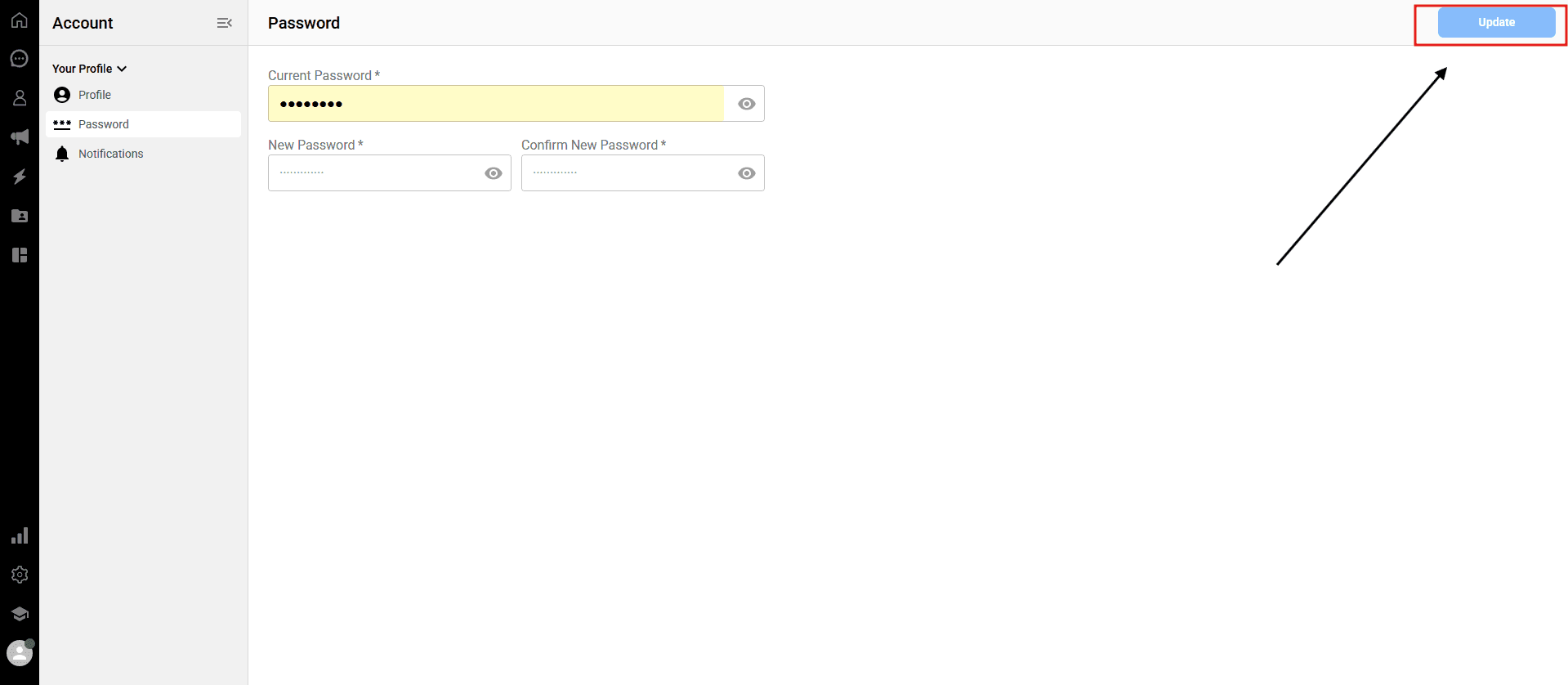
Current Password: Enter your existing password into the first field.
New Password: Enter a new, strong password.
Confirm New Password: Re-enter the new password exactly as you typed it above.
Click the blue "Update" button in the upper-right corner of the page to save your changes.
Important troubleshooting notes:
If the two new passwords do not match exactly, you will receive a “Passwords Do Not Match” warning, and the "Update" button will remain inactive.
If your current password is entered incorrectly, the system will not allow you to change the password.
Resetting a forgotten password
If you have lost access to your account and cannot log in, you can easily reset your password from the login screen.
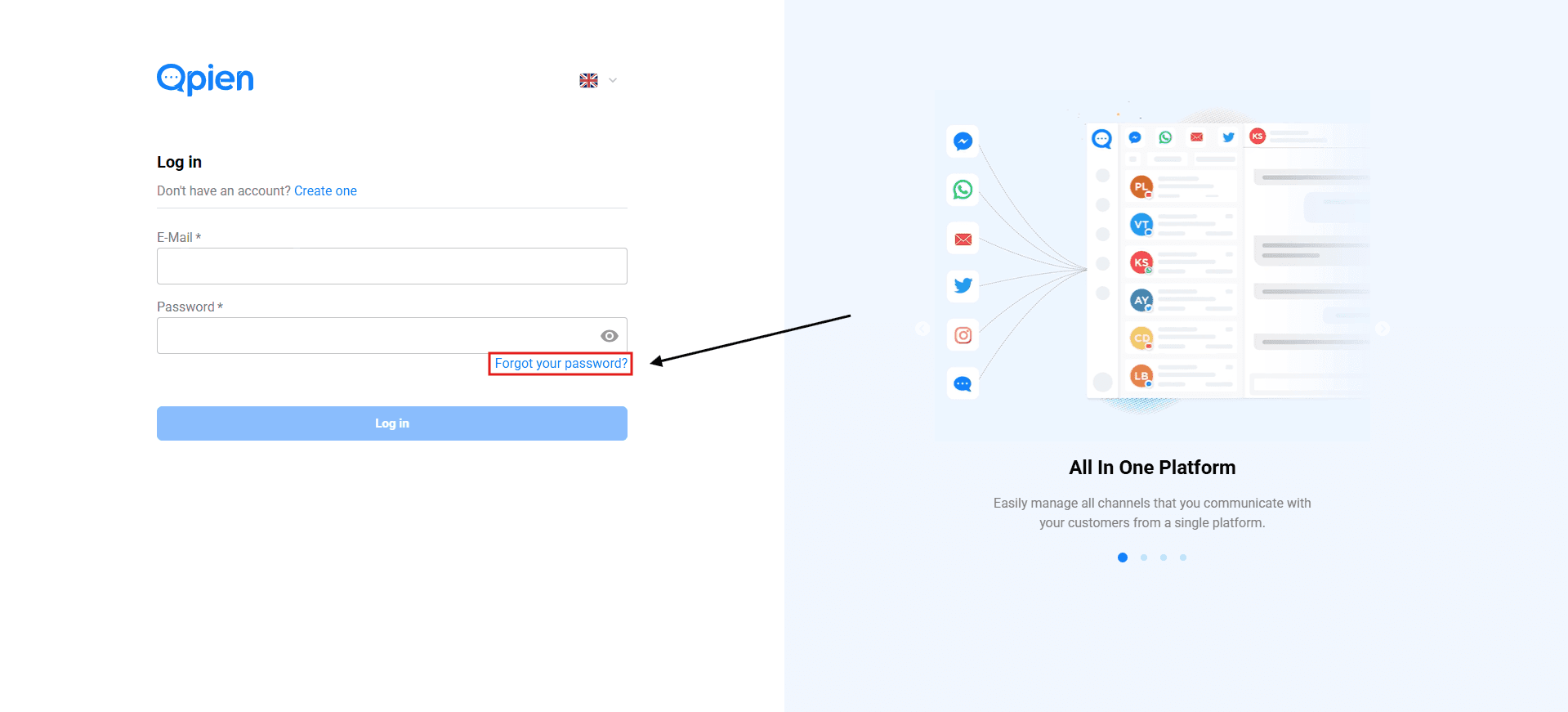
-> Go to the Qpien Login page and click on the "Forgot your password?" link.
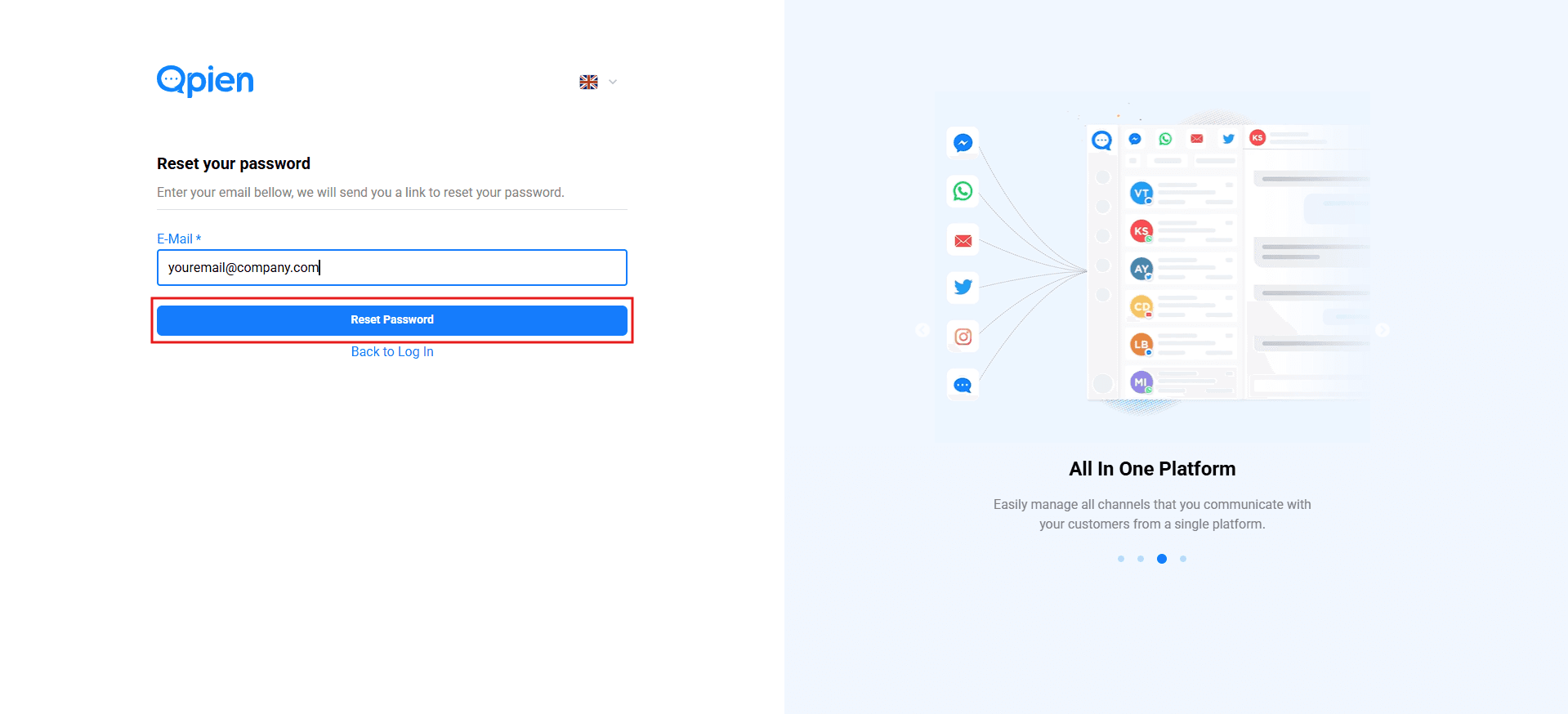
On the Reset your password page, enter your registered email address.
Click the blue "Reset Password" button. A password reset link will be sent to your inbox.
Check your email inbox, open the email from Qpien, and click on the provided reset link.
On the new page that opens, enter your new password into the New Password field.
Re-enter the exact same password into the Confirm New Password field.
Click the
Savebutton.

Once you see the message “Your password has been successfully reset” in the top right corner, your password update is complete. You can now return to the login page and securely access your account using your email address and new password.
Maintaining a secure password is vital for protecting your communication data. Whether you want to update your current password for security reasons or need to regain access to your account after forgetting it, Qpien makes it easy to manage your credentials safely.
In this article:
Updating your password from the dashboard
Resetting a forgotten password
Updating your password from the dashboard
If you know your current password and want to change it, you can do so directly from your account settings.
-> Navigate to Settings > Personal > Password from the left sidebar. Alternatively, you can access this page by clicking your Profile Avatar in the bottom left corner, or by clicking the relevant card on the new Settings > Overview > Password page.
Current Password: Enter your existing password into the first field.
New Password: Enter a new, strong password.
Confirm New Password: Re-enter the new password exactly as you typed it above.
Click the blue "Update" button in the upper-right corner of the page to save your changes.
Important troubleshooting notes:
If the two new passwords do not match exactly, you will receive a “Passwords Do Not Match” warning, and the "Update" button will remain inactive.
If your current password is entered incorrectly, the system will not allow you to change the password.
Resetting a forgotten password
If you have lost access to your account and cannot log in, you can easily reset your password from the login screen.
-> Go to the Qpien Login page and click on the "Forgot your password?" link.
On the Reset your password page, enter your registered email address.
Click the blue "Reset Password" button. A password reset link will be sent to your inbox.
Check your email inbox, open the email from Qpien, and click on the provided reset link.
On the new page that opens, enter your new password into the New Password field.
Re-enter the exact same password into the Confirm New Password field.
Click the
Savebutton.
Once you see the message “Your password has been successfully reset” in the top right corner, your password update is complete. You can now return to the login page and securely access your account using your email address and new password.
Maintaining a secure password is vital for protecting your communication data. Whether you want to update your current password for security reasons or need to regain access to your account after forgetting it, Qpien makes it easy to manage your credentials safely.
In this article:
Updating your password from the dashboard
Resetting a forgotten password
Updating your password from the dashboard
If you know your current password and want to change it, you can do so directly from your account settings.
-> Navigate to Settings > Personal > Password from the left sidebar. Alternatively, you can access this page by clicking your Profile Avatar in the bottom left corner, or by clicking the relevant card on the new Settings > Overview > Password page.
Current Password: Enter your existing password into the first field.
New Password: Enter a new, strong password.
Confirm New Password: Re-enter the new password exactly as you typed it above.
Click the blue "Update" button in the upper-right corner of the page to save your changes.
Important troubleshooting notes:
If the two new passwords do not match exactly, you will receive a “Passwords Do Not Match” warning, and the "Update" button will remain inactive.
If your current password is entered incorrectly, the system will not allow you to change the password.
Resetting a forgotten password
If you have lost access to your account and cannot log in, you can easily reset your password from the login screen.
-> Go to the Qpien Login page and click on the "Forgot your password?" link.
On the Reset your password page, enter your registered email address.
Click the blue "Reset Password" button. A password reset link will be sent to your inbox.
Check your email inbox, open the email from Qpien, and click on the provided reset link.
On the new page that opens, enter your new password into the New Password field.
Re-enter the exact same password into the Confirm New Password field.
Click the
Savebutton.
Once you see the message “Your password has been successfully reset” in the top right corner, your password update is complete. You can now return to the login page and securely access your account using your email address and new password.
Previous
Creating, Editing, and Deleting Quick Responses
Next
Next
Sign up and 14-day free trial
Try Qpien free for 14 days! 🎉
Ready to take control of all your support channels?
Empower your customer interactions with Qpien! Boost sales and elevate satisfaction with every conversation.
Try Qpien free for 14 days! 🎉
Ready to take control of all your support channels?
Empower your customer interactions with Qpien! Boost sales and elevate satisfaction with every conversation.
Try Qpien free for 14 days! 🎉
Ready to take control of all your support channels?
Empower your customer interactions with Qpien! Boost sales and elevate satisfaction with every conversation.