
Account Setup
Two-factor authentication
Take the security of your Qpien account and customer data to the next level.
Two-Factor Authentication (2FA) protects your account against unauthorized access by requiring a one-time code from your mobile device in addition to your password during login. In this guide, you will learn how to easily enable 2FA for your personal profile and how workspace administrators can enforce this essential security step for the entire team.
In this article:
Setting up Two-Factor Authentication (2FA)
Enforcing 2FA for the entire company (Admins only)
Logging in with 2FA
Setting up Two-Factor Authentication (2FA)
Two-Factor Authentication (2FA) adds an extra layer of protection by requiring a code from your mobile device during login.
Setup Process:
Download the free Google Authenticator app on your mobile device.
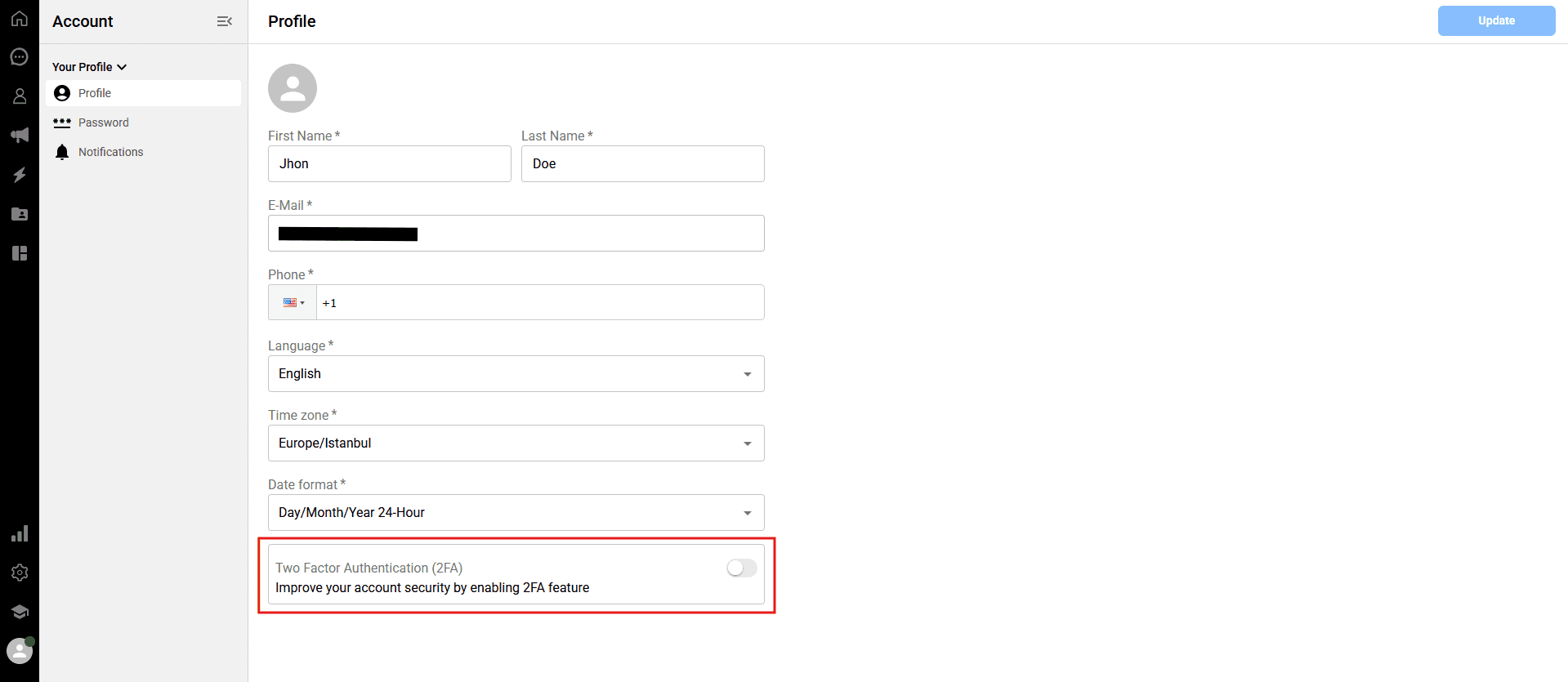
At the bottom of your Profile page, click to enable the toggle under Two-Factor Authentication (2FA).
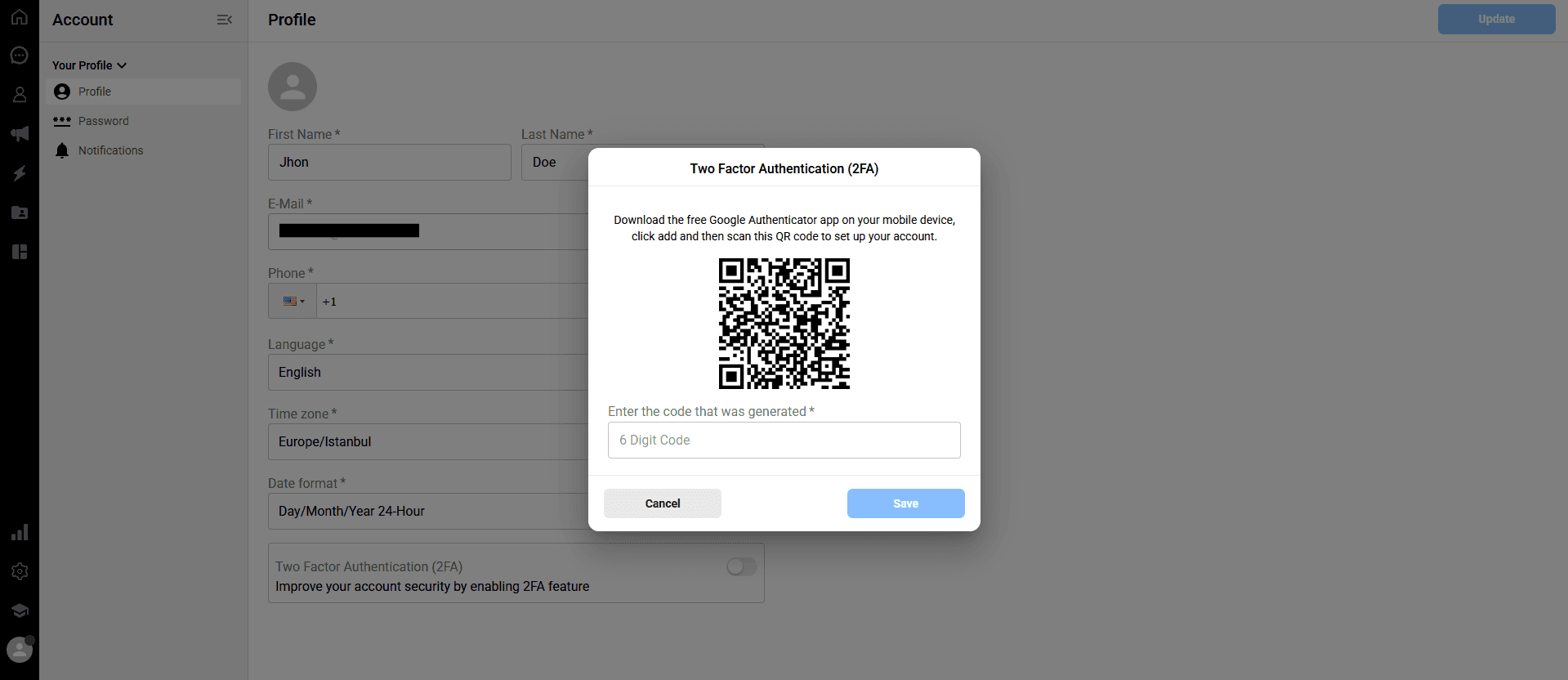
Scan the provided QR Code using the app to link your Qpien account.
Enter the 6-digit verification code generated by the app into the panel and click "Save".
Enforcing 2FA for the entire company (Admins only)
While individual users can enable 2FA from their profiles, Workspace Admins can make it a mandatory security requirement for everyone in the company.
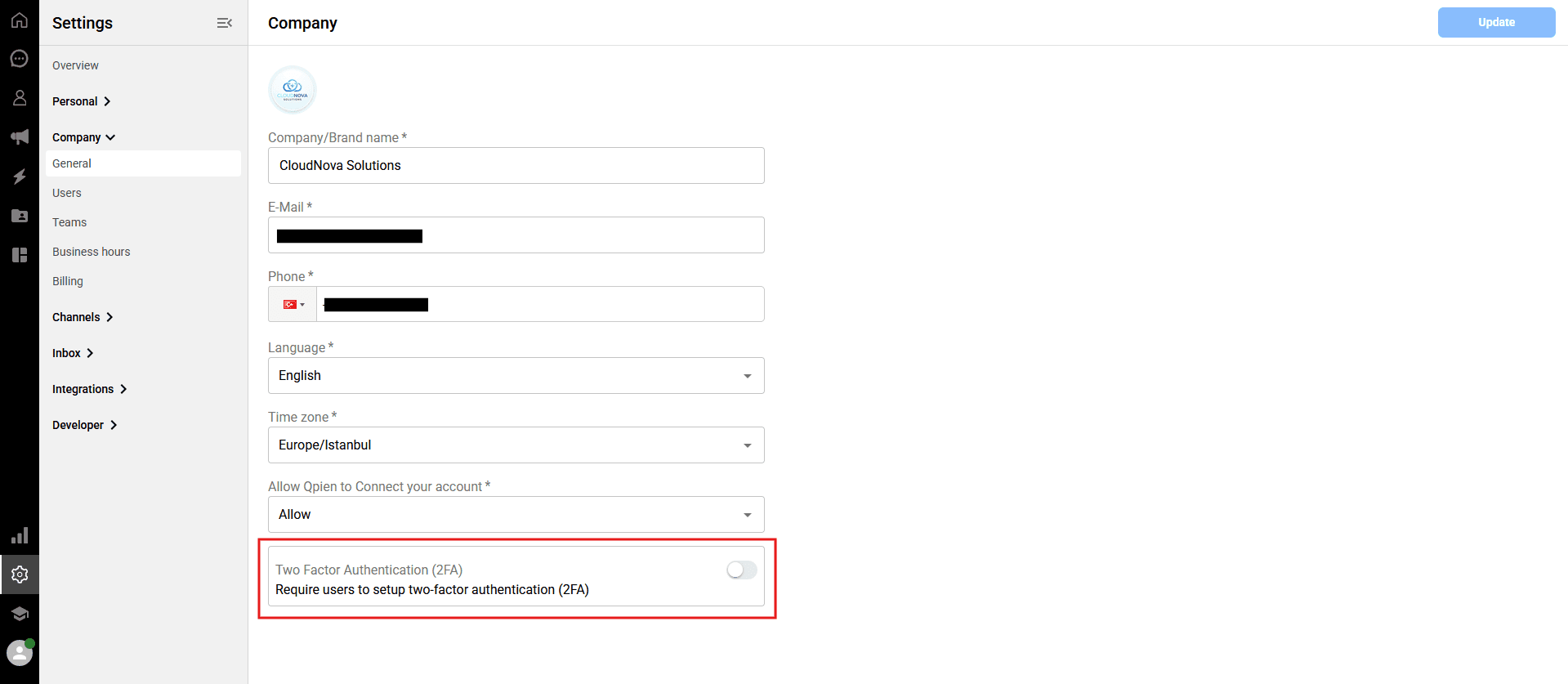
-> Navigate to Settings > Company > General from the left sidebar.
Scroll to the bottom of the page and enable the toggle for Two-Factor Authentication (2FA) to require all users to set it up.
Logging in with 2FA
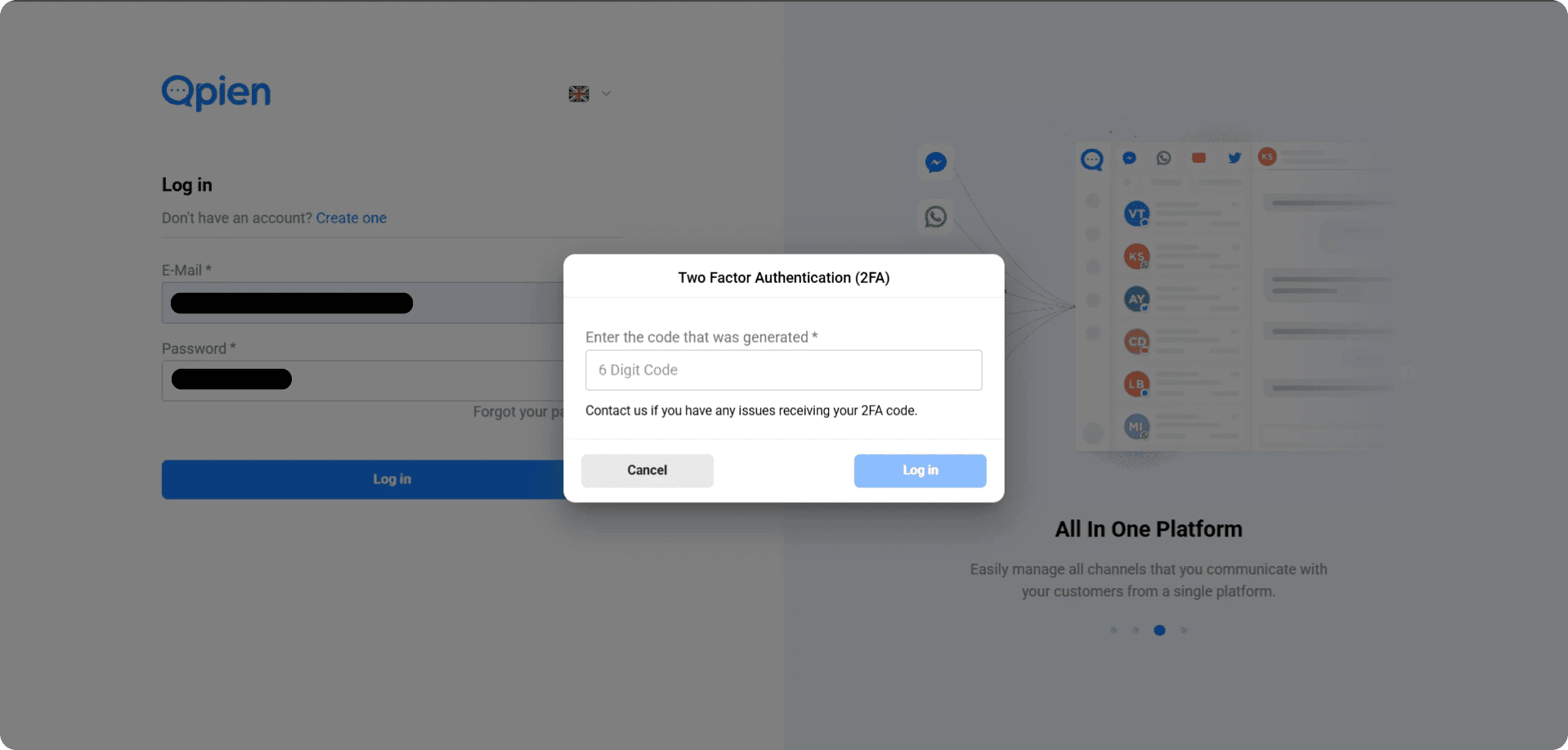
Once activated, every time you log in with your email and password, Qpien will ask for your 2FA code.
Open the Google Authenticator app on your mobile device.
Select Qpien, and enter the 6-digit code displayed there into the verification field on the screen.
Click the
Log Inbutton.
Important details regarding 2FA:
On your Profile page, the two-factor authentication you’ve set up applies only to your own account. It does not affect other users (unless enforced by an Admin).
If you disable two-factor authentication, you also need to delete the Qpien option from the Google Authenticator app.
If you want to enable two-factor authentication again in the future, you will need to create a new Qpien option in Google Authenticator. You cannot use the one you previously created.
Two-Factor Authentication (2FA) protects your account against unauthorized access by requiring a one-time code from your mobile device in addition to your password during login. In this guide, you will learn how to easily enable 2FA for your personal profile and how workspace administrators can enforce this essential security step for the entire team.
In this article:
Setting up Two-Factor Authentication (2FA)
Enforcing 2FA for the entire company (Admins only)
Logging in with 2FA
Setting up Two-Factor Authentication (2FA)
Two-Factor Authentication (2FA) adds an extra layer of protection by requiring a code from your mobile device during login.
Setup Process:
Download the free Google Authenticator app on your mobile device.
At the bottom of your Profile page, click to enable the toggle under Two-Factor Authentication (2FA).
Scan the provided QR Code using the app to link your Qpien account.
Enter the 6-digit verification code generated by the app into the panel and click "Save".
Enforcing 2FA for the entire company (Admins only)
While individual users can enable 2FA from their profiles, Workspace Admins can make it a mandatory security requirement for everyone in the company.
-> Navigate to Settings > Company > General from the left sidebar.
Scroll to the bottom of the page and enable the toggle for Two-Factor Authentication (2FA) to require all users to set it up.
Logging in with 2FA
Once activated, every time you log in with your email and password, Qpien will ask for your 2FA code.
Open the Google Authenticator app on your mobile device.
Select Qpien, and enter the 6-digit code displayed there into the verification field on the screen.
Click the
Log Inbutton.
Important details regarding 2FA:
On your Profile page, the two-factor authentication you’ve set up applies only to your own account. It does not affect other users (unless enforced by an Admin).
If you disable two-factor authentication, you also need to delete the Qpien option from the Google Authenticator app.
If you want to enable two-factor authentication again in the future, you will need to create a new Qpien option in Google Authenticator. You cannot use the one you previously created.
Two-Factor Authentication (2FA) protects your account against unauthorized access by requiring a one-time code from your mobile device in addition to your password during login. In this guide, you will learn how to easily enable 2FA for your personal profile and how workspace administrators can enforce this essential security step for the entire team.
In this article:
Setting up Two-Factor Authentication (2FA)
Enforcing 2FA for the entire company (Admins only)
Logging in with 2FA
Setting up Two-Factor Authentication (2FA)
Two-Factor Authentication (2FA) adds an extra layer of protection by requiring a code from your mobile device during login.
Setup Process:
Download the free Google Authenticator app on your mobile device.
At the bottom of your Profile page, click to enable the toggle under Two-Factor Authentication (2FA).
Scan the provided QR Code using the app to link your Qpien account.
Enter the 6-digit verification code generated by the app into the panel and click "Save".
Enforcing 2FA for the entire company (Admins only)
While individual users can enable 2FA from their profiles, Workspace Admins can make it a mandatory security requirement for everyone in the company.
-> Navigate to Settings > Company > General from the left sidebar.
Scroll to the bottom of the page and enable the toggle for Two-Factor Authentication (2FA) to require all users to set it up.
Logging in with 2FA
Once activated, every time you log in with your email and password, Qpien will ask for your 2FA code.
Open the Google Authenticator app on your mobile device.
Select Qpien, and enter the 6-digit code displayed there into the verification field on the screen.
Click the
Log Inbutton.
Important details regarding 2FA:
On your Profile page, the two-factor authentication you’ve set up applies only to your own account. It does not affect other users (unless enforced by an Admin).
If you disable two-factor authentication, you also need to delete the Qpien option from the Google Authenticator app.
If you want to enable two-factor authentication again in the future, you will need to create a new Qpien option in Google Authenticator. You cannot use the one you previously created.
Previous
What is Qpien?
Next
Next
Usage/ How to see and manage your usage
Try Qpien free for 14 days! 🎉
Ready to take control of all your support channels?
Empower your customer interactions with Qpien! Boost sales and elevate satisfaction with every conversation.
Try Qpien free for 14 days! 🎉
Ready to take control of all your support channels?
Empower your customer interactions with Qpien! Boost sales and elevate satisfaction with every conversation.
Try Qpien free for 14 days! 🎉
Ready to take control of all your support channels?
Empower your customer interactions with Qpien! Boost sales and elevate satisfaction with every conversation.