
Account Setup
Personalizing your account
Learn how to customize your personal details, adjust regional preferences.
Managing your profile on Qpien ensures that your team recognizes your contributions and your account remains secure. This guide covers how to personalize your profile information, adjust regional settings like language and time zones.
Accessing your profile settings
Changing your status
Accepting calls
Updating your profile information
Accessing your profile settings
Navigate to Settings > Personal > Profile (or Password / Notifications) from the left sidebar. Alternatively, you can access this page by clicking your Profile Avatar in the bottom left corner, or by clicking the relevant card on the new Settings > Overview page.
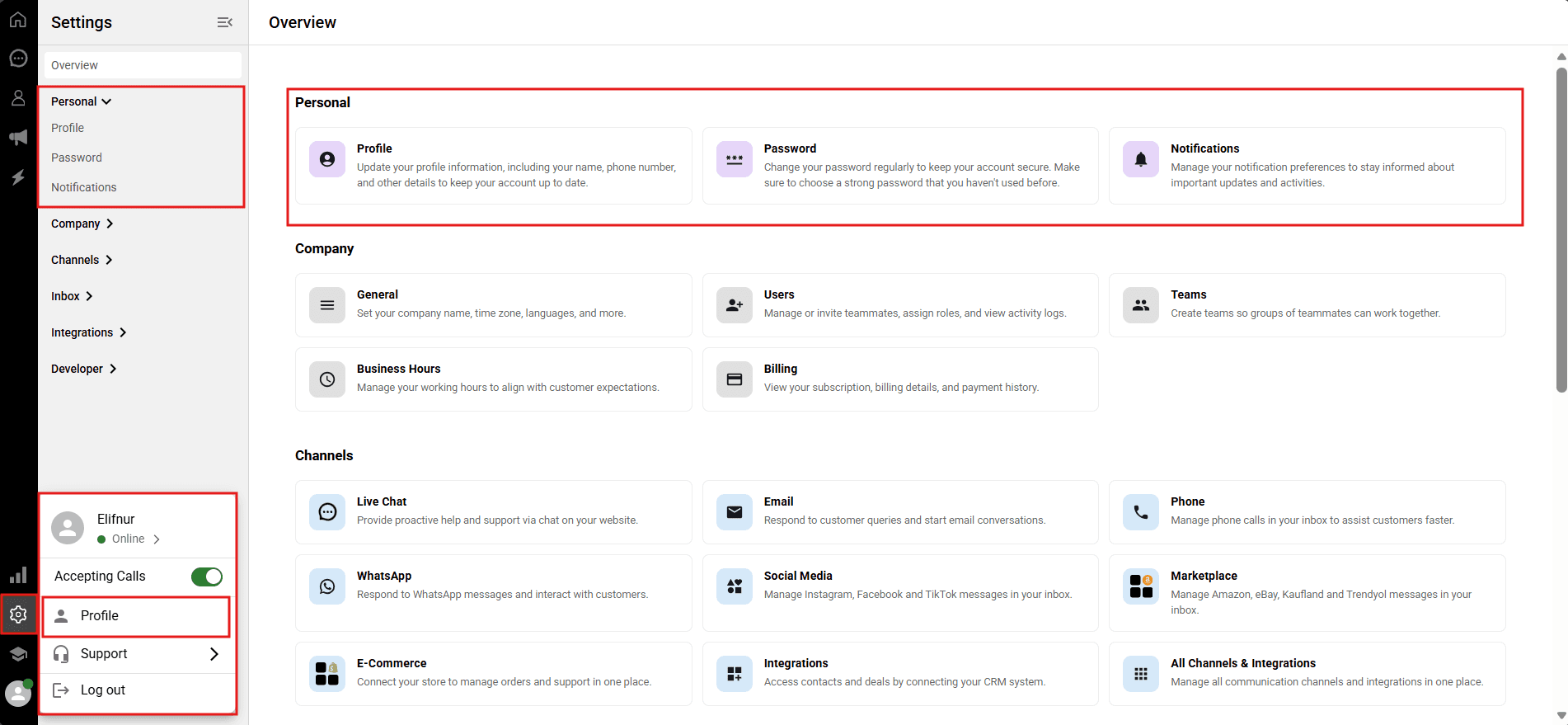
Changing your status
-> Click on your Profile Avatar on the left and then click on the word that represents your current status (for example, "Online").
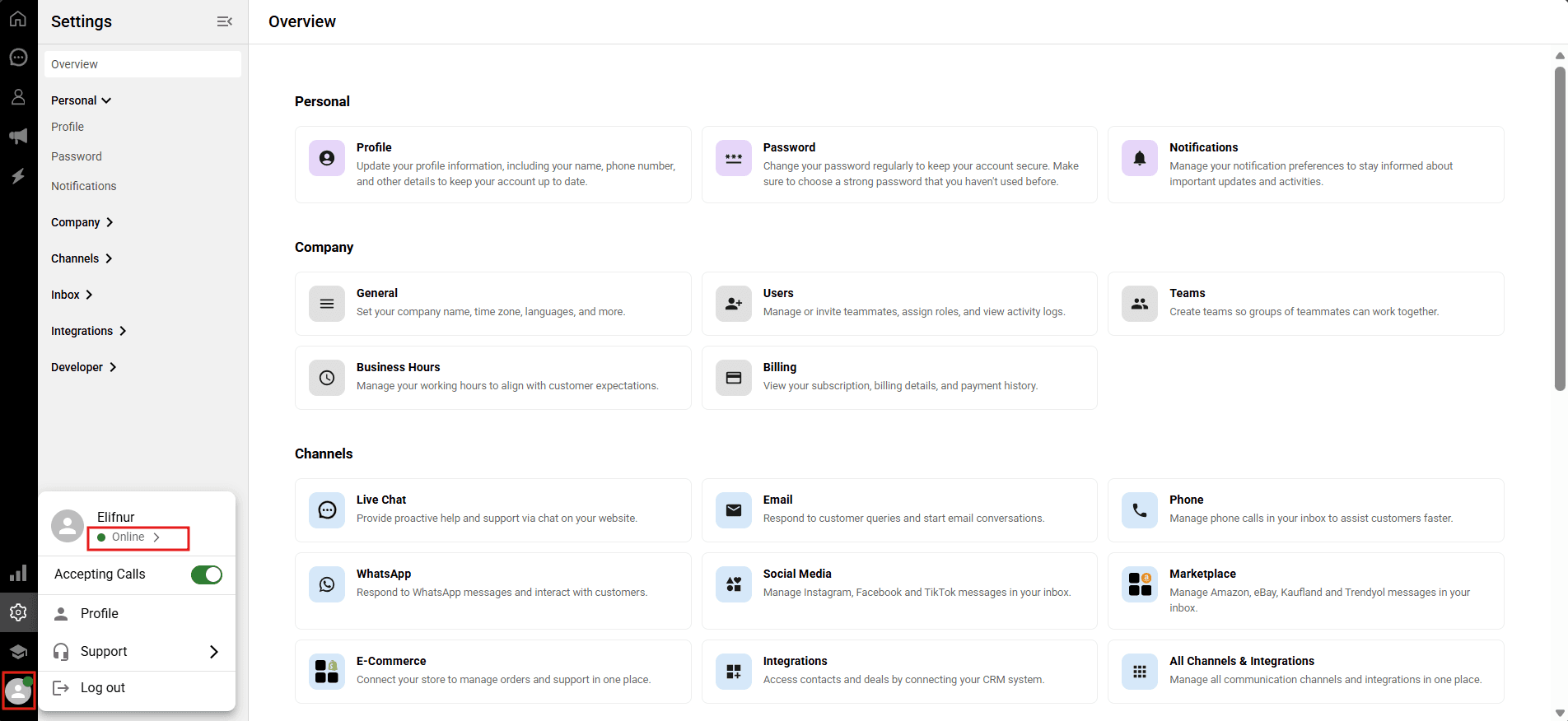
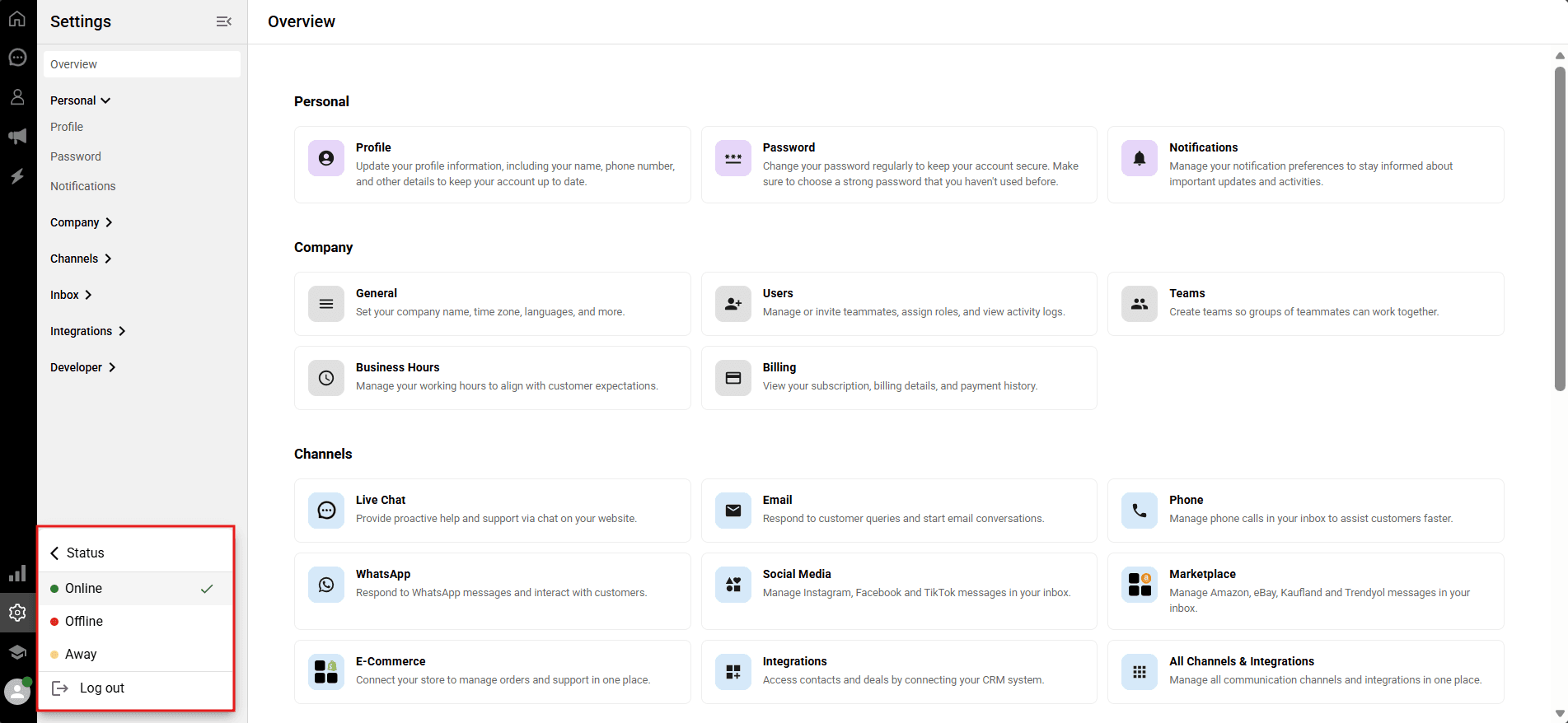
You can change your status by selecting the appropriate option (Online, Offline, or Away) from the dropdown menu here.
Accepting calls
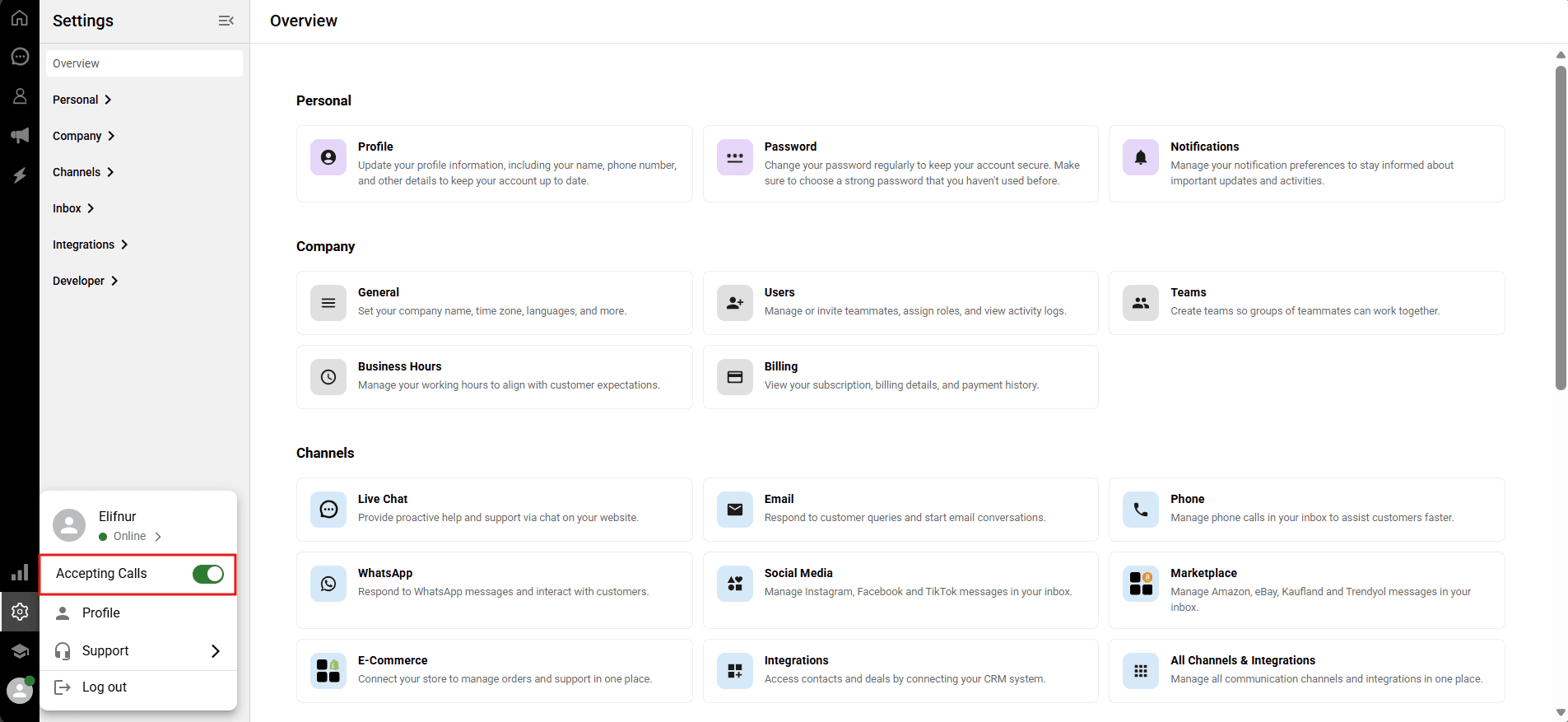
If your workspace has phone integrations enabled, you can manage your availability for voice calls directly from the quick-access panel.
-> Click on your Profile Avatar in the lower-left corner.
Toggle the "Accepting Calls" switch on or off.
On (Green): You are ready to receive incoming voice calls.
Off (Gray): You will not receive any voice calls, allowing you to focus on other tasks.
Updating your profile information
Navigate to Profile Avatar > Profile where your profile information is located. On the page that opens, you can view and update all the information in your profile.
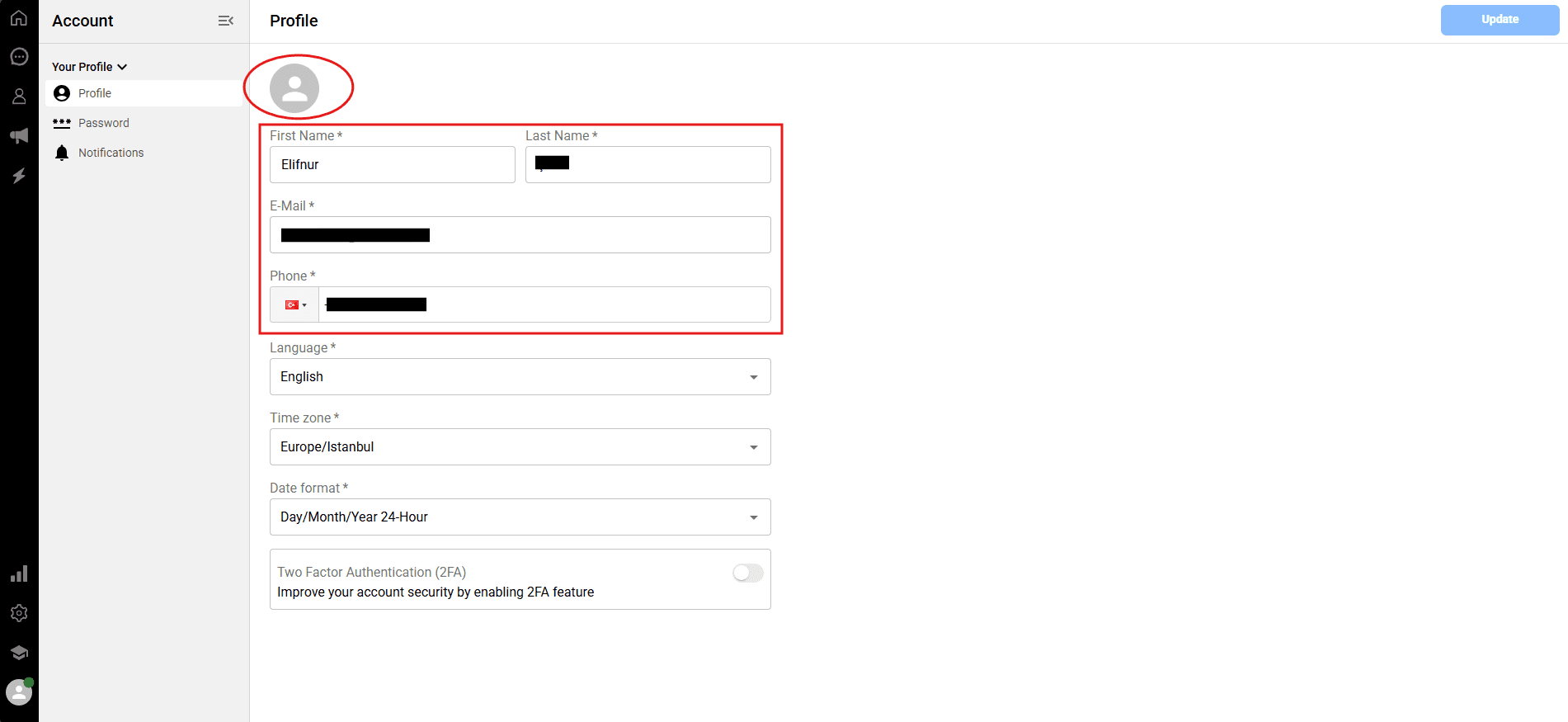
The update process is detailed as follows:
Updating your avatar: Click on your current avatar to select and add a new photo from your computer.
Deleting or updating the current photo: You can remove a previously added photo or replace it with a new one.
Personal details: To update information such as your first name, last name, email address, and phone number, click on the relevant field and make changes by entering the desired information.
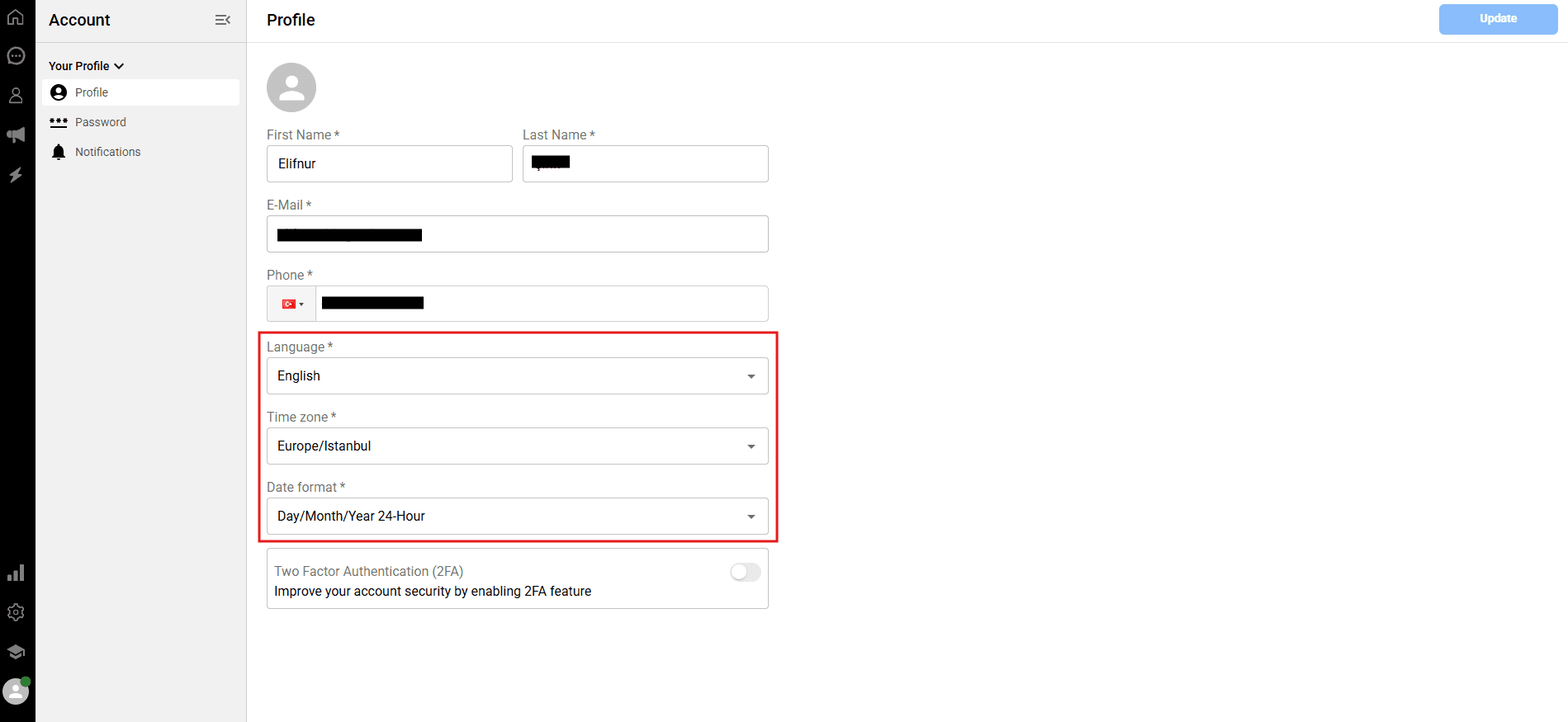
Language: You can select the platform's language as Turkish, English, or Arabic from the "Language" section and start using it.
Time zone: In the "Time zone" field, you can select and set the time zone appropriate for your region and city.
Date format: In the "Date format" field, you can easily change the date to "day/month/year" or "month/day/year" format, and the time to 12-hour or 24-hour format.
Note: You can save your changes by clicking the
Updatebutton in the upper right corner.
Managing your profile on Qpien ensures that your team recognizes your contributions and your account remains secure. This guide covers how to personalize your profile information, adjust regional settings like language and time zones.
Accessing your profile settings
Changing your status
Accepting calls
Updating your profile information
Accessing your profile settings
Navigate to Settings > Personal > Profile (or Password / Notifications) from the left sidebar. Alternatively, you can access this page by clicking your Profile Avatar in the bottom left corner, or by clicking the relevant card on the new Settings > Overview page.
Changing your status
-> Click on your Profile Avatar on the left and then click on the word that represents your current status (for example, "Online").
You can change your status by selecting the appropriate option (Online, Offline, or Away) from the dropdown menu here.
Accepting calls
If your workspace has phone integrations enabled, you can manage your availability for voice calls directly from the quick-access panel.
-> Click on your Profile Avatar in the lower-left corner.
Toggle the "Accepting Calls" switch on or off.
On (Green): You are ready to receive incoming voice calls.
Off (Gray): You will not receive any voice calls, allowing you to focus on other tasks.
Updating your profile information
Navigate to Profile Avatar > Profile where your profile information is located. On the page that opens, you can view and update all the information in your profile.
The update process is detailed as follows:
Updating your avatar: Click on your current avatar to select and add a new photo from your computer.
Deleting or updating the current photo: You can remove a previously added photo or replace it with a new one.
Personal details: To update information such as your first name, last name, email address, and phone number, click on the relevant field and make changes by entering the desired information.
Language: You can select the platform's language as Turkish, English, or Arabic from the "Language" section and start using it.
Time zone: In the "Time zone" field, you can select and set the time zone appropriate for your region and city.
Date format: In the "Date format" field, you can easily change the date to "day/month/year" or "month/day/year" format, and the time to 12-hour or 24-hour format.
Note: You can save your changes by clicking the
Updatebutton in the upper right corner.
Managing your profile on Qpien ensures that your team recognizes your contributions and your account remains secure. This guide covers how to personalize your profile information, adjust regional settings like language and time zones.
Accessing your profile settings
Changing your status
Accepting calls
Updating your profile information
Accessing your profile settings
Navigate to Settings > Personal > Profile (or Password / Notifications) from the left sidebar. Alternatively, you can access this page by clicking your Profile Avatar in the bottom left corner, or by clicking the relevant card on the new Settings > Overview page.
Changing your status
-> Click on your Profile Avatar on the left and then click on the word that represents your current status (for example, "Online").
You can change your status by selecting the appropriate option (Online, Offline, or Away) from the dropdown menu here.
Accepting calls
If your workspace has phone integrations enabled, you can manage your availability for voice calls directly from the quick-access panel.
-> Click on your Profile Avatar in the lower-left corner.
Toggle the "Accepting Calls" switch on or off.
On (Green): You are ready to receive incoming voice calls.
Off (Gray): You will not receive any voice calls, allowing you to focus on other tasks.
Updating your profile information
Navigate to Profile Avatar > Profile where your profile information is located. On the page that opens, you can view and update all the information in your profile.
The update process is detailed as follows:
Updating your avatar: Click on your current avatar to select and add a new photo from your computer.
Deleting or updating the current photo: You can remove a previously added photo or replace it with a new one.
Personal details: To update information such as your first name, last name, email address, and phone number, click on the relevant field and make changes by entering the desired information.
Language: You can select the platform's language as Turkish, English, or Arabic from the "Language" section and start using it.
Time zone: In the "Time zone" field, you can select and set the time zone appropriate for your region and city.
Date format: In the "Date format" field, you can easily change the date to "day/month/year" or "month/day/year" format, and the time to 12-hour or 24-hour format.
Note: You can save your changes by clicking the
Updatebutton in the upper right corner.
Previous
Qpien plans explained
Next
Next
Setting up your company profile and business hours
Try Qpien free for 14 days! 🎉
Ready to take control of all your support channels?
Empower your customer interactions with Qpien! Boost sales and elevate satisfaction with every conversation.
Try Qpien free for 14 days! 🎉
Ready to take control of all your support channels?
Empower your customer interactions with Qpien! Boost sales and elevate satisfaction with every conversation.
Try Qpien free for 14 days! 🎉
Ready to take control of all your support channels?
Empower your customer interactions with Qpien! Boost sales and elevate satisfaction with every conversation.