
Account Setup
Configuring your notification preferences
Customize how and where you receive alerts for new messages, conversations, and tasks.
Stay on top of every customer interaction by fine-tuning your notification settings. Qpien allows you to customize how and where you receive alerts, ensuring you never miss an important update while maintaining your focus. These settings are personal and apply exclusively to your individual account, meaning they will not affect the preferences of other team members.
In this article:
Accessing notification settings
Customizing sound settings
Configuring notification channels
Setting mobile push notification rules
Accessing notification settings
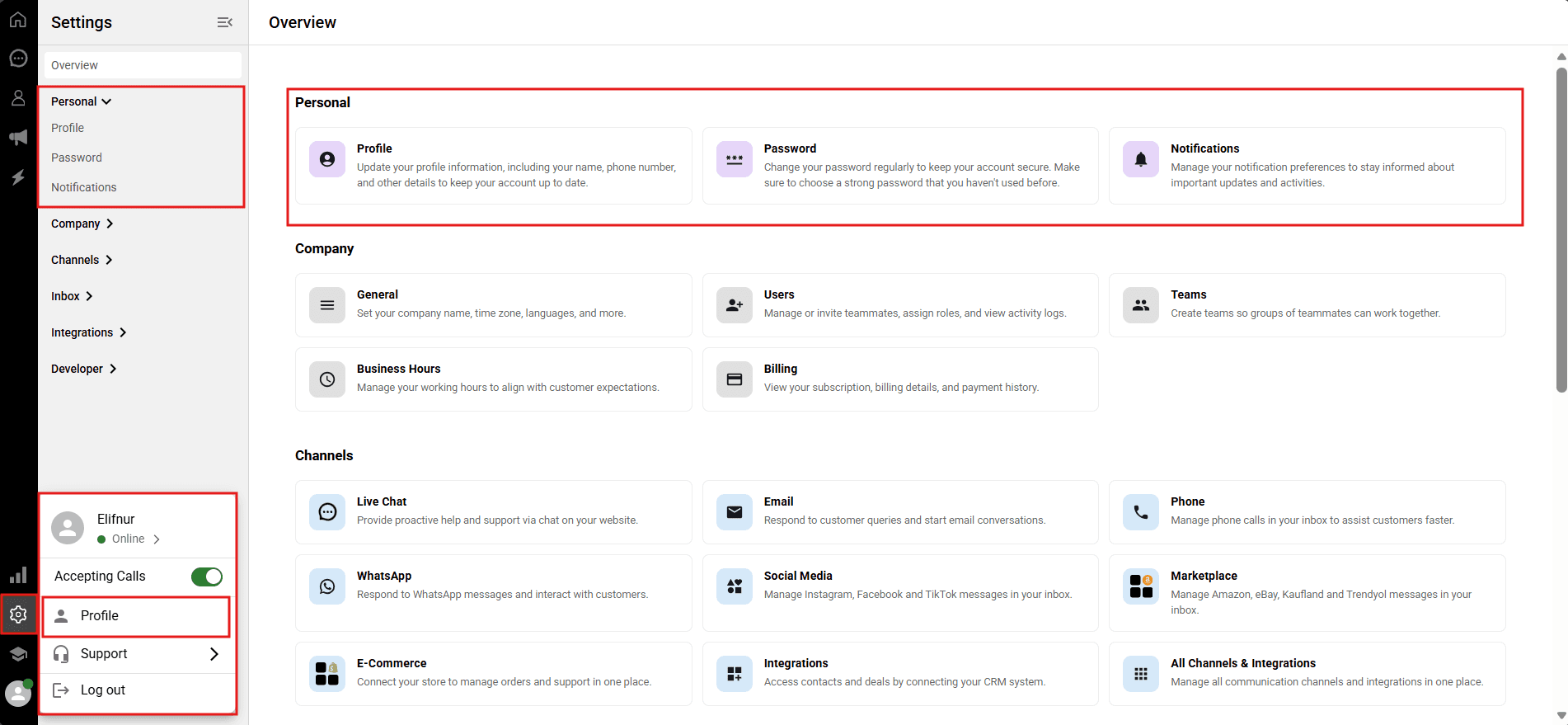
Navigate to Settings > Personal > Notifications from the left sidebar. Alternatively, you can access this page by clicking your Profile Avatar in the bottom left corner, or by clicking the relevant card on the new Settings > Overview > Notifictions page.
Customizing sound settings
You can personalize the audio alerts for incoming messages and conversations to easily distinguish them.
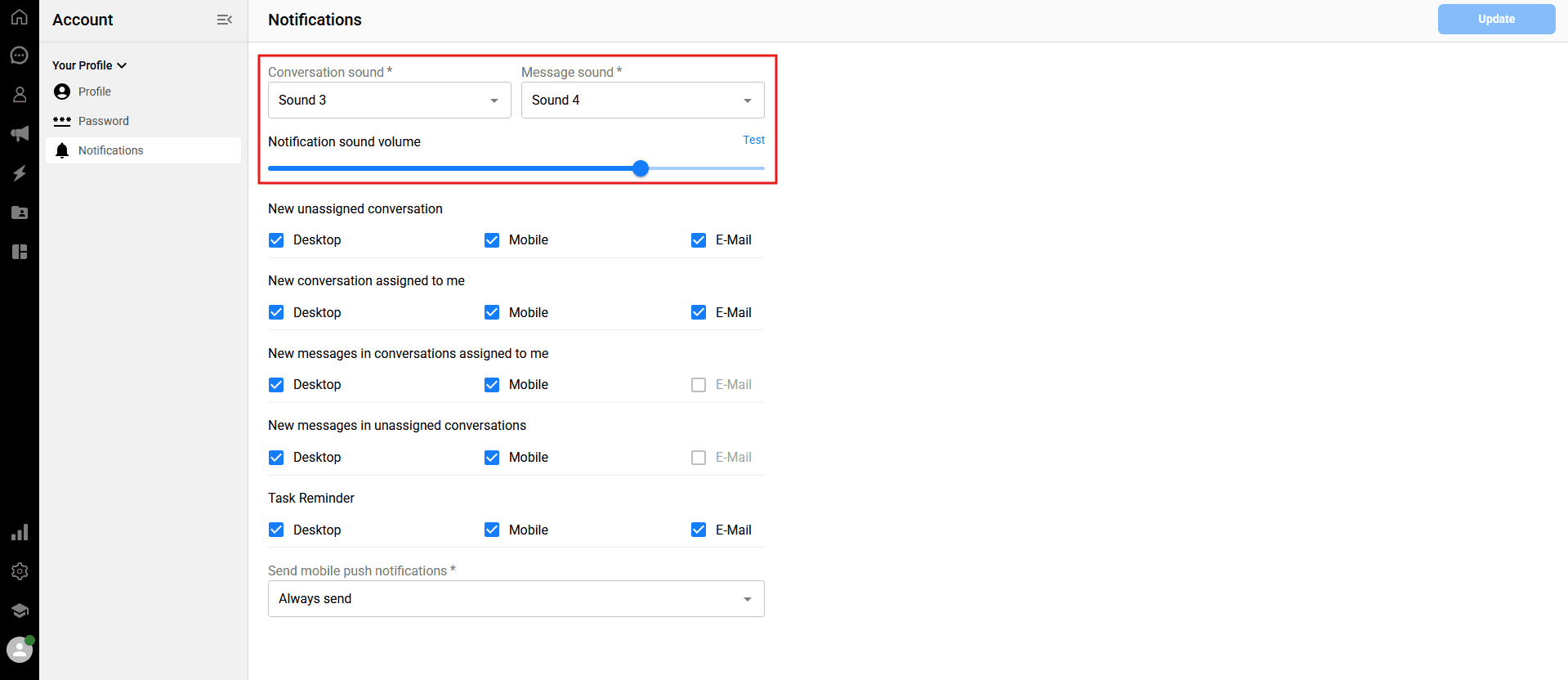
Conversation sound: Select the specific audio tone that will play when a new conversation is initiated.
Message sound: Choose the alert tone you will hear when a new message arrives in an existing conversation.
Notification sound volume: Use the slider to adjust how loud the notifications will be. You can click the blue Test link next to the slider to hear a preview of your selected volume and tones.
Configuring notification channels
Qpien allows you to route different types of alerts to specific channels: Desktop, Mobile, or E-Mail. You can check or uncheck the boxes for each event based on your workflow.
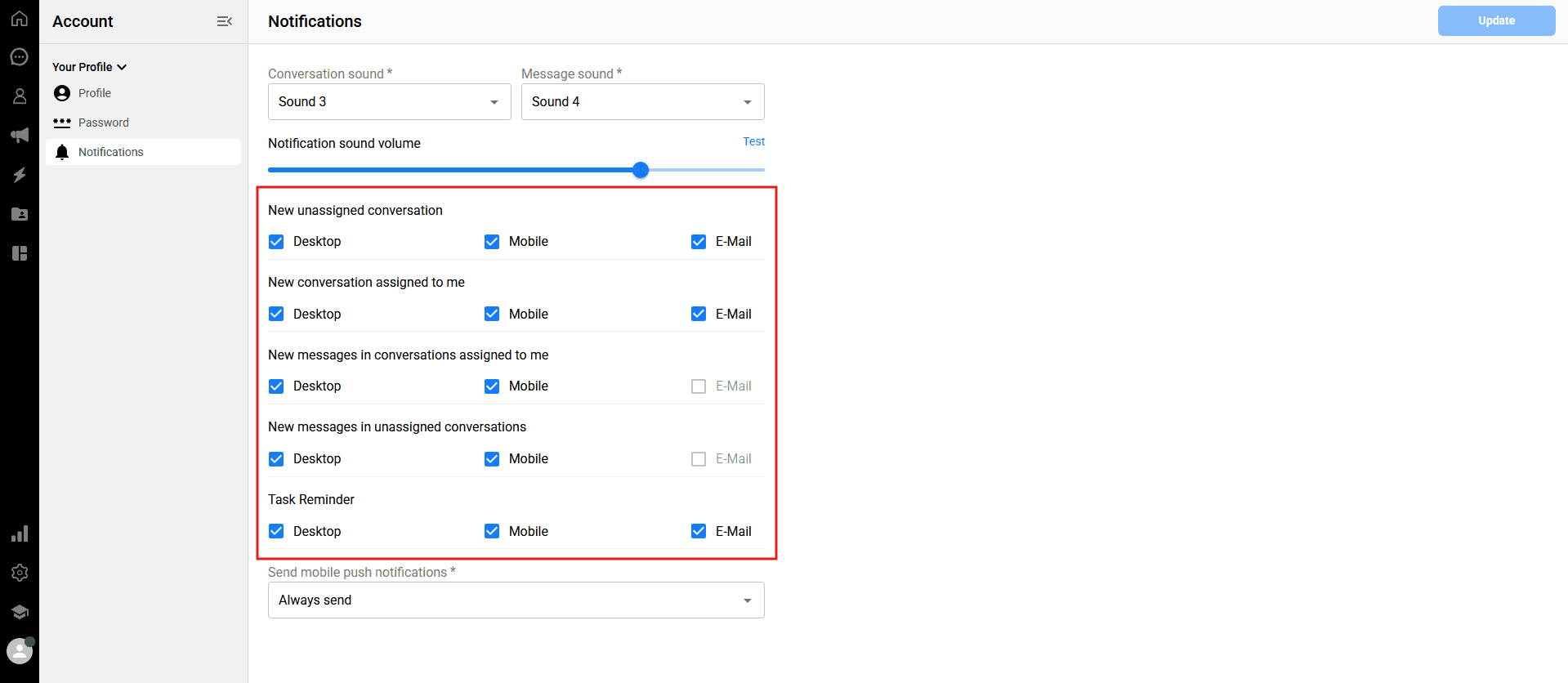
You can customize alerts for the following events:
New unassigned conversation: When a brand new conversation drops into the inbox but hasn't been assigned to an agent yet.
New conversation assigned to me: When a conversation is specifically routed or assigned to you.
New messages in conversations assigned to me: When a customer replies to a conversation you are already handling.
New messages in unassigned conversations: When a new message arrives in a thread that currently has no assignee.
Task Reminder: When a scheduled task assigned to you is due.
Setting mobile push notification rules
If you use the Qpien mobile app, you can control exactly when you receive push notifications on your phone to avoid alert fatigue.
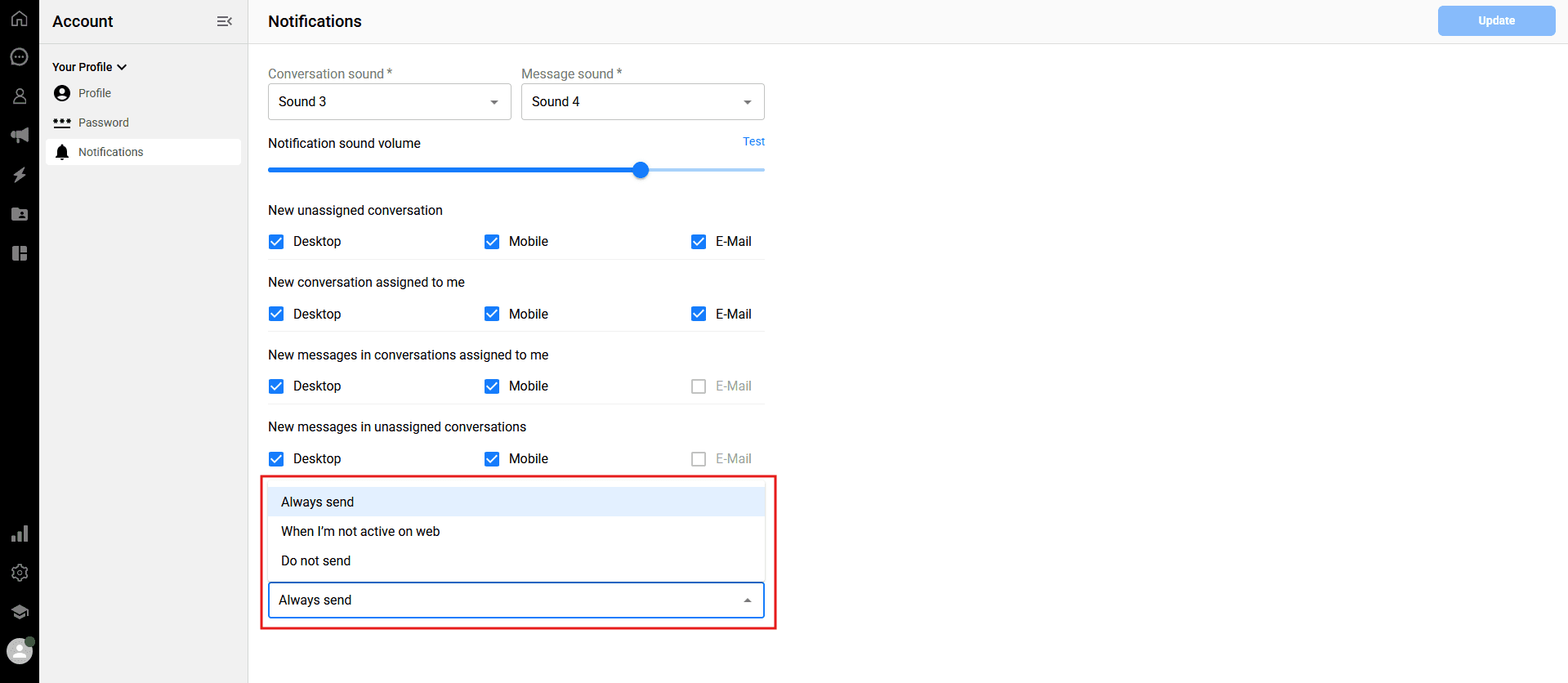
Click the dropdown menu under "Send mobile push notifications" and choose one of the following rules:
Always send: You will receive push notifications on your mobile device for all selected events, regardless of whether you are using the web app or not.
When I'm not active on web: You will only receive mobile push notifications if you are currently away or logged out of the Qpien web dashboard. This is ideal for preventing duplicate notifications.
Do not send: You will not receive any push notifications on your mobile device.
Important: Once you have configured your preferences across all sections, click the blue "Update" button in the upper right corner of the page to save your changes.
Stay on top of every customer interaction by fine-tuning your notification settings. Qpien allows you to customize how and where you receive alerts, ensuring you never miss an important update while maintaining your focus. These settings are personal and apply exclusively to your individual account, meaning they will not affect the preferences of other team members.
In this article:
Accessing notification settings
Customizing sound settings
Configuring notification channels
Setting mobile push notification rules
Accessing notification settings
Navigate to Settings > Personal > Notifications from the left sidebar. Alternatively, you can access this page by clicking your Profile Avatar in the bottom left corner, or by clicking the relevant card on the new Settings > Overview > Notifictions page.
Customizing sound settings
You can personalize the audio alerts for incoming messages and conversations to easily distinguish them.
Conversation sound: Select the specific audio tone that will play when a new conversation is initiated.
Message sound: Choose the alert tone you will hear when a new message arrives in an existing conversation.
Notification sound volume: Use the slider to adjust how loud the notifications will be. You can click the blue Test link next to the slider to hear a preview of your selected volume and tones.
Configuring notification channels
Qpien allows you to route different types of alerts to specific channels: Desktop, Mobile, or E-Mail. You can check or uncheck the boxes for each event based on your workflow.
You can customize alerts for the following events:
New unassigned conversation: When a brand new conversation drops into the inbox but hasn't been assigned to an agent yet.
New conversation assigned to me: When a conversation is specifically routed or assigned to you.
New messages in conversations assigned to me: When a customer replies to a conversation you are already handling.
New messages in unassigned conversations: When a new message arrives in a thread that currently has no assignee.
Task Reminder: When a scheduled task assigned to you is due.
Setting mobile push notification rules
If you use the Qpien mobile app, you can control exactly when you receive push notifications on your phone to avoid alert fatigue.
Click the dropdown menu under "Send mobile push notifications" and choose one of the following rules:
Always send: You will receive push notifications on your mobile device for all selected events, regardless of whether you are using the web app or not.
When I'm not active on web: You will only receive mobile push notifications if you are currently away or logged out of the Qpien web dashboard. This is ideal for preventing duplicate notifications.
Do not send: You will not receive any push notifications on your mobile device.
Important: Once you have configured your preferences across all sections, click the blue "Update" button in the upper right corner of the page to save your changes.
Stay on top of every customer interaction by fine-tuning your notification settings. Qpien allows you to customize how and where you receive alerts, ensuring you never miss an important update while maintaining your focus. These settings are personal and apply exclusively to your individual account, meaning they will not affect the preferences of other team members.
In this article:
Accessing notification settings
Customizing sound settings
Configuring notification channels
Setting mobile push notification rules
Accessing notification settings
Navigate to Settings > Personal > Notifications from the left sidebar. Alternatively, you can access this page by clicking your Profile Avatar in the bottom left corner, or by clicking the relevant card on the new Settings > Overview > Notifictions page.
Customizing sound settings
You can personalize the audio alerts for incoming messages and conversations to easily distinguish them.
Conversation sound: Select the specific audio tone that will play when a new conversation is initiated.
Message sound: Choose the alert tone you will hear when a new message arrives in an existing conversation.
Notification sound volume: Use the slider to adjust how loud the notifications will be. You can click the blue Test link next to the slider to hear a preview of your selected volume and tones.
Configuring notification channels
Qpien allows you to route different types of alerts to specific channels: Desktop, Mobile, or E-Mail. You can check or uncheck the boxes for each event based on your workflow.
You can customize alerts for the following events:
New unassigned conversation: When a brand new conversation drops into the inbox but hasn't been assigned to an agent yet.
New conversation assigned to me: When a conversation is specifically routed or assigned to you.
New messages in conversations assigned to me: When a customer replies to a conversation you are already handling.
New messages in unassigned conversations: When a new message arrives in a thread that currently has no assignee.
Task Reminder: When a scheduled task assigned to you is due.
Setting mobile push notification rules
If you use the Qpien mobile app, you can control exactly when you receive push notifications on your phone to avoid alert fatigue.
Click the dropdown menu under "Send mobile push notifications" and choose one of the following rules:
Always send: You will receive push notifications on your mobile device for all selected events, regardless of whether you are using the web app or not.
When I'm not active on web: You will only receive mobile push notifications if you are currently away or logged out of the Qpien web dashboard. This is ideal for preventing duplicate notifications.
Do not send: You will not receive any push notifications on your mobile device.
Important: Once you have configured your preferences across all sections, click the blue "Update" button in the upper right corner of the page to save your changes.
Previous
Is Qpien right for your business?
Next
Next
Inviting new users
Try Qpien free for 14 days! 🎉
Ready to take control of all your support channels?
Empower your customer interactions with Qpien! Boost sales and elevate satisfaction with every conversation.
Try Qpien free for 14 days! 🎉
Ready to take control of all your support channels?
Empower your customer interactions with Qpien! Boost sales and elevate satisfaction with every conversation.
Try Qpien free for 14 days! 🎉
Ready to take control of all your support channels?
Empower your customer interactions with Qpien! Boost sales and elevate satisfaction with every conversation.