
Getting Started
Sign up and 14-day free trial
This guide walks you through the account creation and email verification steps.
Welcome to Qpien! Creating an account is the first step to centralizing your customer communication and automating your support and sales processes. Qpien offers a 14-day free trial so you can explore all premium features and see the impact on your business firsthand before committing to a plan.
This guide walks you through the account creation and email verification steps.
In this article:
How to Start Your 14-Day Free Trial
Account Verification Process
Important Password Requirements
Troubleshooting Verification Issues
Personalized Onboarding (Help Us Know You)
What Happens After the 14-Day Free Trial?
How to Start Your 14-Day Free Trial
To start using Qpien and activate your free trial, you need to register for a new account. Follow these steps:
-> Choose your plan and click Start a free trial.
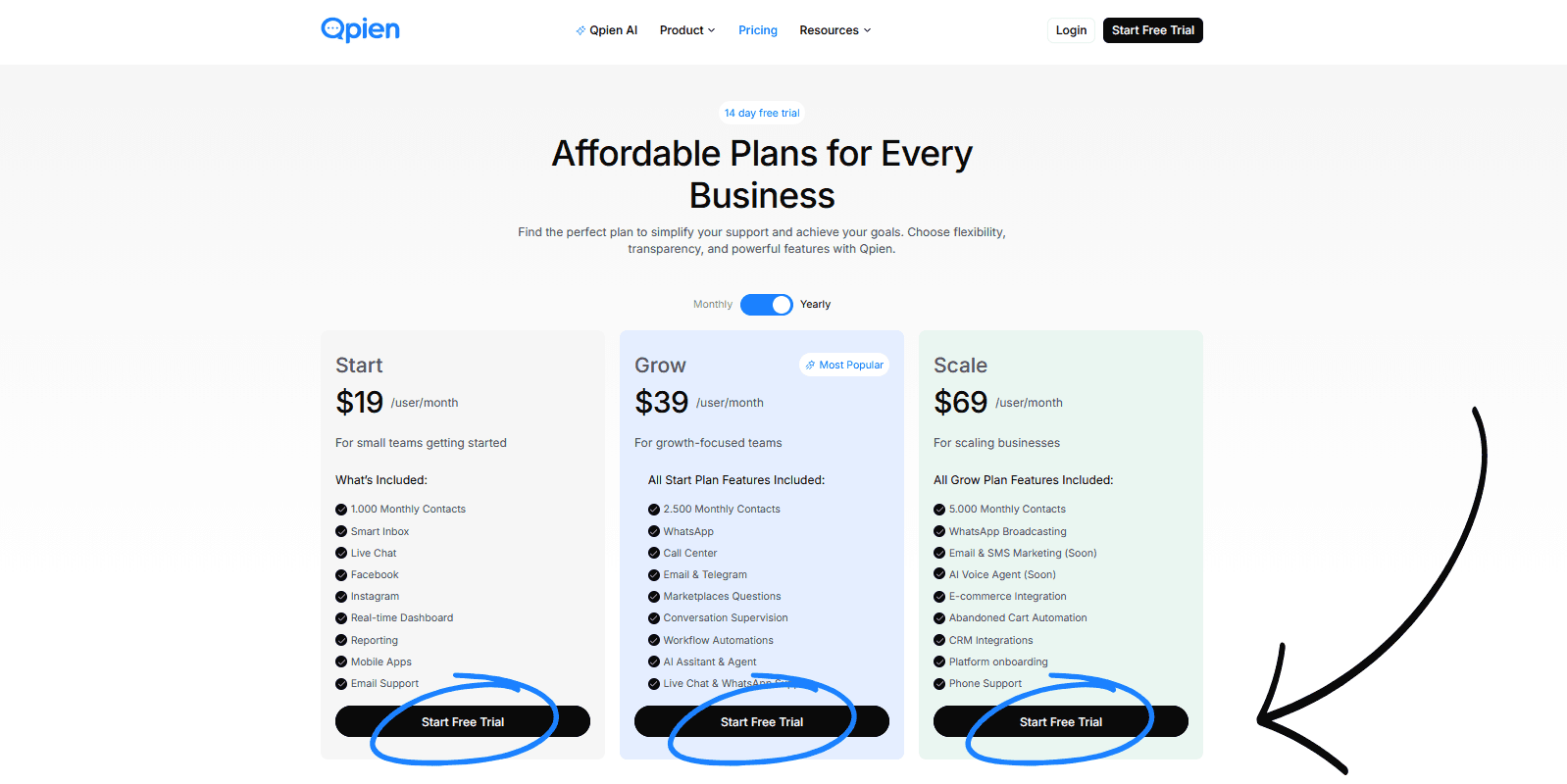
-> Fill in the registration form with the following details:
Enter your First Name and Last Name.
Use your company email address for a professional setup.
Select your country code from the flag icon and enter your mobile number.
Create a strong password (mix of letters and numbers) for your security.

-> Click "Get Started Now" to proceed to the verification step.
Account Verification Process
After clicking "Get Started Now" you must verify your email address to activate your Qpien account and access the dashboard.
Leave the Qpien verification screen open on your browser.
Check the inbox of the email address you provided during registration.
Look for an email with the subject line "Qpien Email Verification" sent from the Qpien system.
Open the email to find your unique verification code.
Return to the Qpien verification screen, enter the code into the provided field, and confirm.
-> Once the code is successfully verified, you will be automatically redirected to your new Qpien dashboard, ready to set up your inbox and integrations.

-> Then click the ‘Verify’ button to complete the process.
When you are directed to the login screen, if you see the message ‘Successful’ in the top right corner, your registration is complete.
You can now log in to the system.
Important Password Requirements
To ensure the security of your Qpien account and customer data, your password must meet the following criteria:
It must be at least 8 characters long.
It must contain at least one uppercase letter (A-Z).
It must contain at least one lowercase letter (a-z).
It must contain at least one number (0-9).
Troubleshooting Verification Issues
If you do not receive the verification code email or encounter issues during the sign-up process:
Check your Spam/Junk folder: The verification email might have been filtered incorrectly by your email provider.
Wait a few minutes: Delivery can sometimes be delayed. Allow up to 10 minutes for the email to arrive.
Resend the code: Use the "Resend Code" option on the Qpien verification screen if the email does not arrive.
Verify the email address: Ensure you did not make a typo when entering your email during registration. If you did, you will need to register again with the correct address.
Contact Support: If you have checked your spam folder, waited, and requested a new code but still haven't received it, please contact our support team for manual assistance.
Personalized Onboarding (Help Us Know You)
Please help us get to know you better by filling out the short form that appears when you first log in; this will enable us to offer you a personalised experience.
Step 1: Company Profile

1️⃣ Enter your company or product name.
2️⃣ Enter your company's website address.
3️⃣ Select your role in the company. If you select “Other”, enter your role in the field below.
4️⃣ Specify the size of your company in terms of the number of employees.
5️⃣ Select the industry in which you operate.
-> After completing all the information, click the “Next” button.
Step 2: Goals & Interests:

6️⃣Check the communication channels you are most interested in.
7️⃣Select your primary goal you plan to achieve with Qpien.
8️⃣Indicate where you heard about us.
-> After completing all the information, click the “Get Started” button.
What Happens After the 14-Day Free Trial?
Once your 14-day free trial expires, you will need to select a subscription plan to continue using Qpien's premium features, integrations, and AI tools without interruption. You can easily upgrade your plan, add more teammate seats, and manage your billing details directly from your workspace.
For step-by-step instructions on how to upgrade your account and manage your payments, please check out our detailed guide on Managinng your Qpien subscription plan.
Welcome to Qpien! Creating an account is the first step to centralizing your customer communication and automating your support and sales processes. Qpien offers a 14-day free trial so you can explore all premium features and see the impact on your business firsthand before committing to a plan.
This guide walks you through the account creation and email verification steps.
In this article:
How to Start Your 14-Day Free Trial
Account Verification Process
Important Password Requirements
Troubleshooting Verification Issues
Personalized Onboarding (Help Us Know You)
What Happens After the 14-Day Free Trial?
How to Start Your 14-Day Free Trial
To start using Qpien and activate your free trial, you need to register for a new account. Follow these steps:
-> Choose your plan and click Start a free trial.
-> Fill in the registration form with the following details:
Enter your First Name and Last Name.
Use your company email address for a professional setup.
Select your country code from the flag icon and enter your mobile number.
Create a strong password (mix of letters and numbers) for your security.
-> Click "Get Started Now" to proceed to the verification step.
Account Verification Process
After clicking "Get Started Now" you must verify your email address to activate your Qpien account and access the dashboard.
Leave the Qpien verification screen open on your browser.
Check the inbox of the email address you provided during registration.
Look for an email with the subject line "Qpien Email Verification" sent from the Qpien system.
Open the email to find your unique verification code.
Return to the Qpien verification screen, enter the code into the provided field, and confirm.
-> Once the code is successfully verified, you will be automatically redirected to your new Qpien dashboard, ready to set up your inbox and integrations.
-> Then click the ‘Verify’ button to complete the process.
When you are directed to the login screen, if you see the message ‘Successful’ in the top right corner, your registration is complete.
You can now log in to the system.
Important Password Requirements
To ensure the security of your Qpien account and customer data, your password must meet the following criteria:
It must be at least 8 characters long.
It must contain at least one uppercase letter (A-Z).
It must contain at least one lowercase letter (a-z).
It must contain at least one number (0-9).
Troubleshooting Verification Issues
If you do not receive the verification code email or encounter issues during the sign-up process:
Check your Spam/Junk folder: The verification email might have been filtered incorrectly by your email provider.
Wait a few minutes: Delivery can sometimes be delayed. Allow up to 10 minutes for the email to arrive.
Resend the code: Use the "Resend Code" option on the Qpien verification screen if the email does not arrive.
Verify the email address: Ensure you did not make a typo when entering your email during registration. If you did, you will need to register again with the correct address.
Contact Support: If you have checked your spam folder, waited, and requested a new code but still haven't received it, please contact our support team for manual assistance.
Personalized Onboarding (Help Us Know You)
Please help us get to know you better by filling out the short form that appears when you first log in; this will enable us to offer you a personalised experience.
Step 1: Company Profile
1️⃣ Enter your company or product name.
2️⃣ Enter your company's website address.
3️⃣ Select your role in the company. If you select “Other”, enter your role in the field below.
4️⃣ Specify the size of your company in terms of the number of employees.
5️⃣ Select the industry in which you operate.
-> After completing all the information, click the “Next” button.
Step 2: Goals & Interests:
6️⃣Check the communication channels you are most interested in.
7️⃣Select your primary goal you plan to achieve with Qpien.
8️⃣Indicate where you heard about us.
-> After completing all the information, click the “Get Started” button.
What Happens After the 14-Day Free Trial?
Once your 14-day free trial expires, you will need to select a subscription plan to continue using Qpien's premium features, integrations, and AI tools without interruption. You can easily upgrade your plan, add more teammate seats, and manage your billing details directly from your workspace.
For step-by-step instructions on how to upgrade your account and manage your payments, please check out our detailed guide on Managinng your Qpien subscription plan.
Welcome to Qpien! Creating an account is the first step to centralizing your customer communication and automating your support and sales processes. Qpien offers a 14-day free trial so you can explore all premium features and see the impact on your business firsthand before committing to a plan.
This guide walks you through the account creation and email verification steps.
In this article:
How to Start Your 14-Day Free Trial
Account Verification Process
Important Password Requirements
Troubleshooting Verification Issues
Personalized Onboarding (Help Us Know You)
What Happens After the 14-Day Free Trial?
How to Start Your 14-Day Free Trial
To start using Qpien and activate your free trial, you need to register for a new account. Follow these steps:
-> Choose your plan and click Start a free trial.
-> Fill in the registration form with the following details:
Enter your First Name and Last Name.
Use your company email address for a professional setup.
Select your country code from the flag icon and enter your mobile number.
Create a strong password (mix of letters and numbers) for your security.
-> Click "Get Started Now" to proceed to the verification step.
Account Verification Process
After clicking "Get Started Now" you must verify your email address to activate your Qpien account and access the dashboard.
Leave the Qpien verification screen open on your browser.
Check the inbox of the email address you provided during registration.
Look for an email with the subject line "Qpien Email Verification" sent from the Qpien system.
Open the email to find your unique verification code.
Return to the Qpien verification screen, enter the code into the provided field, and confirm.
-> Once the code is successfully verified, you will be automatically redirected to your new Qpien dashboard, ready to set up your inbox and integrations.
-> Then click the ‘Verify’ button to complete the process.
When you are directed to the login screen, if you see the message ‘Successful’ in the top right corner, your registration is complete.
You can now log in to the system.
Important Password Requirements
To ensure the security of your Qpien account and customer data, your password must meet the following criteria:
It must be at least 8 characters long.
It must contain at least one uppercase letter (A-Z).
It must contain at least one lowercase letter (a-z).
It must contain at least one number (0-9).
Troubleshooting Verification Issues
If you do not receive the verification code email or encounter issues during the sign-up process:
Check your Spam/Junk folder: The verification email might have been filtered incorrectly by your email provider.
Wait a few minutes: Delivery can sometimes be delayed. Allow up to 10 minutes for the email to arrive.
Resend the code: Use the "Resend Code" option on the Qpien verification screen if the email does not arrive.
Verify the email address: Ensure you did not make a typo when entering your email during registration. If you did, you will need to register again with the correct address.
Contact Support: If you have checked your spam folder, waited, and requested a new code but still haven't received it, please contact our support team for manual assistance.
Personalized Onboarding (Help Us Know You)
Please help us get to know you better by filling out the short form that appears when you first log in; this will enable us to offer you a personalised experience.
Step 1: Company Profile
1️⃣ Enter your company or product name.
2️⃣ Enter your company's website address.
3️⃣ Select your role in the company. If you select “Other”, enter your role in the field below.
4️⃣ Specify the size of your company in terms of the number of employees.
5️⃣ Select the industry in which you operate.
-> After completing all the information, click the “Next” button.
Step 2: Goals & Interests:
6️⃣Check the communication channels you are most interested in.
7️⃣Select your primary goal you plan to achieve with Qpien.
8️⃣Indicate where you heard about us.
-> After completing all the information, click the “Get Started” button.
What Happens After the 14-Day Free Trial?
Once your 14-day free trial expires, you will need to select a subscription plan to continue using Qpien's premium features, integrations, and AI tools without interruption. You can easily upgrade your plan, add more teammate seats, and manage your billing details directly from your workspace.
For step-by-step instructions on how to upgrade your account and manage your payments, please check out our detailed guide on Managinng your Qpien subscription plan.
Previous
Updating or resetting your password
Next
Next
Use your WhatsApp channel in workflows
Try Qpien free for 14 days! 🎉
Ready to take control of all your support channels?
Empower your customer interactions with Qpien! Boost sales and elevate satisfaction with every conversation.
Try Qpien free for 14 days! 🎉
Ready to take control of all your support channels?
Empower your customer interactions with Qpien! Boost sales and elevate satisfaction with every conversation.
Try Qpien free for 14 days! 🎉
Ready to take control of all your support channels?
Empower your customer interactions with Qpien! Boost sales and elevate satisfaction with every conversation.