
Zoho CRM integration
Integrate Qpien with Zoho CRM to manage your customer conversations, leads, and communication history from a single platform.
With this integration, your support and sales teams can work with unified, real-time customer data — improving response speed and increasing conversion rates.
🚀 Key Benefits
With the Qpien + Zoho CRM integration:
Conversations from WhatsApp, Instagram, and other channels are synced to Zoho CRM
Your entire team can access customer history from one place
Faster follow-ups and improved sales conversion
Sales and support teams operate on the same data
🔗 What You Can Do
This integration enables you to:
Access Zoho CRM data directly within the Qpien interface
Automatically sync new leads and contacts from Zoho CRM to Qpien
Build automations in Qpien for newly created leads and contacts
View and manage CRM data without leaving the conversation screen
⚙️ Setup Guide
1. Start the Integration in Qpien
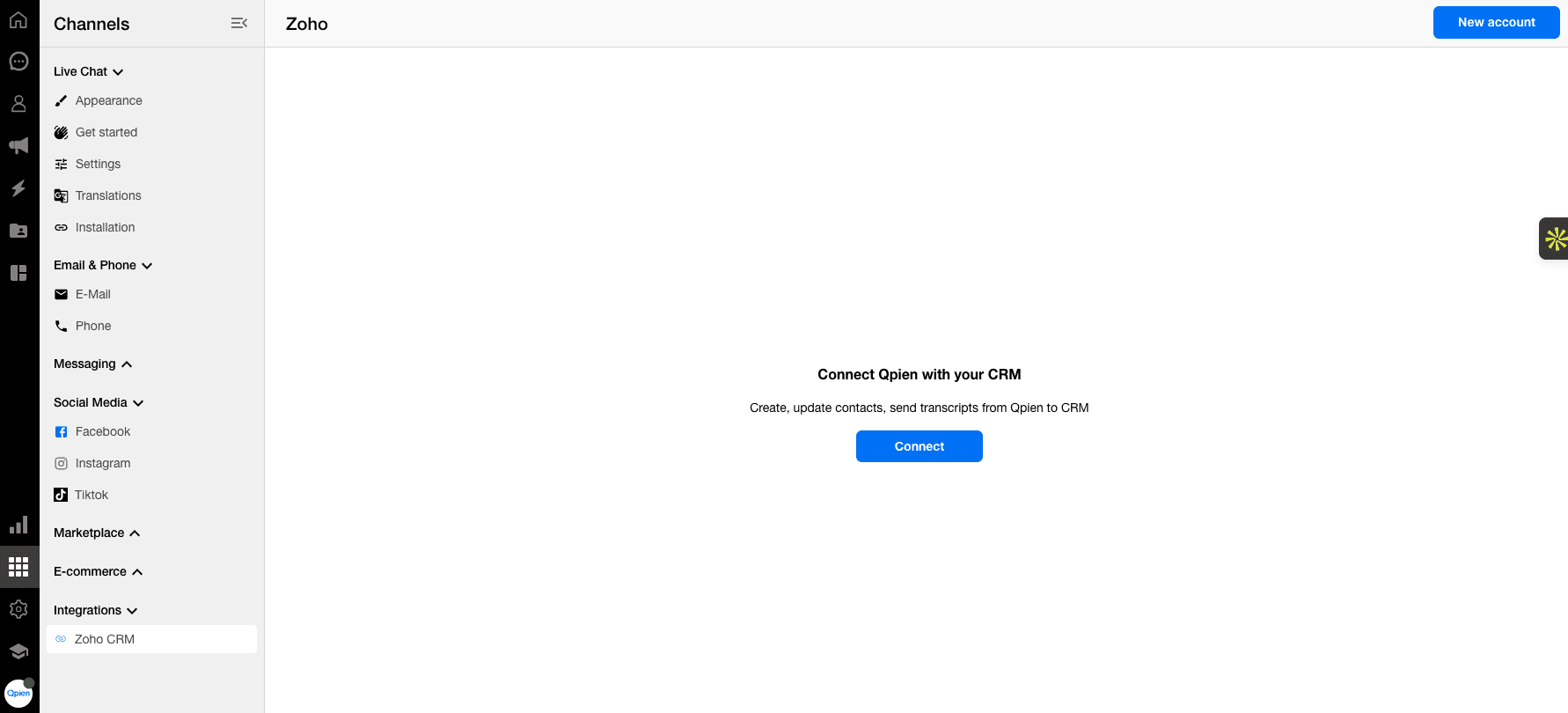
Go to Qpien Dashboard → Settings → Integrations
Select Zoho CRM
Click Connect New Account
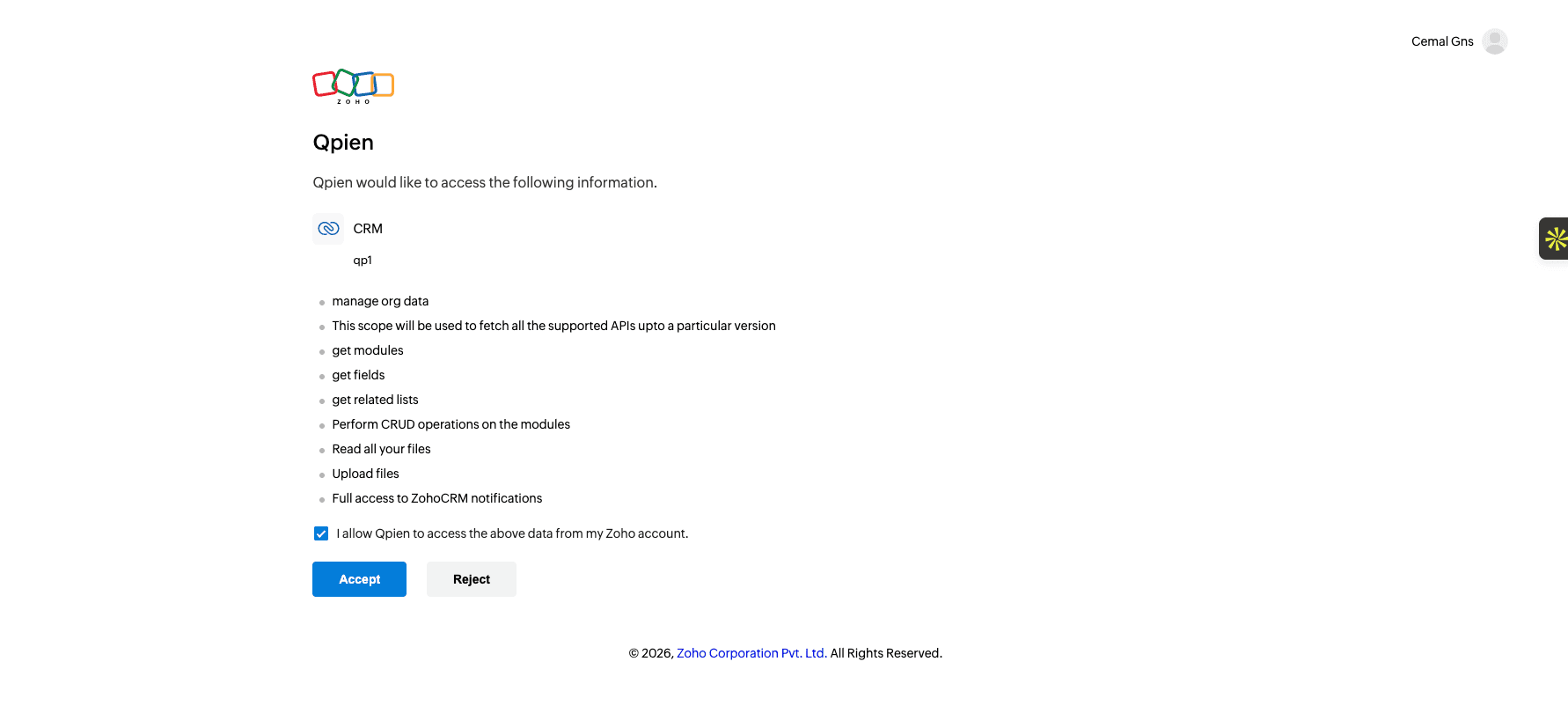
You will be redirected to Zoho CRM to grant access permissions.
Log in to your Zoho CRM account
Approve the required permissions
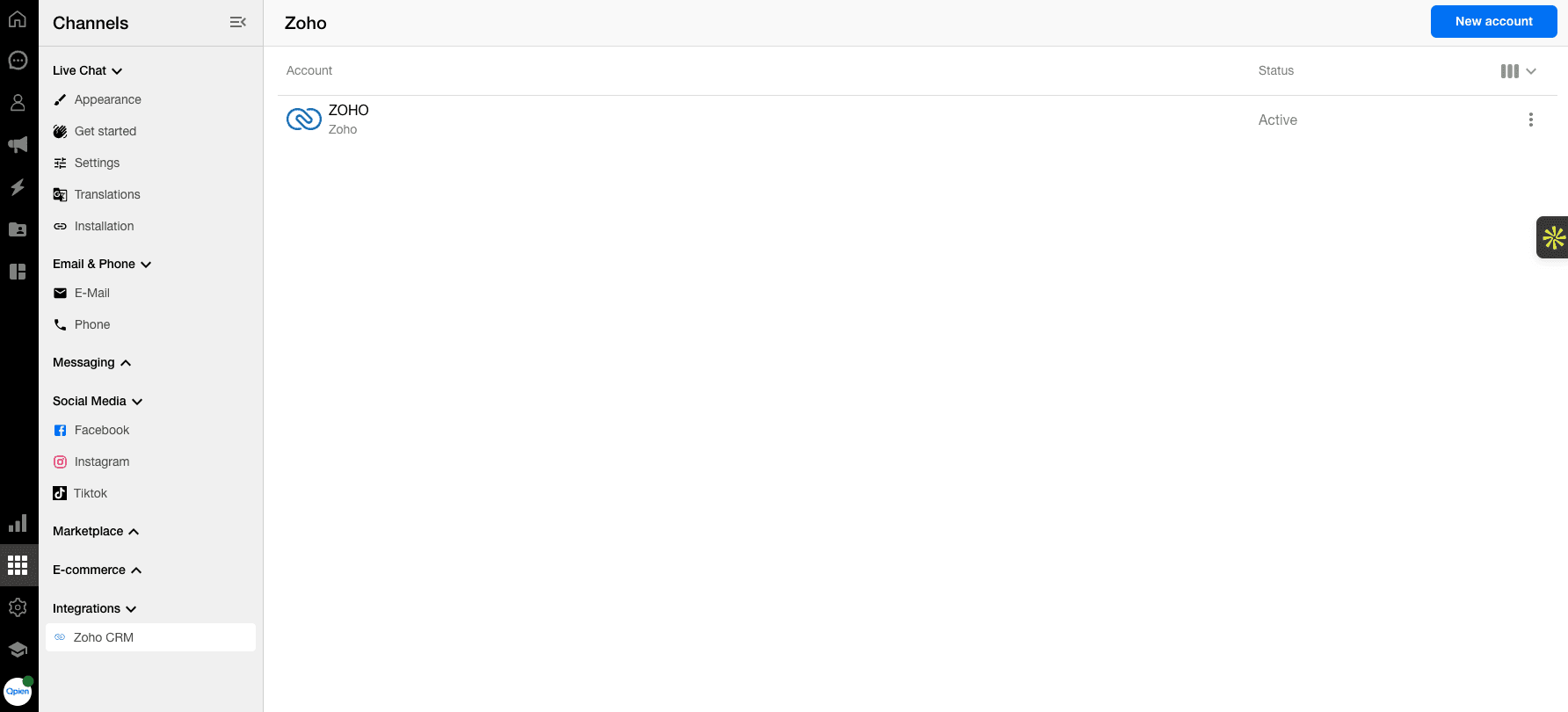
Complete the connection
Once the integration is successful, you will be automatically redirected back to Qpien.
2. Configure Zoho CRM Settings
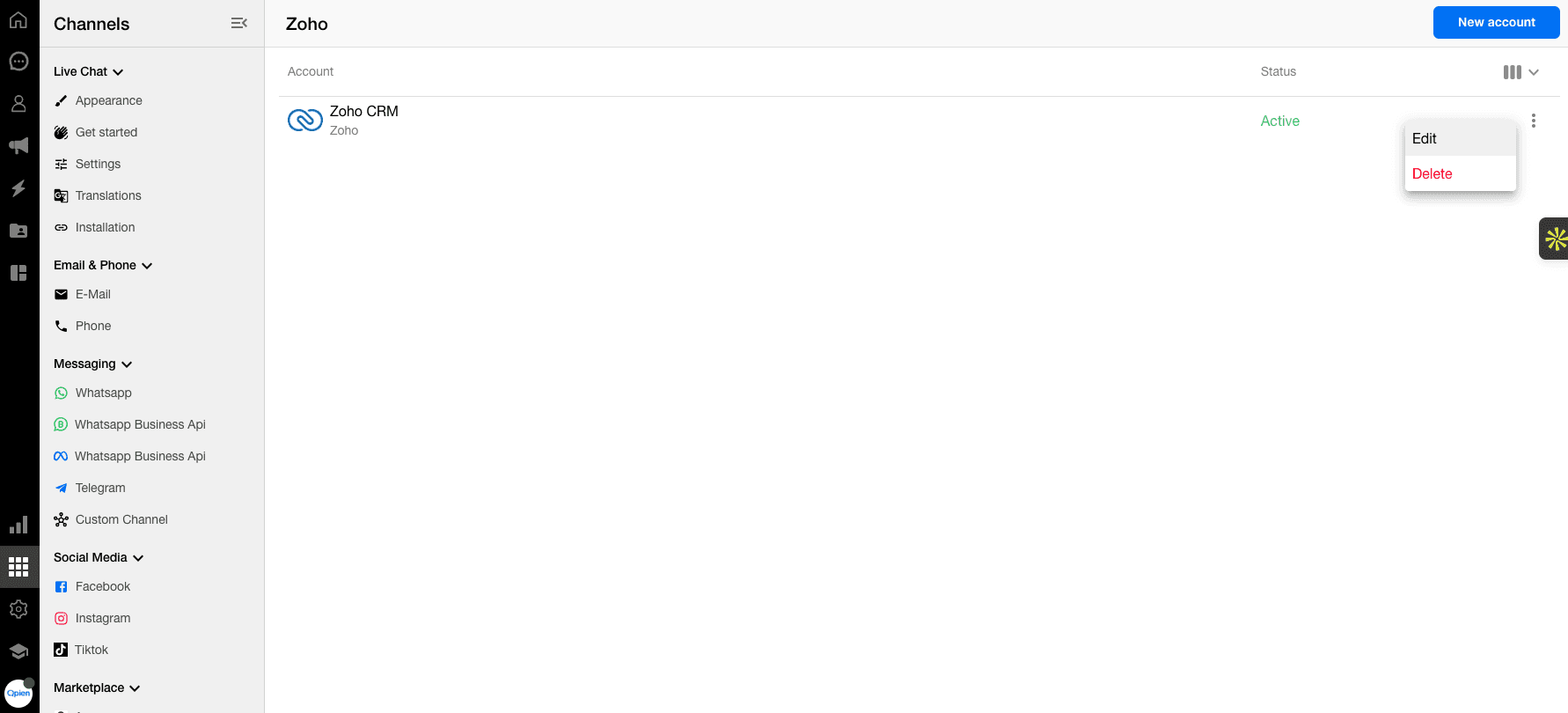
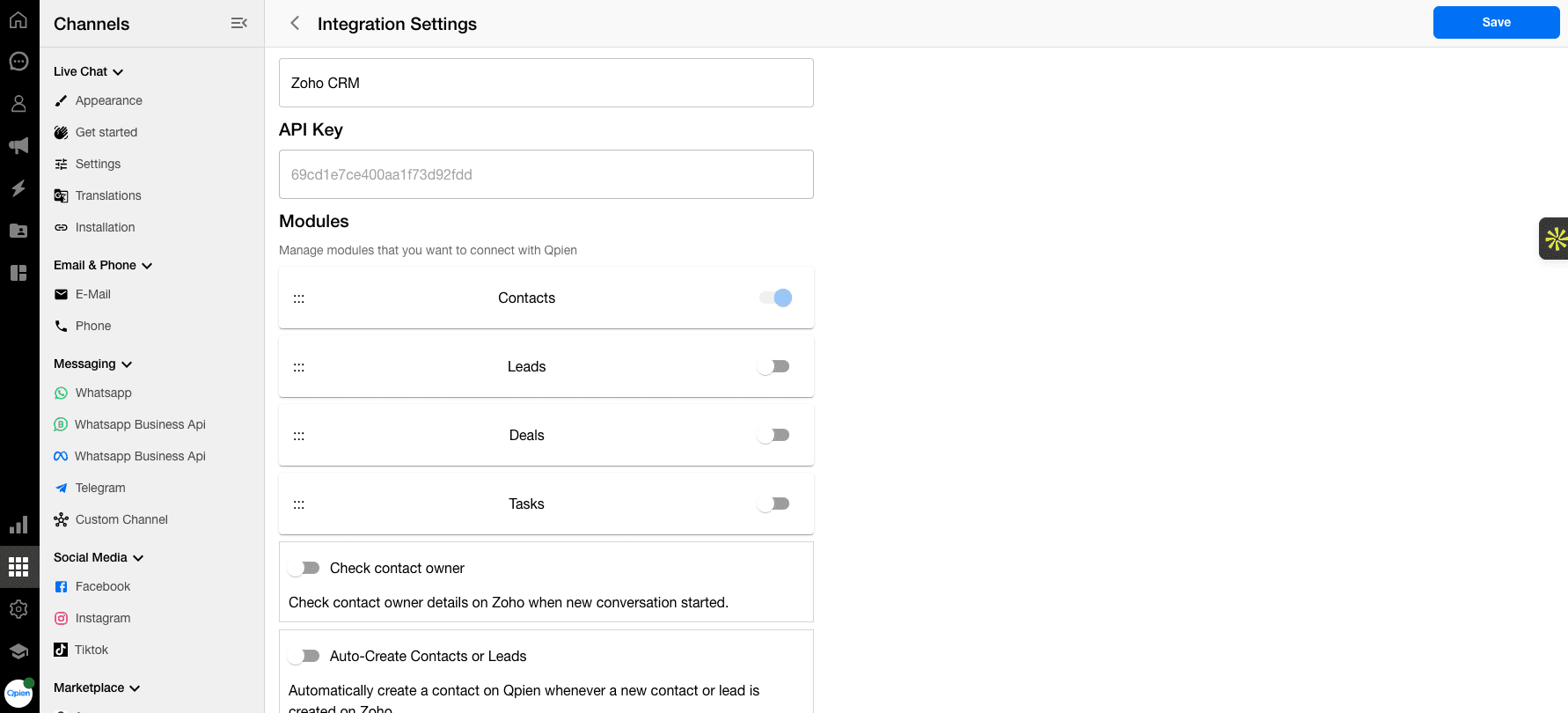
After connecting, configure your integration settings:
Enable the modules you want to sync (Leads, Contacts, Deals, etc.)
Check Contact Owner
Automatically checks the contact owner details in Zoho when a new conversation startsAuto-Create Contacts or Leads
Automatically creates a contact in Qpien when a new contact or lead is created in Zoho
(Enable or disable based on your preference)
💬 Access Zoho CRM Data Inside Qpien
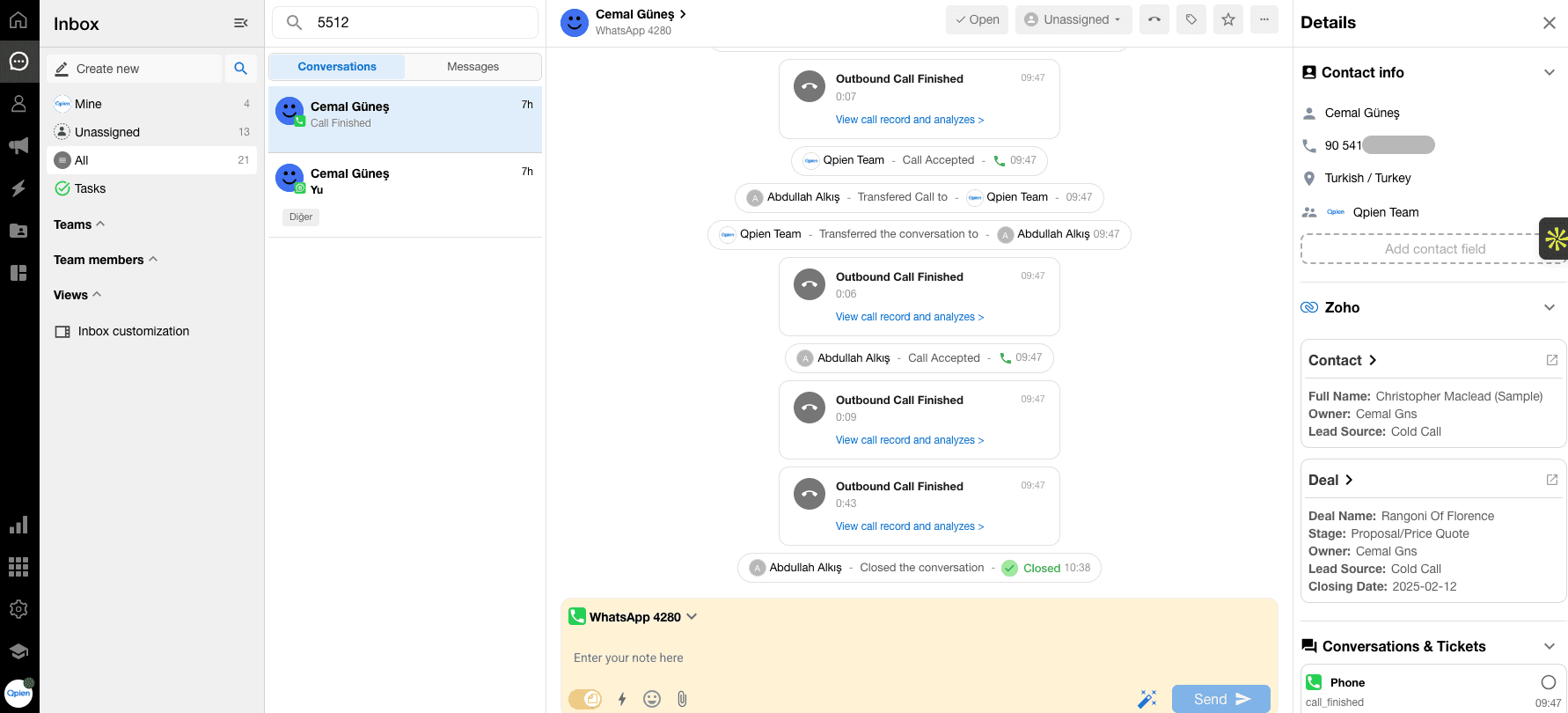
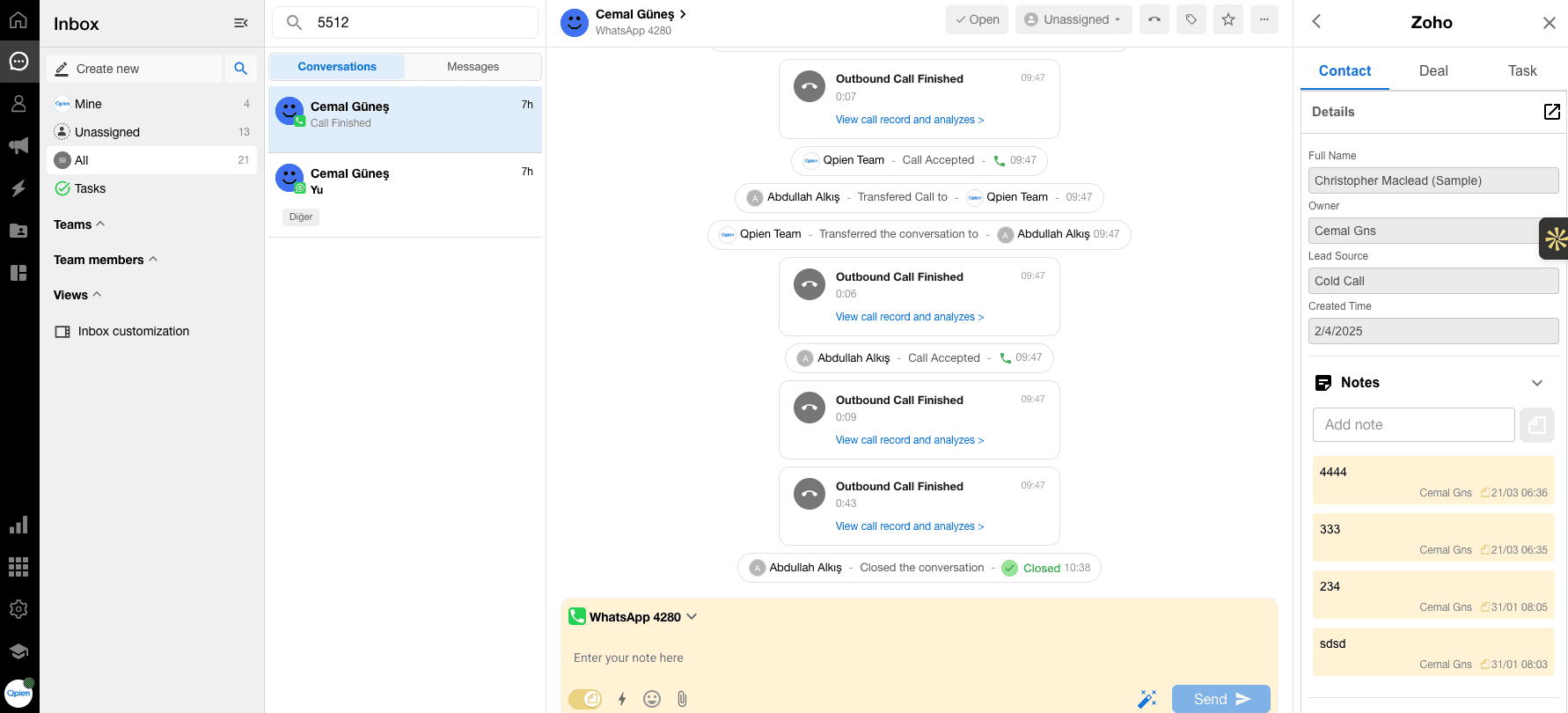
Once the integration is active, you can view Zoho CRM data directly within Qpien.
How it works:
Open any customer conversation
Expand the conversation detail panel
Instantly access the customer’s:
Contact / Lead information
Deals
CRM-related data
This allows your team to respond faster with full context.
🔄 Automation Capabilities
With Qpien, you can build automations based on CRM data:
Trigger workflows for new leads
Assign conversations automatically
Send automated messages based on customer data
Tag and segment customers dynamically
⚠️ Important Notes
Customer phone/email data in Qpien must match the corresponding fields in Zoho CRM
Ensure the required modules are enabled in both Qpien and Zoho CRM
Make sure your Zoho CRM plan includes access to the modules you want to use
Incorrect field mapping may cause sync issues
With this integration, your support and sales teams can work with unified, real-time customer data — improving response speed and increasing conversion rates.
🚀 Key Benefits
With the Qpien + Zoho CRM integration:
Conversations from WhatsApp, Instagram, and other channels are synced to Zoho CRM
Your entire team can access customer history from one place
Faster follow-ups and improved sales conversion
Sales and support teams operate on the same data
🔗 What You Can Do
This integration enables you to:
Access Zoho CRM data directly within the Qpien interface
Automatically sync new leads and contacts from Zoho CRM to Qpien
Build automations in Qpien for newly created leads and contacts
View and manage CRM data without leaving the conversation screen
⚙️ Setup Guide
1. Start the Integration in Qpien
Go to Qpien Dashboard → Settings → Integrations
Select Zoho CRM
Click Connect New Account
You will be redirected to Zoho CRM to grant access permissions.
Log in to your Zoho CRM account
Approve the required permissions
Complete the connection
Once the integration is successful, you will be automatically redirected back to Qpien.
2. Configure Zoho CRM Settings
After connecting, configure your integration settings:
Enable the modules you want to sync (Leads, Contacts, Deals, etc.)
Check Contact Owner
Automatically checks the contact owner details in Zoho when a new conversation startsAuto-Create Contacts or Leads
Automatically creates a contact in Qpien when a new contact or lead is created in Zoho
(Enable or disable based on your preference)
💬 Access Zoho CRM Data Inside Qpien
Once the integration is active, you can view Zoho CRM data directly within Qpien.
How it works:
Open any customer conversation
Expand the conversation detail panel
Instantly access the customer’s:
Contact / Lead information
Deals
CRM-related data
This allows your team to respond faster with full context.
🔄 Automation Capabilities
With Qpien, you can build automations based on CRM data:
Trigger workflows for new leads
Assign conversations automatically
Send automated messages based on customer data
Tag and segment customers dynamically
⚠️ Important Notes
Customer phone/email data in Qpien must match the corresponding fields in Zoho CRM
Ensure the required modules are enabled in both Qpien and Zoho CRM
Make sure your Zoho CRM plan includes access to the modules you want to use
Incorrect field mapping may cause sync issues
With this integration, your support and sales teams can work with unified, real-time customer data — improving response speed and increasing conversion rates.
🚀 Key Benefits
With the Qpien + Zoho CRM integration:
Conversations from WhatsApp, Instagram, and other channels are synced to Zoho CRM
Your entire team can access customer history from one place
Faster follow-ups and improved sales conversion
Sales and support teams operate on the same data
🔗 What You Can Do
This integration enables you to:
Access Zoho CRM data directly within the Qpien interface
Automatically sync new leads and contacts from Zoho CRM to Qpien
Build automations in Qpien for newly created leads and contacts
View and manage CRM data without leaving the conversation screen
⚙️ Setup Guide
1. Start the Integration in Qpien
Go to Qpien Dashboard → Settings → Integrations
Select Zoho CRM
Click Connect New Account
You will be redirected to Zoho CRM to grant access permissions.
Log in to your Zoho CRM account
Approve the required permissions
Complete the connection
Once the integration is successful, you will be automatically redirected back to Qpien.
2. Configure Zoho CRM Settings
After connecting, configure your integration settings:
Enable the modules you want to sync (Leads, Contacts, Deals, etc.)
Check Contact Owner
Automatically checks the contact owner details in Zoho when a new conversation startsAuto-Create Contacts or Leads
Automatically creates a contact in Qpien when a new contact or lead is created in Zoho
(Enable or disable based on your preference)
💬 Access Zoho CRM Data Inside Qpien
Once the integration is active, you can view Zoho CRM data directly within Qpien.
How it works:
Open any customer conversation
Expand the conversation detail panel
Instantly access the customer’s:
Contact / Lead information
Deals
CRM-related data
This allows your team to respond faster with full context.
🔄 Automation Capabilities
With Qpien, you can build automations based on CRM data:
Trigger workflows for new leads
Assign conversations automatically
Send automated messages based on customer data
Tag and segment customers dynamically
⚠️ Important Notes
Customer phone/email data in Qpien must match the corresponding fields in Zoho CRM
Ensure the required modules are enabled in both Qpien and Zoho CRM
Make sure your Zoho CRM plan includes access to the modules you want to use
Incorrect field mapping may cause sync issues
Previous
Flow Bots
Next
Next
Connect your Whatsapp channel
Try Qpien free for 14 days! 🎉
Ready to take control of all your support channels?
Empower your customer interactions with Qpien! Boost sales and elevate satisfaction with every conversation.
Try Qpien free for 14 days! 🎉
Ready to take control of all your support channels?
Empower your customer interactions with Qpien! Boost sales and elevate satisfaction with every conversation.
Try Qpien free for 14 days! 🎉
Ready to take control of all your support channels?
Empower your customer interactions with Qpien! Boost sales and elevate satisfaction with every conversation.